

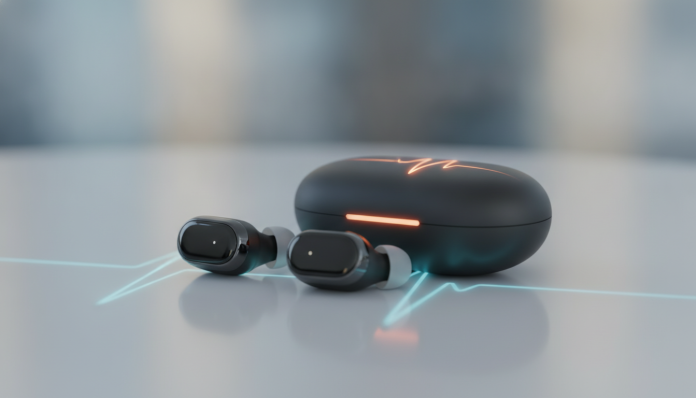

AirPods Pro 3 with heart rate measurement: what you need before getting started
If you just put your AirPods Pro 3 in your ears and wondered where the heart rate monitoring feature went, know that you’re not alone. Apple positioned this feature differently than many people expected, and it doesn’t appear obviously in iPhone settings. With the right steps, however, you can activate and use the measurement in less than three minutes.
To follow this tutorial, you’ll need AirPods Pro 3 (the model released in 2025), an iPhone with iOS 19 or later, and the earbuds properly paired and updated with the latest firmware. Without these requirements, some menus described here simply won’t appear. Confirm your AirPods firmware version at: Settings > Bluetooth > tap the “i” next to AirPods Pro 3 > About.
What is heart rate measurement on AirPods Pro 3
Before diving into the step-by-step instructions, it’s worth understanding how the feature works, because this helps you interpret the results and avoid frustration.
AirPods Pro 3 use photoplethysmography sensors (PPG) built into the earbud housing, the same principle used by smartwatches like the Apple Watch. The sensor emits infrared light and measures variations in blood flow in the ear canal to calculate heart rate (number of beats per minute) and, under certain conditions, heart rate variability (HRV), which indicates how much the interval between heartbeats varies and is used as an indicator of recovery and stress.
The ear canal has consistent vascularization, which makes it a suitable location for this type of reading. According to Apple, accuracy is comparable to the Apple Watch during low-intensity activities. During high-intensity workouts with lots of head movement, the manufacturer recommends comparing the data with a dedicated heart rate monitor.
Enabling health monitoring on AirPods Pro 3
The feature is located within the iPhone’s Health app, not directly in Bluetooth settings. Follow the steps below in the exact order.
- Open the Settings app on your iPhone.
- Tap Bluetooth and make sure AirPods Pro 3 appear as “Connected”.
- Tap the information icon (the “i”) next to the earbuds’ name.
- Scroll down until you find the Health section and tap Heart Rate Monitoring.
- Enable the Monitor Heart Rate toggle. The system will ask for permission to record data in the Health app.
- Tap Allow and choose whether you want to share data only during physical activities or also during general use (including when you’re stationary listening to music or on calls).
Done. From that moment on, AirPods Pro 3 begin collecting heart rate data whenever they’re in your ears, according to the option selected in step 6.
Viewing heart rate data in the Health app
Activating the sensor is only half the battle. Knowing where the data appears and how to read it is what turns the feature into something useful in everyday life.
- Open the Health app on your iPhone.
- Tap the Browse tab (magnifying glass icon) in the bottom bar.
- Type “Heart Rate” in the search or access the Heart category.
- Tap Heart Rate to see the graph with readings over time.
- At the top of the graph, you can filter by day, week, month, or year. Tap any point on the graph to see the exact value and the source of the reading (AirPods Pro 3 will appear as the origin).
- To see HRV, go back to the Heart category and tap Heart Rate Variability.
Data from AirPods Pro 3 coexists with data from the Apple Watch if you have both. The Health app displays the source of each reading individually, so you can compare measurements from both devices without confusion.
Using measurement during workouts
If the goal is to track heartbeats during exercise, the flow is slightly different and goes through the Fitness app or compatible third-party workout apps.
- With AirPods Pro 3 in your ears, open the Fitness app on your iPhone.
- Tap Start Workout and choose the activity type (running, walking, cycling, etc.).
- During the workout, the app displays heart rate in real-time at the top of the screen, with the reading coming from AirPods Pro 3 when they’re the only available source.
- If you use an Apple Watch at the same time, the Watch assumes priority as the main source. To force the reading from AirPods, pause the recording on your Watch before starting the workout on your iPhone.
Third-party apps like Nike Run Club, Strava, and Runna can also read heart rate data from AirPods Pro 3 via HealthKit (Apple’s platform that centralizes health data), as long as you grant app access to the Health app the first time the app requests it.
Common problems and how to fix them
AirPods Pro 3 don’t appear with the heart rate option
Check if your earbuds’ firmware is up to date. To force an update, leave the earbuds in the case, connect the case to a power source, and keep your iPhone nearby with Wi-Fi connected. The update happens automatically in the background. Wait about 30 minutes and check the version again in Settings > Bluetooth.
The reading appears as “no data” in the Health app
This usually happens when the earbuds aren’t properly fitted in the ear canal. The sensor needs adequate contact with the skin to function. Try changing the silicone ear tips to a different size and perform the Ear Fit Test (available in Settings > Bluetooth > AirPods Pro 3 > Ear Fit Test). A good fit for the sensor usually coincides with a good result on the seal test.
AirPods Pro 3 data conflicts with Apple Watch data
The Health app displays all readings, but uses an algorithm to choose which value to show as “primary” in certain contexts. If you want AirPods to always be the priority source, go to Health > Data Sources and Access > Heart Rate and rearrange the order of sources by placing AirPods Pro 3 at the top of the list.
Your iPhone isn’t on iOS 19
The heart rate function on AirPods Pro 3 depends on APIs introduced in iOS 19. If your iPhone supports the update but you haven’t done it yet, go to Settings > General > Software Update. If your model isn’t compatible with iOS 19, the feature won’t be available, regardless of your earbuds model.
AirPods Pro 3 in Brazil: what to know before buying to use this feature
Official availability of AirPods Pro 3 in Brazil, with Anatel approval, is an important condition if you want to use the health function without restrictions. Imported versions without approval may work, but Apple restricts some health functions by region in certain markets, and official technical support becomes compromised.
According to public information, Apple operates online and physical stores in Brazil, and AirPods Pro 3 were made officially available in the country. The launch price in the US was $249. In Brazil, the price range practiced in authorized stores ranges around R$ 2,200 to R$ 2,600, with variation depending on the retailer and period. Always check if the packaging bears the Anatel seal and if the invoice is issued in your name to guarantee the 12 months of legal warranty provided by the Consumer Protection Code, in addition to Apple’s additional warranty.
If you’re evaluating other heart rate monitoring devices to compare, the Galaxy Watch 8 has battery performance and sensors independently evaluated, which can be helpful as a reference to understand the differences between wrist and ear monitoring.
Frequently asked questions about heart rate measurement on AirPods Pro 3
Does the feature work without an Apple Watch?
Yes. AirPods Pro 3 operate independently for heart rate monitoring. You only need an iPhone with iOS 19 and the Health app configured.
Is ear measurement as accurate as Apple Watch?
According to Apple, under resting and light activity conditions the results are comparable. During high-intensity workouts with sudden head movements, the reading may be less stable than a wrist sensor. For casual fitness tracking, the accuracy is sufficient; for clinical monitoring, consult a healthcare professional.
Is data stored anywhere beyond the iPhone?
Yes, if you have iCloud enabled with Health app backup, the data is encrypted and stored in the cloud. Apple states, in its privacy policy, that health data is not used for advertising. You can check and manage which data is synced in Health > Your Profile > Privacy.
Can I share my heart rate data with a doctor?
Yes. The Health app allows you to export a PDF with a health summary or an XML file with the complete history. Access Health > Your Profile > Export Health Data. Professionals using Apple’s Health app in clinical settings can also receive real-time sharing if you configure this in Health > Sharing.
What to do now
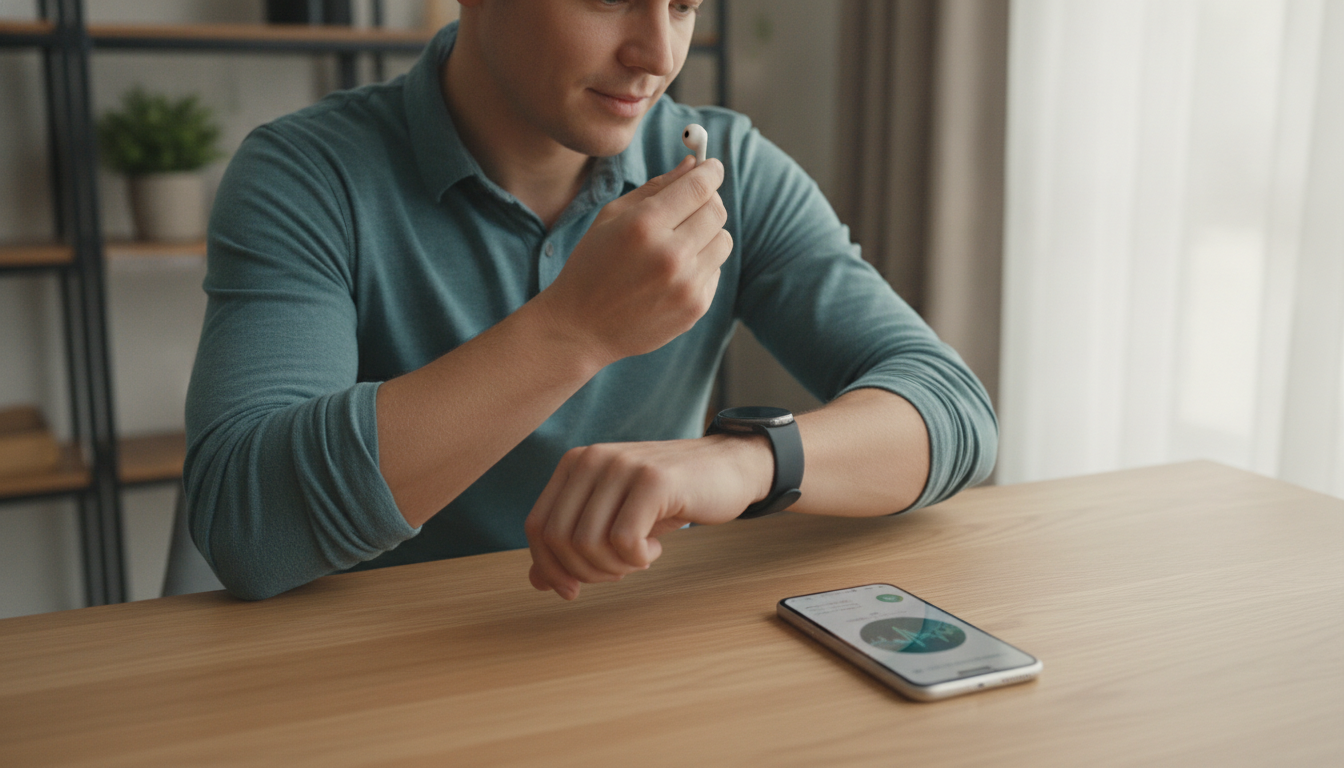
With the steps above, heart rate measurement should already be working. The next natural step is to observe the data for a few days to understand your resting heart rate patterns, something the Health app makes easy with graphs by period.
If you use other AI and health features on your iPhone and want to integrate more Apple ecosystem features into your daily life, it’s worth exploring how ChatGPT Agent on mobile can help you interpret health reports exported from the Health app, a combination that’s gained popularity among users who want to better understand their own data without needing medical jargon. The feature doesn’t replace professional care, but works well as a starting point for more informed questions.