

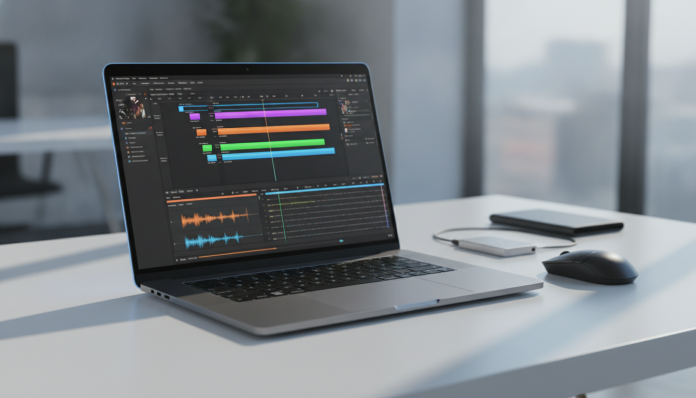

Edit video on a notebook without lag: what really matters when choosing
Editing video on a notebook seems simple until the software freezes in the middle of the timeline, the export takes forty minutes for a two-minute clip, or the fan spins up like the computer is catching fire. The good news is that in 2026, the market offers solid options in very different price ranges — and understanding which specifications make a real difference prevents you from wasting money in the wrong place.
This guide is for people who edit video frequently: YouTubers, content producers, freelance videomakers, and communications professionals who need a notebook that can handle 1080p, 4K, and in some cases even RAW footage from mirrorless cameras. If you only occasionally cut a clip, any mid-range notebook will do. But if editing is part of your work or serious hobby, the choices below make a practical difference in your day-to-day.
The secret lies in three pillars: a processor with hardware acceleration for video codecs, enough RAM to avoid swap usage (using the SSD as temporary memory, which is much slower), and a GPU that the editing software recognizes and actually uses. Let’s break down each one.
The processor is the heart, but not the only muscle
The processor (CPU) determines the speed of decoding, real-time rendering, and export. In 2026, the most relevant lines for editing are the Intel Core Ultra 200H/HX series and AMD Ryzen AI 300 HX series chips, both with multiple performance and efficiency cores. On the Apple side, the Apple M4 Pro and M4 Max continue to be the gold standard in efficiency per watt.
What sets these chips apart from simpler models is the dedicated video decoding block. Intel calls it Quick Sync; AMD has the integrated media engine; Apple integrates everything into the same unified chip. In practice, these blocks take on the task of reading heavy codecs like H.265 (HEVC) and AV1 without overloading the main cores — it’s like having an assistant who does the heavy lifting while you focus on the creative work. Without this feature, the CPU alone handles everything and overheats, freezing the timeline.
For 1080p projects, a processor with at least 8 performance cores works well. For 4K, prefer 12 cores or more, especially if you work with multi-camera setups or heavy effects. Avoid entry-level chips with only 4 mixed cores — they’re sufficient for browsing the internet, not for editing.
RAM: where most people make the mistake of cutting corners
RAM is working memory. When you open a project with multiple video tracks, the software loads previews, audio, thumbnails, and effects — all in RAM. If it fills up, the system starts using the SSD as a replacement (a process called swap), and then performance drops noticeably.
- 16 GB: minimum acceptable for 1080p editing with few effects. Not ideal.
- 32 GB: the ideal point for most editors in 2026, covers 4K comfortably for medium-sized projects.
- 64 GB or more: necessary only for projects with many layers, RAW from cinema cameras, or complex post-production workflows.
One important detail: check if the RAM is soldered to the board (which is common in ultra-thin notebooks) or if it has an expansion slot. Soldered RAM cannot be upgraded later. If the model you’re interested in comes with 16 GB soldered and the budget is tight, think twice — you may need more in a year or two.
RAM speed also matters. On chips like the Apple M4, memory is unified and shared between CPU and GPU, so more GHz directly on the chip makes a real difference. On Intel and AMD platforms, DDR5 RAM with frequencies above 6000 MHz is already present in several performance-line notebooks in 2026; check the technical specifications of the specific model.
GPU: acceleration that the software needs to recognize
The graphics card (GPU) comes into play in two ways: as an accelerator for real-time effects and as an export engine. The problem is that not every GPU is well supported by the software you use. Before buying, confirm that your editor (Premiere Pro, DaVinci Resolve, Final Cut Pro, CapCut Pro) supports the GPU of the chosen model via CUDA (NVIDIA), OpenCL (AMD), or Metal (Apple).
NVIDIA GeForce RTX 50 series and AMD Radeon RX 8000M series discrete GPUs already appear in performance notebooks in 2026. NVIDIA has an advantage in the software ecosystem — most plugins and DaVinci Resolve have deeper optimization for CUDA. AMD is improving, but check compatibility with your workflow first.
For those using Final Cut Pro, the integration with Apple M4 chips is hard to beat: the software was developed specifically to use the media blocks of the chip, resulting in fast exports with low power consumption. If you live in the Apple ecosystem, this combination still makes a lot of sense.
Screen: you’ll be staring at it for hours
The screen matters both for color accuracy and ergonomics. For video editing, look for:
- DCI-P3 color coverage above 95%: ensures that the colors you see are close to what viewers will see on calibrated screens.
- Minimum resolution of 2K (2560 x 1600): on 14 to 16-inch screens, Full HD looks “chunky” for fine editing work.
- Refresh rate of 120 Hz or higher: makes timeline scrubbing (dragging the cursor to navigate the video) much smoother.
- Brightness above 400 nits: important if you work in bright environments.
OLED panels deliver perfect blacks and excellent color coverage, but can exhibit burn-in with intensive use of static interface elements — something to consider if you spend all day with the same toolbar on screen. Mini-LED panels are a solid alternative with high brightness and good accuracy without the risk of burn-in.
Storage and connectivity: details that jam your workflow
A fast NVMe SSD is essential. Video projects generate huge files, and read and write speeds directly affect how much the software needs to buffer before playback. In 2026, PCIe 4.0 and 5.0 SSDs are already common in performance notebooks. Check the sequential read speed — values above 5,000 MB/s are comfortable for 4K.
For capacity, 512 GB is the minimum, but in practice you’ll want 1 TB or more on the internal drive, complemented by an external hard drive or SSD for project files. Speaking of external: check if the notebook has Thunderbolt 4 or USB4 — these ports allow you to connect external SSDs with enough speed to edit directly from the device without copying to the internal drive.
Other technical specifications worth attention:
- HDMI 2.1 port for connecting an external 4K monitor
- SD or CFexpress card reader (ideal for editors who shoot with cameras)
- Wi-Fi 6E or 7 for wireless network file transfers
- Battery: video editing notebooks typically last between 4 and 8 hours with moderate use; during active editing, expect less
Budget ranges and what to expect from each
Up to $5,000 BRL: 1080p editing with limitations
In this range, you’ll find notebooks with entry-level Intel Core Ultra or Ryzen 7 processors, 16 GB of RAM, and 512 GB SSD. They’re capable of editing 1080p without trouble, but 4K will require creating proxies (low-resolution versions of clips to edit more easily and swap back in for export). Don’t expect relevant discrete GPU here.
$5,000 to $10,000 BRL: the sweet spot for most
Here you’ll find notebooks with more robust processors (Core Ultra 7 or Ryzen 9), 32 GB of RAM, 1 TB SSD, and in some cases entry-level discrete GPU. Models like the Dell XPS 15, ASUS ProArt Studiobook, and MacBook Pro 14 with M4 position themselves in this range depending on configuration. The MacBook Pro 14 with M4 chip has a launch price of $1,999 in the US — in Brazil, the value varies depending on taxes and exchange rates, so check authorized Apple retailers for current pricing.
Above $10,000 BRL: professional without compromise
For this budget, you have access to the MacBook Pro 16 with M4 Pro or M4 Max, notebooks with RTX 50 series and 64 GB of RAM, and mobile workstations like the Lenovo ThinkPad P-series. These are machines for those working with RAW from cinema cameras, complex multi-camera editing, or post-production for broadcast.
Brazilian context: what to consider before buying
Importing notebooks has costs and risks. Devices without Anatel homologation can be seized at customs or have Wi-Fi blocked by Brazilian carriers — Anatel requires that devices with radio frequencies be approved to operate legally in the country. Check for the Anatel seal before buying an imported model.
Warranty also changes: notebooks purchased in the US typically don’t have technical support in Brazil — you’d need to send the device abroad or pay an independent service center. Brands like Dell, HP, Lenovo, ASUS, and Apple have a national technical service network, which is worth a lot in case of problems.
That said, some specific configurations — especially MacBooks with lots of RAM — arrive in Brazil at significantly higher prices than in the US. Evaluate whether the cost-benefit makes sense for your profile or if a similar model from another brand would deliver comparable results for less.
Those looking for accessories to complement their editing setup may also be interested in a good noise-canceling headset for mixing audio without environmental interference — it’s worth checking a guide like Bluetooth headphones with ANC up to R$ 500 worth buying to not make a mistake with this choice.
Frequently asked questions about video editing notebooks
Do I need a dedicated GPU for video editing?
It depends on the software and resolution. For 1080p on Premiere Pro or DaVinci Resolve, a modern integrated GPU already helps, but a dedicated GPU makes a real difference on 4K projects with lots of effects. On macOS with Final Cut Pro, the M4 chip handles everything internally very efficiently without a dedicated GPU.
Are 16 GB of RAM sufficient in 2026?
For light 1080p editing, yes. For 4K or projects with many layers, 16 GB starts to show limitations — you’ll notice slowness when switching between applications or leaving the browser open alongside the editor. The ideal today is to start with 32 GB.
Is it worth using proxy to edit on less powerful notebooks?
Yes, and it’s not a workaround — it’s professional workflow. Proxy consists of generating compressed versions of clips to edit smoothly, and on final export, the software uses the original files. DaVinci Resolve and Premiere Pro do this automatically. If your notebook is simpler, use proxy and save yourself headaches.
What’s the difference between a “gaming” notebook and a “workstation” for editing?
Gaming notebooks are optimized for games: powerful GPU, screen with high refresh rate, but screen color coverage isn’t always a priority. Workstations and creative notebooks prioritize color coverage, driver stability, support for professional software, and sometimes ISV-certified GPUs. For casual editing, a gaming one works; for color-critical and professional use, a workstation or creative notebook is more suitable.
How to build your selection criteria

In the end, the decision depends on your specific workflow. List the software you use, the resolution of your projects, and whether you edit frequently or occasionally. With those answers in hand, look first at the processor and RAM before being seduced by beautiful screens or thin design.
If your budget is limited, prioritize RAM (32 GB) and processor before GPU. If you use Final Cut Pro and don’t need Windows, the MacBook Pro is hard to beat for integration. If you work on Windows with DaVinci Resolve and need a strong GPU, a notebook with RTX 50 series and 32 GB delivers solid results. And if you still have doubts, take your heaviest project to an authorized retailer and ask to test it — nothing replaces seeing your timeline running on the machine you’re about to buy.