

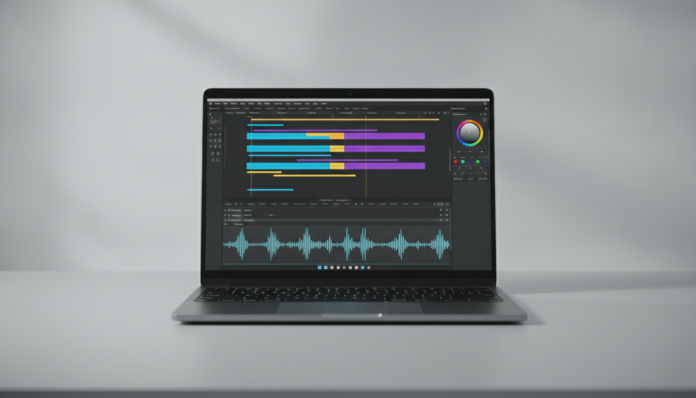

Laptop for video editing under R$ 6,000: what really matters when buying
Editing video on a laptop is perfectly viable in 2026, but the market is full of traps. Machines with pretty looks and generic specs that don’t deliver the performance you need to work with heavy files. The good news is that with up to R$ 6,000, it’s already possible to find laptops with modern processors, dedicated GPU and enough memory to edit 1080p and even 4K smoothly, depending on the codec.
But before rushing out to buy the first one you see on the shelf, you need to understand what really makes a difference for video editing. It’s not just the processor. RAM, GPU with hardware acceleration support, fast SSD storage and even screen quality directly influence your daily workflow. This guide covers all of this with options available in Brazil, real prices and the profile of who each model serves.
What video editing demands from a laptop
Processor: the brain of the operation
The processor, or CPU (central processing unit), is responsible for decoding, processing and exporting videos. For editing, you need at least 6 physical cores. Processors with fewer than that tend to freeze on the timeline when you stack effects or work with multiple video tracks at the same time.
In 2026, the most relevant options in the range up to R$ 6,000 revolve around:
- Intel Core Ultra 5 and Ultra 7 (200H or 200HX series), with integrated NPU for AI tasks
- AMD Ryzen 7 and Ryzen 9 from the 8000 or 9000 series, which remain competitive in multi-core performance
- Apple M3 and M4 (on MacBook Air and MacBook Pro 14″), with unified architecture that shares memory between CPU and GPU
Apple deserves special attention here: the SoC (System on a Chip) architecture of the M3 and M4 unifies CPU and GPU memory, which eliminates the data transfer bottleneck between the two. For editing in Final Cut Pro, this combination is hard to beat in this price range.
Dedicated GPU: hardware acceleration that changes everything
The hardware-accelerated GPU (graphics card, or graphics processing unit) is the factor that most separates an editing laptop from a regular laptop. Software like DaVinci Resolve, Premiere Pro and Vegas Pro can use the GPU to decode and export codecs like H.264, H.265 (HEVC) and even ProRes, depending on the GPU manufacturer and software.
In practice, this means exports that would take 40 minutes can drop to less than 10. In the range up to R$ 6,000, the most present GPUs are:
- NVIDIA GeForce RTX 4060 Laptop and RTX 4050 Laptop: full support for NVENC (NVIDIA’s hardware encoder) and hardware AV1
- AMD Radeon RX 7600M: good value for money, with support for AMD’s VCN (Video Codec Next)
- Intel Arc integrated into Core Ultra chips: surprisingly capable for light editing thanks to XeSS and AV1 encoder
If you use DaVinci Resolve, prefer NVIDIA. Support for CUDA (NVIDIA’s parallel programming language) is historically more mature in Resolve than AMD’s OpenCL support.
RAM: minimum and recommended
For video editing, RAM (random access memory) below 16 GB is unacceptable today. With 16 GB you can work on 1080p without major constraints; for 4K, especially with multiple tracks or heavy effects, 32 GB makes a real difference.
A critical point: check if the RAM is soldered on the board or if there are slots for expansion. Many manufacturers solder memory to reduce thickness, which means what you buy is what you’ll have forever.
SSD storage: speed matters more than size
An NVMe SSD (a fast storage type that uses the PCIe interface, much faster than older SSDs) with at least 512 GB is the minimum. For editing, the ideal is 1 TB, with sequential read speeds above 3,000 MB/s. Below that, you’ll feel freezes on the timeline when working with large files without proxy.
Proxy, by the way, is worth explaining: they are compressed versions of your original videos, generated by the editing software itself, which allow you to work smoothly on more modest hardware. If the laptop doesn’t have a strong enough GPU, working with proxies is a smart solution.
Screen: you’ll be looking at it all day
A video editing laptop screen needs to have at least 100% sRGB color space coverage, and ideally also cover DCI-P3, the color space used in cinematographic productions. Many cheap panels cover 45% to 60% of sRGB, which means the colors you see won’t reflect what the viewer will see.
Points you should check in the spec sheet:
- Minimum resolution of 1920×1200 (or Full HD 1920×1080)
- Color coverage: look for 100% sRGB or 90%+ DCI-P3
- Refresh rate: 60 Hz is sufficient for editing; 120 Hz or 144 Hz is a bonus
- Brightness: minimum of 300 nits; above 400 nits makes use in bright environments easier
OLED screens, increasingly present on laptops in this price range, offer perfect blacks and excellent color coverage. The downside is the risk of burn-in (permanent marks caused by static images displayed for long periods), which in editors that have the interface open for hours at a time is something to consider.
Models available in Brazil and their price ranges
Windows options up to R$ 6,000
| Model | CPU | GPU | RAM | SSD | Approximate price range |
|---|---|---|---|---|---|
| Lenovo LOQ 15IRX9 | Intel Core Ultra 5 125H | RTX 4060 Laptop | 16 GB | 512 GB | R$ 4,800 to R$ 5,400 |
| Acer Nitro 16 (AN16-43) | AMD Ryzen 7 8745H | RTX 4060 Laptop | 16 GB | 512 GB | R$ 4,500 to R$ 5,200 |
| Dell Inspiron 16 Plus | Intel Core Ultra 7 155H | Intel Arc | 16 GB | 512 GB | R$ 4,200 to R$ 5,000 |
| ASUS Vivobook Pro 16 | AMD Ryzen 7 8845HS | NVIDIA RTX 4060 Laptop | 32 GB | 1 TB | R$ 5,500 to R$ 6,000 |
The prices above are estimates of the national market in 2026 and may vary depending on the retailer, exchange rate and inventory availability. Always check the complete specs before purchasing, as the same model name can be sold with different configurations in Brazil.
MacBook Air M3 13″: the surprise of the range
The MacBook Air with M3 chip can be found in 2026 in the R$ 5,800 to R$ 6,200 range depending on exchange rate variation and retailer. In the US, the launch price was US$ 1,099 for the base configuration. With 8 GB of unified RAM and 256 GB SSD, it’s limited for intense editing, but the 16 GB version is already a capable machine for working in 1080p and light 4K on Final Cut Pro. The big downside: without NVIDIA GPU, it’s left out of the more mature optimization of DaVinci Resolve.
Brazilian context: what you need to know before buying
Anatel homologation and warranty
Every laptop sold legally in Brazil needs to have homologation by Anatel (National Telecommunications Agency), which certifies that the equipment doesn’t interfere with other networks and meets national regulations. Buying from importers without this homologation can result in equipment being held at customs or without technical support.
Always check if the model you’re buying is listed in Anatel’s database and if the seller offers an invoice and at least 12 months warranty. International manufacturer warranties don’t always cover equipment purchased in Brazil by parallel importers.
If you’ve already researched gadgets and smart home devices, you know this logic of checking homologation and local warranty applies to any product category, as explained in this comparison of smart cameras for home use.
Direct import: is it worth it?
With current exchange rates and import taxes, buying a laptop in the US and bringing it to Brazil rarely makes sense. The exemption of up to US$ 50 doesn’t apply to laptops, and import tax can reach 60% of the declared value, plus state ICMS. In many cases, the final price ends up equal to or higher than what large national retailers practice who negotiate in volume.
Which laptop to choose by usage profile
If you edit videos in 1080p for social networks, YouTube and clients independently, the Acer Nitro 16 with Ryzen 7 and RTX 4060 offers the best cost-benefit ratio: capable GPU, efficient processor and space for RAM upgrade. The lower entry cost leaves budget for an external SSD or a color-calibrated monitor.
If you edit in 4K, work with more serious color grading and need a calibrated environment, the ASUS Vivobook Pro 16 with 32 GB already delivers without needing immediate upgrades. The larger memory is the real differentiator for heavy timelines.
If you work exclusively in the Apple ecosystem, use Final Cut Pro and prioritize portability, the MacBook Air M3 with 16 GB is the most balanced option. But be careful: with 16 GB of unified memory, very heavy 4K RAW projects can be tight. In that case, evaluating the MacBook Pro M3 14″ (which exceeds R$ 6,000) might make more sense long-term.
For those who use DaVinci Resolve as their main tool and won’t compromise on GPU performance, avoid any option without NVIDIA GPU on the list. Resolve has superior CUDA optimization in most effects and Fairlight and Magic Mask AI tools.
Frequently asked questions about laptops for video editing
Do I need a dedicated GPU or does integrated work?
For occasional 1080p editing, modern integrated GPUs like Intel Arc or AMD Radeon 780M can manage with proxies. For frequent work, especially in 4K or with color grading in DaVinci Resolve, a dedicated GPU with hardware acceleration support makes a concrete difference in export time and timeline fluidity.
Is 16 GB of RAM enough for 4K video editing?
It depends on the codec and workflow. For 4K H.264 and H.265, 16 GB works with proxies. For 4K RAW or multiple tracks with heavy effects, 32 GB provide more safety margin. If the laptop has expansion slots, buying with 16 GB and upgrading later is a valid strategy.
Which editing software works best in this price range?
DaVinci Resolve Free is free and robust, with great GPU acceleration for NVIDIA. Premiere Pro requires an Adobe monthly subscription and also benefits from NVIDIA GPU. Final Cut Pro is exclusive to Mac and has great integration with Apple Silicon chips. The choice of software should guide the choice of hardware, not the other way around.
Buy with 512 GB or 1 TB SSD?
For video editing, 512 GB disappears quickly. A 4K project can occupy hundreds of gigabytes easily. If the budget allows, prefer 1 TB internal. Otherwise, an external NVMe SSD (like Samsung T7 or WD Black P40) connected via USB 3.2 Gen 2 works well as project storage.
What to check before placing your order
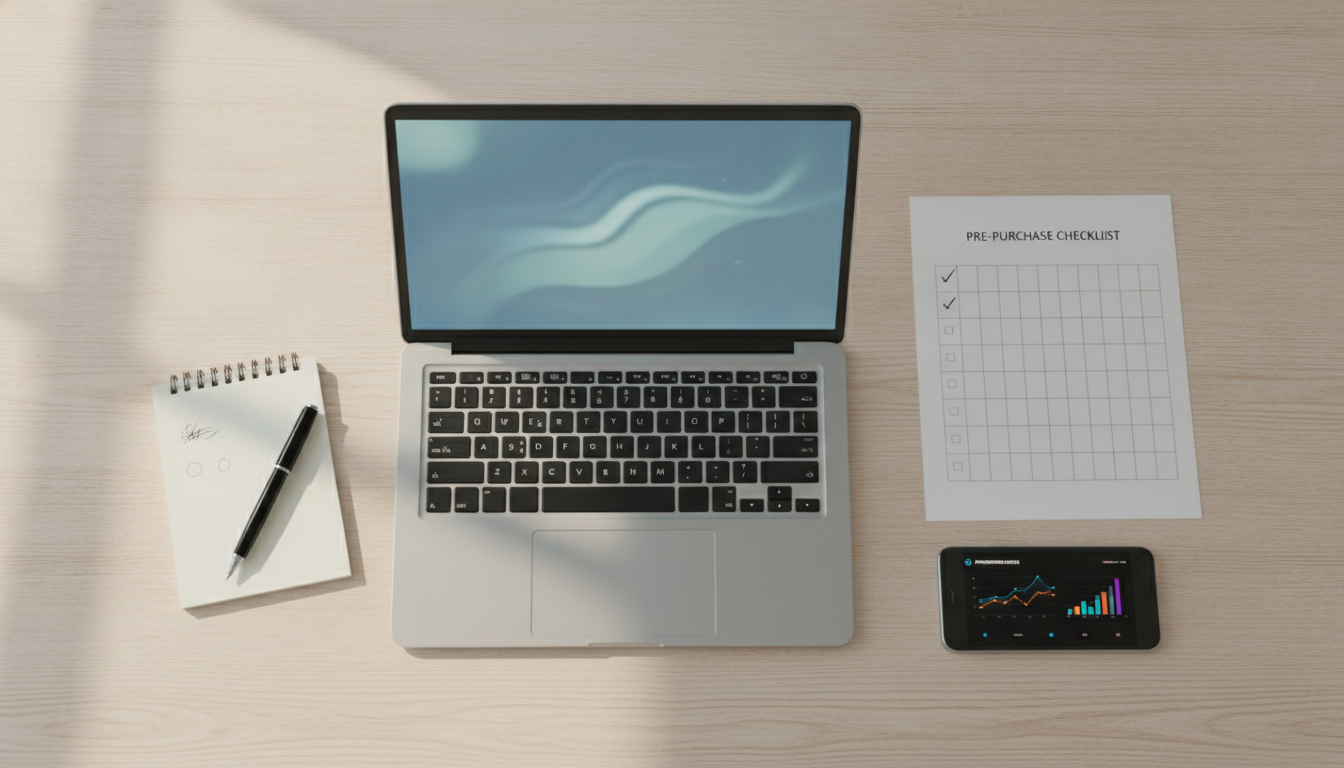
With a budget of up to R$ 6,000, you don’t need to make major compromises in 2026. The market has solid options with dedicated GPU, adequate RAM and calibrated screen. The most common mistake is prioritizing processor and ignoring GPU, or buying with little RAM without expansion possibility.
Before confirming the purchase, check: if the RAM is expandable, if the SSD has an additional free M.2 slot, if the screen covers at least 100% of sRGB and if the model has Anatel homologation and national warranty. These four points avoid regrets that no benchmark will solve later. The right laptop for video editing is not the most expensive on the shelf: it’s the one that meets your workflow without bottlenecks.