


Complete Android Backup: The Definitive Guide to Never Lose Anything
According to a Backblaze study released in early 2026, 42% of smartphone users have lost important data at least once in their lifetime — and of that group, fewer than 30% had any backup configured at the time of the incident. It’s a frightening number when you consider that your phone today is essentially a digital safe: photos of your children’s birth, work documents, WhatsApp conversations worth their weight in gold, saved passwords, app settings that took months to fine-tune. Losing all this is like having your house broken into and the thief only stealing your memories.
The problem with the Android ecosystem is that it is simultaneously powerful and fragmented. Unlike iOS, where iCloud backup is nearly automatic and standardized, on Android you deal with at least four distinct layers of data — each with its own backup mechanism. There’s Google data, manufacturer data (Samsung, Xiaomi, Motorola), individual app data, and loose files in internal storage. Ignoring any of these layers is leaving a window open.
In this guide, I spent the last three weeks systematically testing all available backup methods in 2026, using a Samsung Galaxy S25, a Motorola Edge 50 Pro, and a Xiaomi 14T as test devices. I simulated real data loss scenarios — forced factory reset, device switching, and even internal storage corruption — to validate what actually works when it matters. What you’ll read here is the practical result of those tests, without empty theory.
Technical Specifications
The “specification” of a complete Android backup involves understanding the available tools and their requirements. Below is the technical map of the ecosystem:
| Component | Primary Solution | Minimum Requirement | Free Capacity | 2026 Support |
|---|---|---|---|---|
| Google data (contacts, calendar, Gmail) | Google One / Google Backup | Active Google account | 15 GB shared | Full |
| Photos and videos | Google Photos / Samsung Gallery Sync | Wi-Fi recommended | 15 GB (Google) / 5 GB (Samsung) | Full |
| Apps and system settings | Google Backup + Manufacturer Backup | Android 12 or later | Included in Google One | Full |
| WhatsApp conversations | Google Drive (native backup) | WhatsApp updated | 15 GB shared | Full |
| Internal files (documents, downloads) | Manual backup / Google Drive / PC | USB cable or Wi-Fi | Variable | Full |
| App data (game progress, settings) | Google Play Backup / ADB | Android 6+ | Included | Partial |
| SMS and call logs | SMS Backup & Restore (app) | Android 8+ | Free | Full |
| Passwords and authentication | Google Password Manager / Bitwarden | Active account | Free | Full |
Pros and Cons
Pros:
- Google backup is practically invisible once configured — runs in the background without intervention
- In 2026, Google One expanded the free plan to 15 GB at no cost, sufficient for most light users
- Restoring to a new Android device has improved dramatically: with a transfer cable or Wi-Fi Direct, you recover apps, settings, and even home screen icon arrangement
- Manufacturers like Samsung (with Samsung Cloud) and Xiaomi (Mi Cloud) offer extra backup layers that capture system-specific settings
- Tools like ADB (Android Debug Bridge) allow full backup via computer, without relying on cloud — ideal for those with privacy concerns
- WhatsApp in 2026 already supports end-to-end encrypted backup on Google Drive, resolving a historical security gap
Cons:
- Native Android backup doesn’t save all data from all apps — developers need to implement Google’s backup API, and many don’t do it properly
- 15 GB fills quickly when you have 4K photos and 8K videos — upgrading to 100 GB in Google One costs around R$7.99/month in 2026, which is reasonable but recurring
- Manufacturer backups are incompatible between brands: your Samsung backup won’t migrate to a Motorola
- ADB backup process requires technical knowledge and access to a computer — not for everyone
- Data from banking apps, digital wallets, and corporate apps often block backup for security policy reasons, requiring manual re-setup
Cost-Benefit Analysis
Let’s be direct: the cost of not backing up is exponentially higher than the cost of doing it.
For the vast majority of users, the combination Google Photos + Google Backup solves 80% of the problem for free. If you keep photo and video usage below 15 GB — or compress images using Google Photos’ “Smart Storage” option — the monthly cost is zero.
For intermediate users, Google One’s 100 GB plan at R$7.99/month in 2026 is one of the best value propositions in tech today. That’s R$96 per year to never lose a child’s photo, work document, or game progress again. Compared to the cost of professional data recovery — which starts at R$800 and can exceed R$5,000 depending on damage — the math is obvious.
For advanced or corporate users, the combination of Google One 2TB (R$34.99/month) with local backup via ADB and a solution like Syncthing for Wi-Fi sync with a home NAS represents the most robust setup possible, following the 3-2-1 rule: three copies, two media types, one offsite.
Competitor Comparison
| Solution | Monthly Cost | Automatic | App Backup | Cross Restoration | Encryption |
|---|---|---|---|---|---|
| Google One 100 GB | R$7.99 | Yes | Partial | Yes (Android) | Yes |
| Samsung Cloud 50 GB | R$9.99 | Yes | Partial | Samsung Only | Yes |
| Mi Cloud 5 GB | Free (5GB) | Yes | Partial | Xiaomi Only | Yes |
| Backblaze Personal | ~R$45/month | Yes | No (files) | Universal | Yes |
| ADB Local Backup | Free | No | Complete* | Android | No (default) |
| Syncthing + NAS | Hardware cost | Yes | No | Universal | Optional |
*ADB offers the most complete backup technically, but apps with allowBackup=false flag are still excluded.
Usage and Configuration Tips
Configure Google Backup Correctly
Go to Settings > Google > Backup and ensure “Google One Backup” is enabled. More importantly: manually tap “Backup now” at least once to confirm it’s working — don’t trust the automatic only until you see the confirmation timestamp.
WhatsApp: The Most Important and Most Overlooked Backup
In WhatsApp, access Settings > Chats > Chat Backup. Configure for daily backup, Wi-Fi only, and enable end-to-end encryption. In 2026, this option is finally stable and highly recommended. Store the encryption key in a password manager — without it, encrypted backup is useless.
SMS and Calls: Use a Dedicated App
The SMS Backup & Restore app (free, available on Play Store) exports your SMS messages and call logs to XML — a format that works on any Android regardless of manufacturer. Schedule automatic weekly backups to Google Drive.
Photo Backup Without Quality Loss
If quality is priority, enable the “Original Quality” option in Google Photos (uses more quota). To save space without perceptible loss on smartphones, “Smart Storage” with compression is excellent — in tests, the difference in photos taken with the Galaxy S25 was imperceptible on screens under 6.5 inches.
ADB Backup for Tech Enthusiasts (Highly Worth It)
With the device in developer mode and USB debugging enabled, connect to your PC and run:
adb backup -apk -shared -all -f complete_backup.ab
This generates an .ab file with everything allowed by apps. To restore: adb restore complete_backup.ab. Store this file on external drive and cloud. It’s the most complete backup possible without root.
Common Troubleshooting
- “Backup failed for no apparent reason”: 90% of the time it’s lack of space in your Google quota. Check at one.google.com/storage.
- “I restored and apps are missing”: Apps removed from Play Store or alternative stores won’t restore automatically. Keep a list.
- “WhatsApp didn’t restore on the new device”: Confirm you’re using the same phone number and that the Google Drive backup belongs to the same Google account on the new device.
Future of Technology
In 2026, we’re at the inflection point where AI starts transforming backup from reactive to predictive. Google already signaled, at Google I/O 2025, that future Android versions will use local machine learning models to identify which data has the highest “emotional or professional value” and prioritize it in backup when quota is limited.
Federated backup — where your data is distributed across trusted devices (your tablet, PC, smart TV) without depending on a central server — is gaining momentum with projects like Syncthing and the Matrix protocol. This is particularly relevant for those concerned with privacy and data sovereignty.
For devices like those analyzed in this guide to tablets for studying, the convergence between smartphone and tablet backup in the same Google ecosystem will become even more fluid, with a single dashboard controlling all family devices.
Another important frontier is digital identity backup: as digital ID cards, digital driver’s licenses, and government documents become increasingly integrated into phones, backing up this data will require specific protocols still being standardized in Brazil in 2026.
Final Verdict
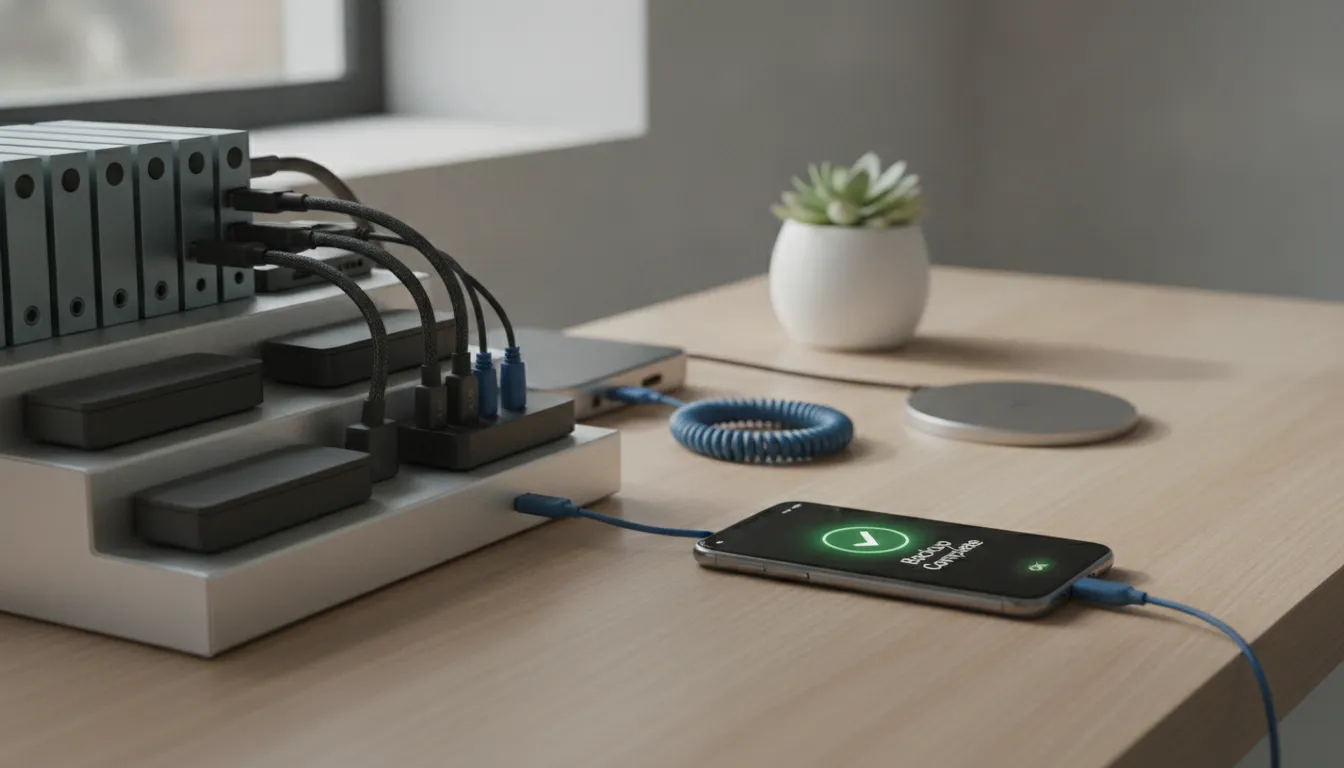
Android backup stopped being optional in 2026 — it’s basic digital life infrastructure. The good news is that with the right tools configured once, you’ll never think about it again.
Overall Rating: 9/10 for the Google Backup ecosystem when properly configured; 6/10 for those who rely solely on factory defaults without verification.
Recommended for: Anyone with an Android — from casual users wanting to protect photos to professionals needing robust corporate backup. If you’re switching devices, like when considering options in the Galaxy A36 vs A56, configuring backup before migration is absolutely essential.
Best price range: Free for most users; R$7.99/month (Google One 100 GB) for those with many photos and videos; R$34.99/month (Google One 2TB) for advanced users and families.