

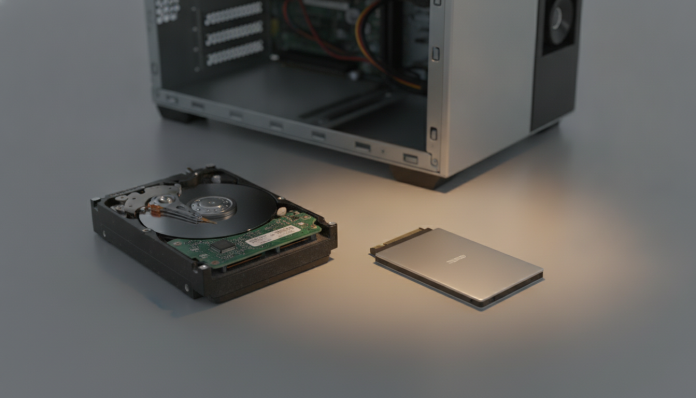

Upgrading an Old PC from HDD to SSD: Is It Really Worth It?
The short answer is yes, and by a comfortable margin. Replacing your HD (hard disk drive, that mechanical component with spinning platters that stores your files) with an SSD (solid-state drive, with no moving parts, that accesses data through flash memory) is, in most cases, the best cost-benefit upgrade you can make to a computer that’s a few years old. It doesn’t matter if the machine has a third-generation Core i5 processor or a 2019 Ryzen 5: the most common bottleneck in PCs of that age isn’t the CPU, it’s storage.
The reason is simple. A typical conventional 5,400 RPM hard drive found in notebooks and entry-level PCs takes 30 to 60 seconds just to boot Windows until the desktop is usable. An entry-level SATA SSD resolves this in about 10 to 15 seconds, no exaggeration and without needing any special configuration. This difference comes from technical specifications: HDDs operate with sequential read speeds around 80 to 160 MB/s, while SATA SSDs reach 500 to 560 MB/s according to manufacturer datasheets. In random operations, which are the most common in everyday use, the difference is even greater.
For whom is it not worthwhile? If your PC has less than 4 GB of RAM and you use heavy applications, the SSD will help, but the real bottleneck is memory. In that case, the ideal is to combine both upgrades. If the machine is so old that it doesn’t support UEFI boot or has a limited BIOS, there may be compatibility complications, but these are increasingly rare scenarios even in equipment from 2012 or 2013.
What changes in practice: everyday performance
The difference between HDD and SSD doesn’t just appear in read speed benchmarks. The most noticeable impact is on random access latency, which is the time the disk takes to locate and start reading a small file. A mechanical hard drive has access latency in the range of 5 to 10 milliseconds. A SATA SSD is around 0.1 milliseconds, according to technical data published by the manufacturers themselves. This difference is what makes the operating system and programs open in seconds instead of dozens of seconds.
In real use, you’ll notice the change when you open Chrome with multiple tabs, when you start Photoshop, when you switch between windows with the system loaded. Windows tends to do paging, that is, use the disk as temporary memory when RAM is full. With an HDD, this process eats up performance. With an SSD, it still happens, but the impact on everyday use is much less aggressive.
For games, the gain appears in phase loading time and in eliminating stutters caused by the disk not being able to deliver data fast enough. In games with open worlds and real-time texture streaming, the difference is especially evident.
What type of SSD to choose for an old PC
Here’s the point where many people make mistakes: buying the wrong SSD for the connection available on the computer. There are basically three common scenarios in PCs that are a few years old:
- SATA III: most PCs manufactured from 2010 onwards have this interface. SATA SSDs are the cheapest, easiest to install, and already deliver significant gains. They’re the right choice for 80% of old PC upgrades.
- M.2 SATA: some notebooks and motherboards from mid-2014 onwards have M.2 slots, but only support the SATA protocol, not NVMe. In that case, an M.2 NVMe SSD won’t work correctly, or will work at SATA speed. Check your motherboard documentation before buying.
- M.2 NVMe: PCs from 2017 onwards with more modern chipsets generally support NVMe SSDs, which use the PCIe protocol and are much faster than SATA, with sequential reads in the range of 3,000 to 7,000 MB/s in current models. For an old PC with a 6th or 7th generation Intel processor, an entry-level NVMe is already a good option if the slot supports it.
Before buying anything, download CPU-Z or consult your motherboard manual to confirm which interface is available. This check avoids headaches and returns.
How much does it cost and where to buy in Brazil
The SSD market in Brazil in 2026 is much more accessible than it was five years ago. SATA SSDs from 480 GB to 500 GB from brands like Kingston, Crucial, WD, and Samsung are found in authorized national stores in ranges varying from R$ 200 to R$ 350, depending on the brand and timing of purchase. 1 TB models in SATA are around R$ 350 to R$ 500.
PCIe 3.0 NVMe SSDs of 500 GB start from R$ 250 to R$ 350, while 1 TB models in this same technology are in the range of R$ 400 to R$ 600. Prices vary a lot depending on promotions and exchange rates, so it’s worth comparing on Buscapé or Zoom before closing.
An important point: buy from stores with invoices and official warranty in Brazil. Models sold via direct import or through marketplaces without proper documentation may not have local support. Manufacturers like Kingston and Crucial have technical support in Brazil. Samsung offers warranty for its SSDs sold by official national distributors. Check if the product has Anatel homologation, required for components that emit signals (in the case of internal SSDs this is less critical than routers, but it’s always good to confirm origin).
Avoid SSDs from unknown brands with prices well below average. This is a market where brands without a support history appear and disappear quickly, and you don’t want to discover this when you need warranty support.
How to do the swap: the basic process
The good part is that replacing an HDD with an SSD is one of the simplest hardware operations out there. The basic process for a desktop or notebook with SATA interface is as follows:
- Make a complete backup of all your files to an external hard drive or cloud service before starting.
- Download the cloning software from the SSD manufacturer’s website. Kingston offers Acronis True Image, Samsung has Samsung Data Migration, Crucial provides Acronis for its customers. All are free for product owners.
- Connect the SSD via a USB-SATA adapter (cost around R$ 30 to R$ 60 in national stores) while the HDD is still installed.
- Run the cloning software to copy all content from the HDD to the SSD, including the operating system.
- Shut down the computer, remove the HDD, and install the SSD in its place. In notebooks, it’s usually one screw and a simple connector. In desktops, use the 2.5 to 3.5 inch adapter if necessary.
- Turn on the computer and confirm that it boots normally from the SSD.
If the HDD has bad sectors, cloning may fail. In that case, the alternative is to do a clean Windows installation on the SSD and reinstall programs manually, which is also an opportunity to leave the system more organized.
Frequently asked questions about swapping HDD for SSD
Can I use the old hard drive as secondary storage after the swap?
Yes, and it’s a good idea. After cloning and confirming that the SSD is working, you can format the old HDD and use it to store large files like videos, photos, and backups. In desktops there’s physical space for both. In notebooks, you can use the HDD in an external USB case, which costs around R$ 50 to R$ 100 in national stores.
Does the swap void the notebook’s warranty?
It depends on the manufacturer and model. Some notebooks have screws with seals that, if removed, cancel the warranty. Check your equipment’s manual or consult technical support before opening it. In many cases, especially in models from 2020 onwards, storage access is provided as user maintenance.
Do SSDs have a shorter lifespan than HDDs?
Modern SSDs specify durability in TBW (terabytes written), which indicates the total amount of data that can be written before the memory starts to degrade. An entry-level 500 GB SSD typically specifies between 150 and 300 TBW. For common home use, this represents many years of normal use. Mechanical HDDs have the additional risk of failure from physical impact and mechanical wear, making the durability comparison more complex than it appears at first glance.
Is it worth upgrading in a very old PC, like from 2010?
It depends. If the PC runs the tasks you need and the only problem is slowness, yes, the SSD will help even on a 2010 machine. If the processor no longer supports current versions of Windows or the applications you use, the SSD resolves the symptom but not the problem. Assess whether the rest of the hardware still meets your needs before investing.
The right time to act
If your PC takes more than 30 seconds to open or freezes when opening two programs at the same time, the first question is whether the HDD is healthy: download CrystalDiskInfo (free) and check the S.M.A.R.T. status of the disk. If the result is “Good”, the SSD swap will solve the problem. If sector reallocation alerts or imminent failure warnings appear, swap with urgency and make the backup before anything else.
The decision to upgrade an old PC versus buying a new one isn’t just about storage. If you want a parallel on how to evaluate the cost-benefit of different devices before replacing them, the reasoning is similar to choosing between TV Box vs Smart TV: which to buy and why it matters: you need to understand what the real bottleneck is and what is a structural limitation of the equipment.
For most PCs that are 4 to 8 years old and still have enough RAM for what you do, the SSD is the right investment. For R$ 250 to R$ 350, you transform a slow machine into something usable for another two or three years without needing to buy a new computer. This is the type of upgrade that pays for itself quickly.