

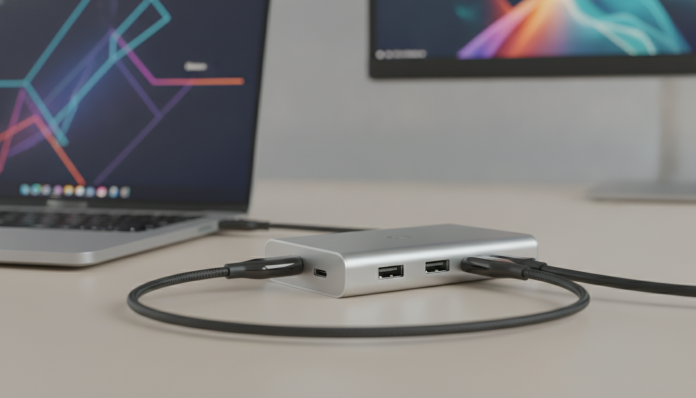

USB-C hub with HDMI for notebook: what to evaluate before buying
You bought a new notebook, connected your TV or monitor’s HDMI cable and realized the port simply doesn’t exist anymore. This scenario has become routine since manufacturers started launching ultracompact machines with only USB-C ports. The USB-C hub with HDMI output solves the problem, but the market is full of options ranging from R$ 60 to over R$ 800, with real performance differences that directly affect your daily life.
This guide was put together for 2026, when the USB4 standard already coexists with USB 3.2 and Thunderbolt 4 on the latest notebooks, and 4K at 60 Hz has stopped being a luxury to become a minimum requirement for any decent home office. The idea is to help you understand what each specification means in practice and choose the right model for your use, without overpaying and without getting frustrated with a cheap product that doesn’t deliver on its promises.
What is a USB-C hub and why does HDMI output complicate everything
A USB-C hub functions as an extension of your notebook’s bus: it receives power and data through a single USB-C port and distributes that bandwidth among several outputs. The problem is that transmitting video via HDMI requires a specific protocol called DisplayPort Alt Mode (or DP Alt Mode), which must be enabled on your notebook’s USB-C chip. If your computer’s USB-C port doesn’t support DP Alt Mode, the hub may even recognize other peripherals, but the HDMI output simply won’t work.
Before buying any hub, then, the first step is to check your notebook’s technical specs and verify that the USB-C port supports DP Alt Mode, Thunderbolt 3, Thunderbolt 4, or USB4. All these interfaces enable video output. USB-C ports that appear in the specs only as “USB 3.2 Gen 1” or “USB 2.0” generally don’t transmit video at all.
Thunderbolt 4, USB4, and USB 3.2: the differences that matter
These terms appear in every technical spec and cause confusion. Think of it this way: USB 3.2 Gen 2 is the municipal road, with a maximum speed of 10 Gbps. USB4 is the highway with up to 40 Gbps. Thunderbolt 4 is the toll highway, which guarantees a minimum speed of 40 Gbps and Intel’s rigorous certification. In practice, a hub connected to a Thunderbolt 4 or USB4 port can deliver 4K at 60 Hz, power the notebook, and still transfer data at high speed all at the same time. On a USB 3.2 port, you’ll probably need to choose between higher resolution and data speed.
The specifications that decide the purchase
HDMI version: 1.4, 2.0, or 2.1
The HDMI connector version on the hub determines the resolution and refresh rate you can use on your monitor. HDMI 1.4 supports 4K, but only at 30 Hz, which creates a noticeable sluggishness sensation when moving windows. HDMI 2.0 goes up to 4K at 60 Hz, which is the comfortable standard for work and watching content. HDMI 2.1 opens up space for 4K at 120 Hz or 8K at 60 Hz, but only makes a difference if your monitor and the notebook’s graphics chip support these rates.
In 2026, most hubs in the mid-range (R$ 150 to R$ 350) already have HDMI 2.0. Be careful: many cheap models still use HDMI 1.4 and don’t make this clear on the packaging. Always confirm in the technical specs.
Power Delivery: charge the notebook through the hub
Power Delivery (PD) is the protocol that allows the hub to transmit power to charge the notebook through the same USB-C port. Hubs with PD typically accept an external power source and pass the power to the computer. The critical point is power: a gaming or high-performance notebook may require 100 W or even 140 W (with the newer PD 3.1 specification). If the hub delivers only 60 W of passthrough, the notebook may charge more slowly than normal or even lose charge during intense use. Check the maximum PD power of the hub and compare it with your notebook’s original charger.
Number and type of ports
The hub’s usefulness depends directly on its port lineup. Compact travel models usually offer HDMI, two or three USB-A ports, and a card reader. More complete desk hubs add Ethernet port (RJ-45) for cable connection, extra USB-C ports with or without PD, SD and microSD card readers, and sometimes audio input. If you use an ultra-wide monitor or two monitors, look for hubs with two video outputs and check if the chip supports MST (Multi-Stream Transport), a feature that splits the signal to power two independent displays.
Chips that make a difference: what’s behind the box
The hub’s real performance depends on the internal controller chip, and manufacturers rarely disclose this transparently. Realtek and VIA Labs chips are among the most common and reliable in the mid-range. Very cheap hubs without a clear chip brand tend to present instability: flickering screen, loss of monitor connection when moving the cable, or overheating after a few minutes. It’s not possible to know which chip is inside just by looking at the box, but reviews on forums like Reddit, Notebookcheck, and stores like Amazon and Mercado Livre (reading comments from actual buyers) help identify recurring problems.
Hubs available in Brazil in 2026: what to find and at what price range
The Brazilian market has a mix of imported items without local warranty and officially distributed products. Below are the most relevant categories:
| Price range (R$) | Usage profile | What to expect |
|---|---|---|
| 60 to 120 | Occasional use | HDMI 1.4, USB-A 3.0, no PD, variable quality |
| 150 to 300 | Basic home office | HDMI 2.0 at 60 Hz, PD 60-87 W, optional Ethernet |
| 320 to 550 | Production and multiple monitors | HDMI 2.0 or 2.1, PD 100 W, MST, USB4 or TB4 |
| Above 550 | Professional / workstation | Docking stations with multiple monitors, PD 140 W, dedicated TB4 ports |
Brands with official distribution and warranty in Brazil include Anker, Belkin, j5create, and some lines from Dell and Lenovo. Imported models from brands like CalDigit and OWC come through specialized resellers or direct import, without local warranty, but with internationally recognized quality.
Anatel certification and imports
Any hub sold legally in Brazil needs certification by Anatel (National Telecommunications Agency). Check if the product has the seal or certification number before buying. Hubs imported on your own are subject to import tax and retention at the Post Office for amounts above the current exempt limit. Without certification, you also have no recourse to claim against the manufacturer in Brazil.
For whom it’s worth it and for whom it isn’t
A USB-C hub with HDMI works very well for those who work with a notebook at home or in the office and want to connect an external monitor, keyboard, mouse, and network without turning the desk into a tangle of cables. It’s also the most practical solution for presentations with a projector when the notebook doesn’t have native HDMI.
It’s not the best choice for those who need intense graphics performance, such as heavy 3D rendering or gaming. In these cases, the hub’s shared bandwidth can be a bottleneck, and a dedicated docking station with Thunderbolt 4 chip or even an external GPU (eGPU) makes more sense. Anyone with a notebook that has native HDMI or DisplayPort also doesn’t need a hub for the monitor, just to expand other ports.
As happens in other categories of accessories, as shown in the analysis of smart wristband for elderly with fall detection, knowing exactly what problem you want to solve saves money and avoids frustration with products that do a lot, but nothing right for your case.
How to choose without mistakes: step by step
- Confirm in your notebook’s technical specs which USB-C ports support DP Alt Mode, Thunderbolt, or USB4.
- Check the resolution and refresh rate of the monitor you’ll use.
- Calculate the charging power your notebook requires and filter only hubs with equal or higher PD.
- Decide which ports are essential: Ethernet, SD card reader, how many USB-A ports.
- Check if the hub has Anatel certification or official distribution in Brazil.
- Read reviews from actual buyers to identify instability issues with the chip.
- Compare the price of the domestic product with the total cost of importing (product + shipping + taxes).
Frequently asked questions about USB-C hub with HDMI
Does the hub work on any notebook with USB-C port?
No. The HDMI output only works if your notebook’s USB-C port supports DP Alt Mode, Thunderbolt 3, Thunderbolt 4, or USB4. Notebooks with USB-C port exclusively for charging or data don’t transmit video through the hub.
Can you use two monitors at the same time with a hub?
It depends on the hub and the notebook. You need a hub that supports MST (Multi-Stream Transport) and a Thunderbolt 4 or USB4 port on your notebook. Common hubs with USB 3.2 typically only power one external monitor.
Are USB-C hub and docking station the same thing?
Not exactly. Hubs are compact, usually without their own power source and with fewer ports. Docking stations are larger, have their own power supply, support more monitors, and higher PD power. For fixed use in the office, the docking station delivers more stability.
Do I need Anatel certification if I import directly?
If it’s for personal use, the law allows importing without certification, but you’re left without local warranty and without supplier protection if the product has problems. For commercial use or resale, certification is mandatory.
What to check before finalizing the purchase
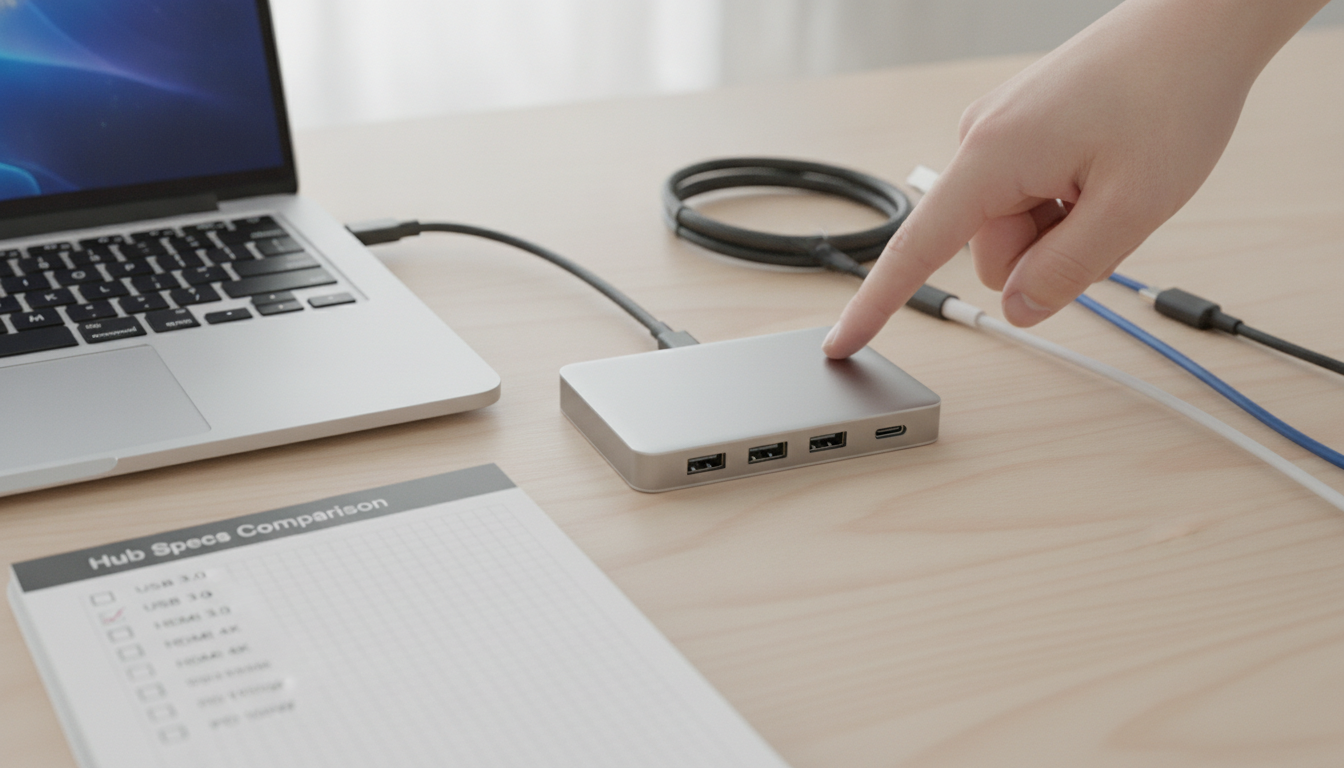
The hub market has greatly improved in average quality in recent years, but there are still many specification traps, especially on marketplace platforms with sellers without official distribution. Be wary of hubs priced below R$ 80 that promise 4K at 60 Hz and 100 W PD at the same time: the bandwidth available in entry-level chips can’t handle all that simultaneously.
If you’re setting up a more complete setup at home, it’s worth comparing the cost of a quality hub with a basic docking station. The price difference often justifies itself in stability and durability, especially for those who use the equipment for eight hours or more per day. Checking the manufacturer’s website directly to see the complete technical specs is still the most reliable path before any purchase in this category.