


Your Wi-Fi network might be serving as free internet for your neighbor
Have you noticed the internet slower than normal, even without anyone streaming or downloading heavily? It could be interference from your provider, your router struggling, but it could also be something simpler and more annoying: someone using your network without permission. This happens more often than most people realize, whether due to a weak password, a carelessly configured device, or a gap left open during a quick installation.
This article is a practical tutorial. You’ll learn to identify all devices connected to your network, recognize what shouldn’t be there, and remove the intruder permanently. You don’t need to be an IT technician to do this, but you’ll need access to your router’s control panel and a few minutes of attention.
Basic requirements: any home router with a web administration panel (practically all models sold in Brazil today), a computer or phone connected to the same network, and the administrator password for your router (different from your Wi-Fi password).
How to access your router’s control panel
Your router’s administration panel is like the “cockpit” of your network. That’s where you see everything that’s connected and make security decisions.
- Open a browser (Chrome, Firefox, Safari, or Edge) on any device connected to your network.
- Type your router’s IP address in the address bar. The most common ones are 192.168.0.1, 192.168.1.1, or 10.0.0.1. If you don’t know yours, on Windows open Command Prompt and type
ipconfig; the “Default Gateway” field is your router’s address. On Android or iOS, go to Wi-Fi settings and tap on your connected network to see the “Gateway”. - Enter the administrator username and password. If you’ve never changed them, check the sticker on the side or bottom of the router. The most common default combinations are admin/admin, admin/password, or admin with a blank password field. Manufacturers like TP-Link, Intelbras, and D-Link usually print credentials on the device label.
- After logging in, look for a section called Connected Devices, DHCP Client List, Network Map, or something similar. This varies widely between manufacturers.
How to identify all devices on your network
Within the panel, the list of connected devices shows at least three pieces of information for each device: the IP address (the temporary “apartment number” the router assigns), the MAC address (a kind of unique serial number hardcoded into each network card’s hardware), and on most modern routers, a hostname, which is the name the device itself announces on the network.
The hostname is your starting point. You’ll see things like “iPhone-of-Ana”, “DESKTOP-7FGK21”, or “Galaxy-S24”. The problem is that not every device announces itself with a friendly name, and some appear only with the MAC address, a sequence like A4:C3:F0:XX:XX:XX.
To cross-reference this list with what you have at home, follow this process:
- Write down or take a photo of the complete list of connected devices.
- Turn off the Wi-Fi on each of your devices one by one (phones, laptops, smart TVs, cameras, streaming boxes, printers, smart lights, voice assistants, gaming consoles). Each time you disconnect a device, observe which entry disappears from the list.
- Whatever remains in the list after disconnecting everything that’s yours is either an unauthorized device or something you forgot.
- If you use an app like Fing (available for Android and iOS, free), it performs this scan automatically from your phone and presents the list in a more visual way, identifying manufacturers by MAC address.
An important detail: devices connected via Ethernet cable also appear in this list. Don’t confuse a desktop or cable TV box connected by wire with an intruder.
How to remove the intruder and block access
If you’ve confirmed that someone who shouldn’t be there is connected, you have several options, from simplest to most definitive.
Option 1: Change your Wi-Fi password
This is the quickest solution and removes everyone at once, including you. After changing it, you reconnect your devices with the new password and the intruder is locked out. In your router’s panel, look for a section called Wireless, Wi-Fi, or Wireless, then Security or Security. Change the password and save.
Use a password with at least 12 characters, mixing uppercase letters, lowercase letters, numbers, and symbols. Avoid birthdays, names, and obvious sequences.
Option 2: Block by MAC address
Most home routers offer MAC filtering or MAC blocking. Here’s how it works: you take the MAC address of the invasive device from the connected list and add it to a blacklist. The router then refuses any connection from that device.
- Write down the MAC address of the suspicious device.
- Look in the panel for a section called Access Control, MAC Filter, Firewall, or similar.
- Add the MAC address to the blocking list and save.
Important: MAC blocking alone is not sufficient as your only security measure. A user with technical knowledge can spoof their device’s MAC address (a technique known as MAC spoofing). Therefore, always combine MAC blocking with a password change.
Option 3: Enable guest network for visitors
To prevent this problem from happening again with people who ask for the password during a visit, configure your router’s guest network. This network is isolated from your main network: anyone connecting through it can’t see your devices, printers, or shared files. You can change the guest network password anytime without affecting anything on your main network.
Strengthening security to prevent intruders in the future
Removing the intruder solves the immediate problem. But if the door was open before, it can open again if you don’t close it properly.
- Change the security protocol to WPA3, if your router supports it. WPA3 is the newest standard and makes brute-force password attacks much harder. Routers released from 2020 onwards and approved by Anatel in Brazil tend to support WPA3, but check the technical specifications of your model. If your router only supports WPA2, use WPA2-AES mode instead of WPA2-TKIP.
- Change your router’s administrator password. Leaving “admin/admin” is like leaving the key under the doormat. Anyone on your network can access the panel and change settings.
- Disable WPS (Wi-Fi Protected Setup). This feature that lets you connect devices by pressing a button has known vulnerabilities. Unless you actively use it, it’s better to turn it off.
- Keep your router’s firmware updated. Manufacturers like Intelbras, TP-Link, and Asus release updates that fix security vulnerabilities. Access your router’s panel and look for the firmware update option, or check the manufacturer’s website.
If you’re thinking about replacing your router with a newer model with more robust security features, it’s worth considering the cost alongside that of a new notebook. For those renovating a complete home office setup, check out the guide on the best notebook up to R$ 4,000 to buy in 2026 to make both decisions in a planned way.
Common problems and how to solve them
The router panel won’t open in the browser Confirm you’re typing the correct IP address with http:// at the front (not https://). Some routers use different addresses from the standard; check the manual or the device label. If it still doesn’t work, try accessing from a device connected by Ethernet cable, as some routers block panel access via Wi-Fi by factory configuration.
I don’t know the router’s administrator password and it’s not on the label It was probably changed at some point. The solution is to perform a factory reset: press and hold the “Reset” button on the router for about 10 seconds (exact time varies by model). This erases all settings and restores default credentials. You’ll need to reconfigure the router from scratch, including settings from your internet provider.
The suspicious device keeps reappearing even after changing the password Check if there’s a second router or signal repeater in your house that still has the old password. Devices connected to these secondary devices also appear in the main list.
My router doesn’t have MAC blocking option Simpler and older models sometimes don’t have this feature. In that case, changing your Wi-Fi password to a stronger one and enabling WPA2 or WPA3 are the main available measures. Consider updating the firmware before concluding the feature doesn’t exist.
Frequently asked questions about Wi-Fi intruders
Can an intruder on my network access my files and passwords?
It depends on how your devices are configured. An intruder on the same Wi-Fi network can theoretically try to intercept unencrypted traffic or exploit open file sharing. Websites with HTTPS and modern apps encrypt communication, but the best answer is not to let the intruder in. Remove their access and strengthen your password.
Does it make a difference using the router’s app instead of the web panel?
Many manufacturers, like TP-Link with Tether and Asus with ASUS Router, offer apps that display the device list in a more visual way. Functionally, the options are equivalent to the web panel, and some apps even notify you when a new device connects. Use whichever is most convenient for you.
How can I tell if a MAC address belongs to a trusted device or an intruder?
The first six characters of a MAC address identify the manufacturer of the network adapter. You can check this information for free using tools like Wireshark OUI Lookup or directly in the Fing app, which does this cross-referencing automatically. Knowing that the MAC belongs to “Apple” or “Samsung” helps you identify the device type.
Could my neighbor be using my network without knowing?
It’s unlikely but possible in specific situations. Devices configured to automatically connect to open networks or with the same password you use might have entered without intention. Either way, the solution is the same: change the password and block unwanted access.
What to do now
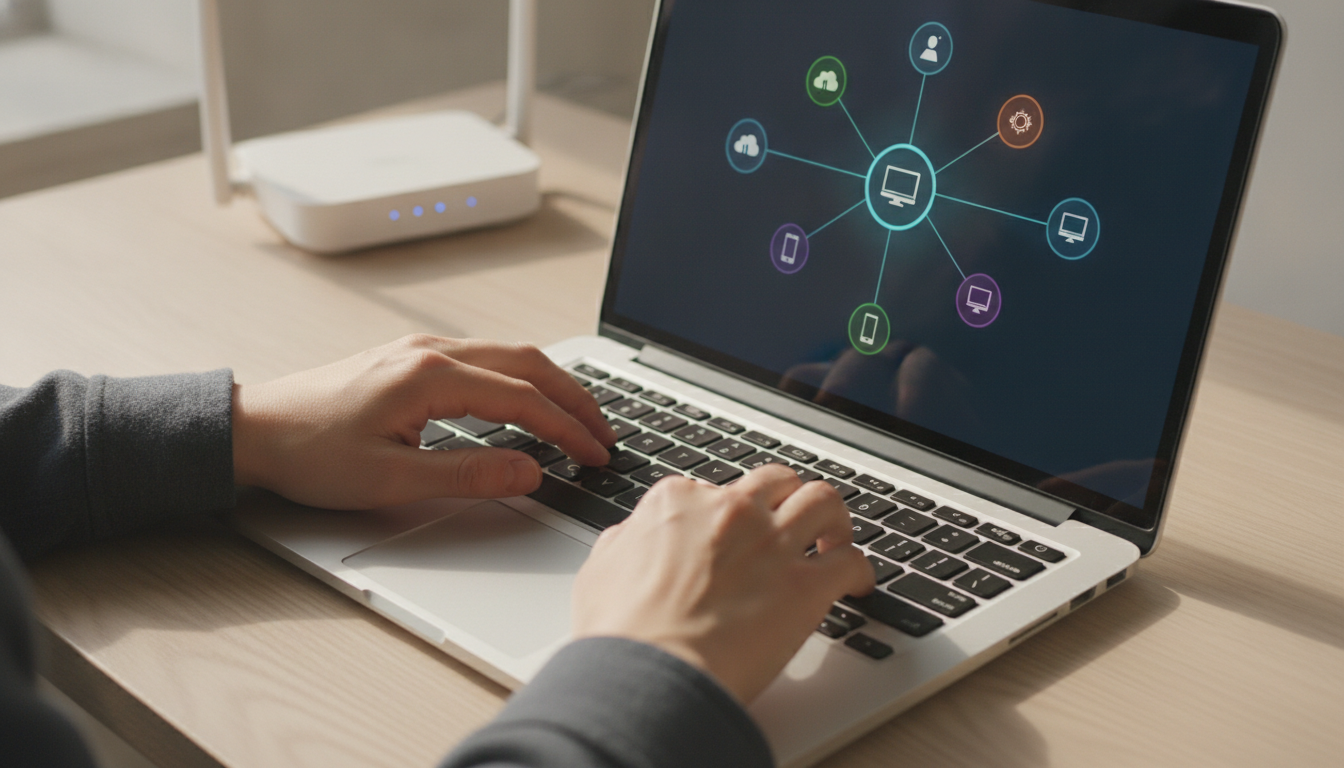
Do this check today, even if you don’t suspect anything. Many people discover unknown devices on their network simply because they never looked. Changing your Wi-Fi password and router administrator password are actions that take less than five minutes and eliminate the vast majority of home risks.
If you live in an apartment or have nearby neighbors, it’s especially important to use WPA2 or WPA3 with a strong password. Networks with weak passwords or no password are easy targets, and the slowness you blame on your provider might have a much closer cause.