


What you’ll achieve with this guide
Setting up the Echo Dot for the first time should be simple, but many people get stuck at the Wi-Fi configuration step without understanding why. This guide solves that: you’ll go from zero to hearing Alexa responding in your language, connected to your home network. You don’t need experience with smart devices; just have your phone on hand and about fifteen minutes available.
What you need before starting:
- An Echo Dot (any current generation, with power cable plugged in)
- A smartphone with Android 8.0 or higher, or iPhone with iOS 16 or higher
- The Amazon Alexa app installed (available on App Store and Google Play, free of charge)
- A 2.4 GHz or 5 GHz Wi-Fi network with the password on hand
- An active Amazon account (can be the same one you use for shopping on the site)
Worth mentioning: the Echo Dot officially sold in Brazil has Anatel homologation, which guarantees that the device was certified to operate within the country’s radiofrequency standards. If you imported the device from the United States, it may function normally on Wi-Fi, but Amazon Brazil’s official warranty and support do not apply to units purchased outside national territory.
Step 1: Install and access the Alexa app
- Open your smartphone’s app store (Google Play or App Store).
- Search for “Amazon Alexa” and install the official app, identified by the blue icon with the letter “A”.
- Open the app and log in with your Amazon account. If you don’t have one, the app itself offers a way to create one for free.
- Confirm your language as Portuguese (Brazil) in the initial settings, if the app asks.
The Alexa app is the control panel for all your Echo devices. It’s where you add new devices, adjust settings, and manage automated routines. Any change made to the Echo Dot goes through here.
Step 2: Turn on the Echo Dot and wait for the orange ring
- Connect the power cable to the Echo Dot and plug it into the outlet.
- Wait a few seconds. The light ring around the device will spin blue during startup.
- When the ring turns orange and spins slowly, the Echo Dot is in setup mode and ready to be detected by the app.
The light ring is the Echo Dot’s main form of visual communication. Orange means the device is waiting for a connection. If it doesn’t appear and the ring stays blue for a long time, press and hold the action button (the button with the circle on top of the device) for about five seconds until the orange ring appears. This restarts the setup process.
Step 3: Add the device through the app
- In the Alexa app, tap the Devices icon (bottom right of the screen).
- Tap the “+” sign in the top right corner.
- Select “Add Device”.
- In the category list, choose “Amazon Echo”.
- Select your device model. If you’re not sure exactly which generation it is, choose “Echo Dot” and the app will identify it automatically.
- Follow the on-screen instructions until the app asks you to confirm whether the orange ring is flashing on the device. Confirm with “Yes”.
The app will use your smartphone’s Bluetooth to communicate with the Echo Dot at this stage. For this reason, make sure your phone’s Bluetooth is enabled. No manual pairing is needed; Alexa handles this automatically in the background.
Step 4: Connect the Echo Dot to your Wi-Fi network
- The app will display a list of available Wi-Fi networks. Select your home network.
- Type your Wi-Fi password in the indicated field. Pay attention to uppercase letters and special characters.
- Tap “Connect” and wait. The process can take between 30 seconds and two minutes.
- Once the connection is established, the Echo Dot’s ring will spin blue briefly and Alexa will introduce herself out loud, confirming she’s ready for use.
If your network operates on 5 GHz, check the technical specifications of your Echo Dot model to see if it supports that frequency. More basic models operate only on 2.4 GHz. The 2.4 GHz band has greater range, while 5 GHz offers more speed at short distances. For everyday voice assistant use, both work well.
Step 5: Configure language and location
- After connecting, the app will ask for the address associated with the device. Enter your ZIP code or full address so Alexa can provide local information like weather and correct time.
- Confirm that the language is set to Portuguese (Brazil). If not, go to Devices > select Echo Dot > Device Language > Portuguese (Brazil).
- The app may suggest integrating services like Spotify, Amazon Music, or smart home services. You can set up now or skip and do it later.
With the address defined, Alexa will answer questions about temperature, news, and weather forecasts with information relevant to your region. Without this information, she uses generic settings that may not match your time zone.
Common problems and how to solve them
The orange ring doesn’t appear after turning on the Echo Dot
This can happen if the device was previously configured. To reset to factory state, press and hold the action button for about 25 seconds until the orange ring flashes. Release and wait for the full restart.
The app can’t find the Echo Dot during setup
Check that your phone’s Bluetooth is active and that the smartphone is close to the Echo Dot (ideally less than one meter away). Close and reopen the Alexa app and try again. Restarting your phone’s Bluetooth usually resolves this type of freezing.
The Wi-Fi password is correct, but the connection fails
Check if the network is operating on 2.4 GHz or 5 GHz and whether your Echo Dot model supports the frequency being used. Networks with names (SSID) containing special characters, such as “@” or “#”, may cause problems; try renaming the network temporarily and try again. Routers with parental controls or restrictive firewalls can also block the device.
Alexa responds in English even after setup
Go to the Alexa app, access Devices > select Echo Dot > Device Language and change to Portuguese (Brazil). The change may take a few minutes to apply, and the device may restart automatically.
Echo Dot keeps disconnecting from Wi-Fi frequently
This indicates instability in your home network or weak signal where the device is positioned. Try moving the Echo Dot closer to the router or use a Wi-Fi signal booster (also called an extender or mesh node). Avoid placing the device behind televisions, inside cabinets, or near microwave ovens, as these surfaces and appliances interfere with the 2.4 GHz signal.
Frequently asked questions about Echo Dot Wi-Fi setup
Can I use Echo Dot without an Amazon account?
No. An active Amazon account is required for the device to function. It’s what authenticates the device, syncs preferences, and enables the use of services like Amazon Music and Skills (Alexa functionality extensions). Account creation is free.
Does Echo Dot work with condo or hotel hotspot Wi-Fi networks?
It depends. Networks that require authentication via web page (called captive portals, like those in hotels and shopping centers) are not compatible with Echo Dot. Common condo networks with WPA2 or WPA3 passwords typically work without problems, as long as the device is within the router’s range.
Is it possible to set up Echo Dot without a smartphone, using a computer?
The official setup process requires the Alexa app for Android or iOS. There is no version of the app for Windows or macOS desktop that performs the device addition process with the same functionality. You’ll need a smartphone at some point.
How many Wi-Fi networks can Echo Dot remember?
Echo Dot stores only one active Wi-Fi network at a time. If you want to connect it to a different network, you’ll need to repeat the setup process through the app, which deletes the previous connection. For users who frequently change networks, this can be a point of concern.
After setup: what to test first
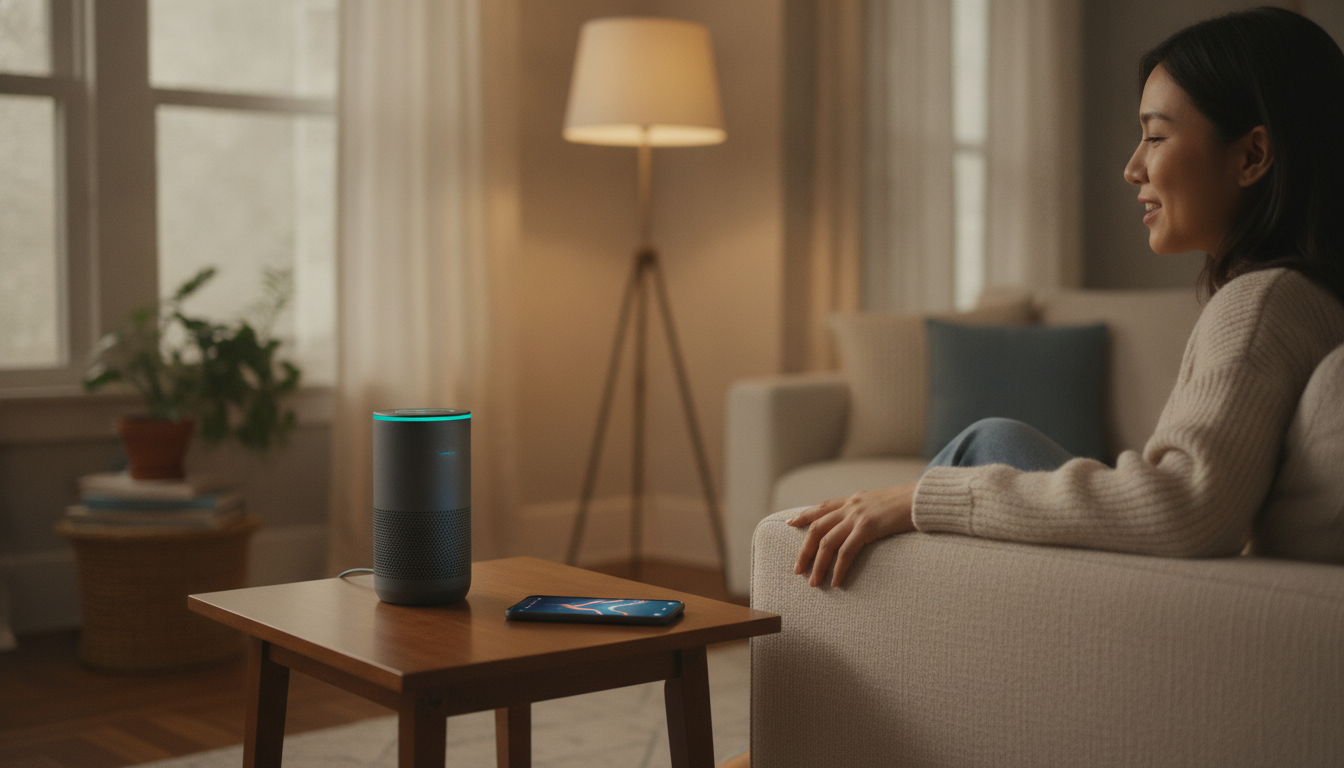
With the Echo Dot connected and Alexa responding in Portuguese, try some basic commands to confirm everything is working: “Alexa, what time is it?”, “Alexa, what’s the weather forecast?” and “Alexa, play music”. If all three responses come back correctly, the setup was a complete success.
From here, you can explore the Alexa app to connect smart lights, create automatic routines (like turning on lights when you say “Alexa, good morning”) and integrate streaming services. The ecosystem of smart home devices compatible with Alexa is extensive in Brazil, with products from brands like Positivo Smart Home, Intelbras and other locally homologated manufacturers. If you’re thinking about other gadgets to complement your setup, well-founded purchasing decisions make a difference, just as analyzing whether the iPhone 17e is worth it or better to wait for the 18e before spending on a device that may become outdated quickly.
The Echo Dot is not for those who want a high-fidelity speaker. According to the manufacturer, the device’s focus is convenience and integration with the Alexa ecosystem, not audiophile sound quality. For those who want affordable home automation and a functional voice assistant for everyday use, it does the job efficiently after a setup that, following this guide, should not take more than twenty minutes.