


Bluetooth headphones won’t connect to laptop: step-by-step solution guide
You’re there, trying to listen to music, join a meeting, or watch a video on your notebook, and the Bluetooth headphones simply don’t appear in the device list, or they appear but won’t connect. It’s frustrating, but in most cases there’s a solution, and almost always without needing a technician. This guide covers the most common scenarios, from trivial problems to situations that require tinkering with deeper Windows or macOS settings.
Before you start, you’ll need: a notebook with Windows 10, Windows 11, or macOS Ventura onwards (instructions apply to newer versions too), headphones with sufficient battery, and access to an administrator account on the system. Without an administrator account, some driver steps won’t work.
First things first: rule out the obvious problems
It seems basic, but half of “broken” Bluetooth cases get solved right here. Check each item before diving into advanced settings.
- Do the headphones have battery? Many low-battery headphones enter low-power mode and stop announcing themselves to new devices.
- Are the headphones in pairing mode? They need to be discoverable to appear in your notebook’s list. Generally, this involves holding the power button or a dedicated button for a few seconds until the LED flashes in a different pattern.
- Are the headphones already connected to another device, like your phone? Headphones with multipoint (simultaneous connection to two devices) usually handle this well, but those without this feature block new connections while occupied. Disconnect from the other device first.
- Is airplane mode enabled on your notebook? It disables Bluetooth along with Wi-Fi.
If all of this checks out and the problem persists, proceed to the next steps.
Step 1: restart your notebook’s Bluetooth
Sometimes the notebook’s Bluetooth adapter simply freezes, like any software service can.
- On Windows 11 or 10, click the Bluetooth icon in the taskbar, select “Bluetooth and other devices settings,” and turn off Bluetooth.
- Wait 10 seconds and turn it back on.
- On macOS, click the Bluetooth icon in the menu bar and use the turn off and on option. If you prefer, hold Option while clicking the icon to access the debugging menu, which allows you to restart the Bluetooth module directly without restarting the entire Mac.
- Put the headphones in pairing mode again and try to connect.
This step solves problems caused by inconsistent adapter states, something common after the notebook wakes from sleep mode.
Step 2: remove old pairing and start fresh
If the headphones were previously paired with the same notebook and stopped connecting, the saved profile may be corrupted.
- On Windows, go to Settings > Bluetooth and devices, locate the headphones in the list, click the three dots next to the name, and select “Remove device.”
- On macOS, open System Preferences > Bluetooth, hover your cursor over the headphones, and click the “x” to forget the device.
- On the headphones themselves, perform a factory reset. The process varies by model, so check the manual or the manufacturer’s website. It usually involves holding specific buttons for five to ten seconds.
- After the reset, put the headphones in pairing mode and add them as a new device on your notebook.
Redoing the pairing from scratch eliminates outdated pairing data, which can cause silent authentication failures.
Step 3: update or reinstall the Bluetooth driver (Windows)
On Windows, the driver is the software that lets the operating system communicate with your notebook’s physical Bluetooth adapter. An outdated or corrupted driver is one of the most common causes of connection problems.
- Right-click the Start menu and open “Device Manager.”
- Expand the “Bluetooth” section and locate the adapter, which usually has the chip manufacturer’s name, such as Intel Wireless Bluetooth or Qualcomm Atheros.
- Right-click the adapter and select “Update driver” > “Search automatically.”
- If no update is found, go to your notebook manufacturer’s website (Dell, Lenovo, HP, Asus, etc.) and download the latest Bluetooth driver for your specific model.
- To reinstall, right-click > “Uninstall device,” check the option to remove the driver software if it appears, and restart your notebook. Windows will automatically reinstall the driver.
Avoid using third-party driver updaters. They often install incorrect or outdated versions and can make the problem worse.
Step 4: check Bluetooth services on Windows
Windows relies on services running in the background for Bluetooth to work. If any of these services stop, Bluetooth disappears or behaves unpredictably.
- Press Windows + R, type
services.msc, and press Enter. - Locate the service called “Bluetooth Support Service.”
- Double-click it, verify the status is “Running,” and the startup type is “Automatic.”
- If it’s stopped, click “Start.” If the startup type is wrong, correct it and restart the service.
- Repeat for the “Bluetooth Audio Service” if it appears in the list.
Step 5: adjust power management settings (Windows)
Windows has a feature that turns off the Bluetooth adapter to save battery, which can interrupt connections or prevent new ones.
- In Device Manager, locate the Bluetooth adapter.
- Right-click > “Properties” > “Power Management” tab.
- Uncheck the option “Allow the computer to turn off this device to save power.”
- Repeat the process for your wireless network adapter, which sometimes shares the same chip and interferes with Bluetooth.
This setting is especially important on notebooks used plugged into an outlet, where power-saving features on the adapter don’t make much sense.
Step 6: reset Bluetooth settings on macOS
On macOS, there’s a Bluetooth configuration file that can be reset when the system shows strange behavior. As of macOS Ventura, the process changed from previous versions.
- Turn off Bluetooth from the menu.
- Open the Terminal application (in Applications > Utilities).
- Type the command:
sudo pkill bluetoothdand press Enter. This restarts the Bluetooth daemon (background process) without restarting the Mac. - Re-enable Bluetooth and try pairing.
- If the problem persists, consider creating a new user profile on macOS and testing the connection there. If it works on the new profile, the issue is with your current profile settings, not the hardware.
Common issues and how to fix them
The headphones appear in the list but won’t complete the connection
This specific symptom usually indicates an audio profile conflict. Bluetooth uses different profiles depending on the use: A2DP (Advanced Audio Distribution Profile) is for listening to music with quality, while HFP (Hands-Free Profile) is for calls with a microphone. If the system freezes while negotiating which profile to use, the connection won’t complete. Try connecting, wait for the error, then go to Sound Settings and manually select the headphones as the output device.
The headphones connect but don’t appear as an audio option
Check if the headphones are set as the default output device. On Windows, right-click the sound icon in the taskbar, select “Sound settings,” and set the headphones as output. On macOS, go to System Preferences > Sound > Output.
Bluetooth completely disappeared from the notebook
If the Bluetooth icon vanished and the device doesn’t appear in Device Manager, the adapter may be disabled. Look for a keyboard shortcut on your notebook (usually Fn + a key with a Bluetooth or airplane icon). Some models have a physical wireless switch. It’s also worth checking the BIOS: on some corporate notebooks, Bluetooth may be disabled by IT policy via BIOS.
Signal interference
Bluetooth operates on the 2.4 GHz band, the same used by Wi-Fi networks on the 802.11n standard and by microwaves, old cordless phones, and other devices. If you use the notebook near routers, Wi-Fi cameras, or in environments with lots of interference, the Bluetooth connection may drop frequently. Try moving the headphones closer to the notebook or changing your router’s Wi-Fi band to 5 GHz in its settings.
Frequently asked questions about Bluetooth connection issues on notebooks
Why do the headphones connect to my phone but not my notebook?
Phones and notebooks use different Bluetooth software stacks. The problem is almost always with the notebook’s driver or settings, not the headphones. If the headphones work perfectly on another device, diagnosis becomes easier: the problem is with the notebook.
Does resetting the headphones erase pairing settings from all devices?
Yes, on most models, a factory reset erases all paired devices stored in the headphones’ memory. You’ll need to re-pair them with each device you used before. Some premium multi-profile headphones, like Sony WH or Bose QuietComfort models, allow you to delete pairs individually through the manufacturer’s app.
Should I use Bluetooth 5.0 or 5.3 to have fewer problems?
The Bluetooth version matters less than the quality of the driver and the headphones’ firmware. Bluetooth 5.0 and later versions brought improvements in range and stability, but a device with poorly implemented Bluetooth 5.3 will perform worse than one with well-optimized Bluetooth 4.2. Check version compatibility in the technical specs of both the headphones and the notebook.
Do I need to install extra software for Bluetooth headphones to work on my notebook?
Generally, no. Windows and macOS have native Bluetooth support and recognize headphones without additional software. Some manufacturers offer complementary apps, like Sony Headphones Connect or Bose Music, which allow you to adjust equalizer and noise-cancellation settings, but these apps aren’t necessary for basic connection to work.
When the problem has no software solution
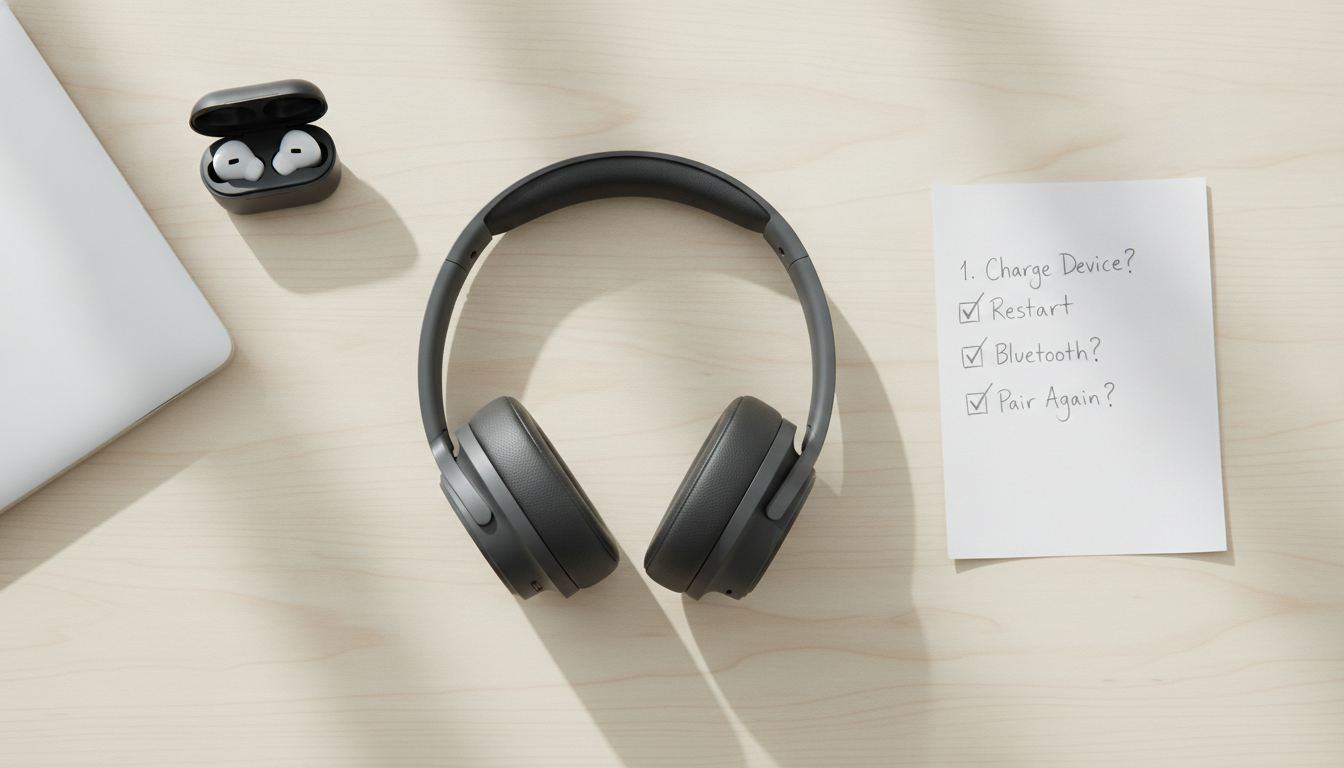
If you’ve gone through all the steps above and the notebook still won’t connect with any Bluetooth device, there’s a possibility of failure in the physical adapter. This is more common in older notebooks or those that have suffered a drop or moisture exposure. A quick way to confirm this is to buy a USB Bluetooth adapter, which costs between R$ 30 and R$ 150 depending on the model and Bluetooth version supported. Brands like Ugreen and TP-Link have options available in Brazil with Anatel approval, which guarantees the product was approved for use in the country. Plug it into USB, install the driver, and you have working Bluetooth without depending on the internal adapter.
Just as when you’re setting up a more complete home office configuration and need to understand each component of your setup, like when choosing between options for which gaming monitor is worth buying, the logic here is the same: identify the right bottleneck before spending money. Replacing your notebook because of a faulty Bluetooth adapter when a R$ 60 dongle solves the problem would be pure waste.
If your notebook is still under warranty, contact the manufacturer before buying any alternative solution. In Brazil, the legal warranty is 90 days for used products and one year for new ones, but most manufacturers offer contractual warranty of one to two years. Bring your proof of purchase and document the problem with photos or short videos to make support easier.