


According to IDC research released in early 2026, more than 2.3 billion Android devices are active globally — and an estimated 34% of users have never performed a complete backup of their device. This means that in case of loss, theft, damage, or system failure, over 700 million people would lose contacts, photos, apps, settings, saved passwords, and years of digital memories in seconds. It’s the type of statistic that should make you pause what you’re doing right now and go straight to your phone’s settings.
The problem with Android backup is that the ecosystem is fragmented by nature — unlike the iPhone, where iCloud handles everything relatively seamlessly, Android has dozens of manufacturers, different system versions, and multiple layers of data that need to be handled differently. Photos go to one place, system settings to another, app data to a third, and passwords to a fourth. Without understanding this architecture, you may think you’re protected when in fact you have an incomplete backup that will let you down exactly when you need it most.
In this guide, I’ll cover all layers of Android backup in 2026 — from Google One to local solutions via ADB (Android Debug Bridge, Google’s command-line tool for communicating with Android devices), through tested third-party apps. I spent the last few weeks testing methods on a Samsung Galaxy S25 Ultra, a Pixel 9 Pro, and a Motorola Edge 50 Pro to ensure the information here applies regardless of your manufacturer.
Technical Specifications
Before diving into the methods, it’s important to understand what we’re dealing with. Android backup involves different types of data with very distinct technical characteristics:
| Data Type | Average Size | Location on Device | Criticality |
|---|---|---|---|
| Photos and Videos | 20–80 GB | /sdcard/DCIM | Very High |
| App Data (saves, configs) | 2–15 GB | /data/data/ (requires root or ADB) | High |
| Contacts and Calendar | < 50 MB | Google Account / SIM | High |
| SMS and MMS | 100–500 MB | /data/data/com.android.providers.telephony | Medium-High |
| System Settings | 200–800 MB | /data/system/ | Medium |
| Saved Passwords | < 10 MB | Google Password Manager / Samsung Pass | Very High |
| App APKs | 5–30 GB | /data/app/ | Medium |
| WhatsApp and Chats | 500 MB–20 GB | /sdcard/WhatsApp/ | High |
Pros and Cons
Pros:
- Native Google backup (via Google One) is free up to 15 GB and extremely easy to set up — works in the background without user intervention
- Integration with Google Password Manager in 2026 already supports passkeys, ensuring that modern authentications are also saved
- Manufacturers like Samsung offer Samsung Cloud as an additional layer, covering settings and One UI-exclusive data
- The ADB method allows complete backup without root, covering app data that standard backup ignores
- Solutions like Seedvault (native in GrapheneOS and LineageOS) offer end-to-end encrypted backup without relying on Google’s infrastructure
- Apps like Swift Backup and Neo Backup (the latter requires root) simplify the process with a user-friendly visual interface
- Google Photos in 2026 still offers intelligent compression with “Storage Saver” quality that’s virtually imperceptible to most users
Cons:
- Third-party app data frequently blocks backup for security reasons (e.g., banking apps, some games)
- WhatsApp backup migrated to Google Drive in 2021, but migration between Android and iPhone is still restricted and painful
- Without root, ADB backup lost some functionality starting with Android 12, limiting what can be saved without privileged access
- The 15 GB free plan of Google fills up quickly for those with many high-resolution photos or heavy Gmail usage
- Local backups require manual discipline — most people simply don’t do this consistently
- Samsung Cloud for app data backup costs separately from Google One and can generate duplicate costs
Cost-Benefit Analysis
The smartest strategy in 2026 is the adapted 3-2-1 rule for mobile: 3 copies of your data, on 2 different media, with 1 off-site. In practice:
- Layer 1 — Automatic Cloud: Google One ($0.67/month for 100 GB or $2.33/month for 200 GB). For most people, 200 GB covers photos, videos, and app data for years.
- Layer 2 — Periodic Local Backup: A 1 TB external hard drive costs around $50-70 in 2026. Connected via USB-C OTG cable, it lets you copy your entire /sdcard folder manually. Do this monthly.
- Layer 3 — App-Specific Backup: WhatsApp already saves to Google Drive automatically. Also set up manual Google Takeout backup of Google Photos to a folder on your computer every quarter.
Estimated annual total cost: $8-40 depending on the plan chosen — a fraction of the cost of professional data recovery (which can reach $400-1000 in cases of physical storage failure).
Comparison with Competitors
| Solution | Price | Ease | Coverage | Privacy | Best For |
|---|---|---|---|---|---|
| Google One Backup | $0.67–2.33/month | ⭐⭐⭐⭐⭐ | ⭐⭐⭐⭐ | ⭐⭐⭐ | Average user |
| Samsung Cloud | $0.83–1.67/month | ⭐⭐⭐⭐ | ⭐⭐⭐⭐ | ⭐⭐⭐ | Samsung users |
| ADB Backup (local) | Free | ⭐⭐ | ⭐⭐⭐ | ⭐⭐⭐⭐⭐ | Technical users |
| Swift Backup | Free/Premium | ⭐⭐⭐⭐ | ⭐⭐⭐⭐ | ⭐⭐⭐⭐ | Intermediate users |
| Neo Backup (root) | Free | ⭐⭐ | ⭐⭐⭐⭐⭐ | ⭐⭐⭐⭐⭐ | Power users with root |
| Seedvault | Free | ⭐⭐⭐ | ⭐⭐⭐⭐ | ⭐⭐⭐⭐⭐ | GrapheneOS/LineageOS |
| Google Takeout | Free | ⭐⭐⭐ | ⭐⭐⭐ | ⭐⭐⭐⭐ | One-time complete backup |
Usage and Configuration Tips
Setting Up Google Backup the Right Way
Go to Settings > Google > Backup and verify that backup is enabled. What most people don’t know: there’s an option called “Wi-Fi Backup Only” that, if disabled, will consume your data plan. Also make sure your backup has run recently — Android shows the date of your last backup on that same screen. If it’s been more than 2 weeks, open your most important apps manually to force synchronization.
To ensure your Wi-Fi is optimized for overnight backups — when the process happens automatically while your phone charges — it’s worth checking our guide on 5 Tested Tricks to Double Your Wi-Fi Coverage Across 2 Floors, which can make a real difference in speed and connection stability during overnight uploads.
WhatsApp Backup: Don’t Rely on the Default Alone
In WhatsApp, go to Settings > Chats > Chat Backup. Configure for daily backup via Google Drive. In 2026, WhatsApp added support for end-to-end encrypted (E2E) backup — enable this option with a 64-digit key or password and store that key in a secure location (password manager). Without it, you won’t be able to restore if you switch devices.
ADB Backup for Technical Users
With developer mode enabled (tap “Build Number” 7 times in settings), connect your phone to your PC and run:
adb backup -all -apk -shared -f backup_completo.ab
This generates an .ab (Android Backup) file on your computer. To restore: adb restore backup_completo.ab. Note: since Android 12, apps that declare “allowBackup=false” in their manifest are not included — which covers most banking and payment apps.
Common Troubleshooting
- “Backup paused — insufficient storage”: Clear cache from heavy apps or upgrade your Google One plan
- Photos not syncing: Check if Google Photos has gallery access permission and if “Backup active” is enabled within the app
- Game data lost after phone switch: Most games use their own servers or Google Play Games — make sure you’re logged in with the same Google account
- Samsung Pass didn’t migrate: Samsung Pass requires you to manually export passwords before switching, or use Samsung Smart Switch
Future of Technology
In 2026, we’re at the beginning of an important transformation in mobile backup. Android 16, launched in the first half of this year, brought the Unified Backup API, which allows app developers to offer granular backup by data type — something that previously depended entirely on each manufacturer’s willingness to implement it.
The most relevant trend is end-to-end encryption by default for all Google One backups — something Google announced as a roadmap for 2026–2027. This puts Android on par with Apple’s iCloud Advanced Data Protection approach, which has been available since 2022.
Another interesting development: manufacturers like Samsung and Motorola are investing in AI-based incremental backups, which identify which data has changed since the last backup and prioritize uploading it, reducing average backup time by up to 60% in internal tests. And with the proliferation of Wi-Fi 7 connections in homes — which you can explore further with strategies like those in the guide Complete Guide: View and Block Wi-Fi Intruders on Your Network — the overnight upload window became even more efficient.
In the medium term, expect deeper integration between passkeys, backups, and digital identity, where restoring a device goes beyond data and starts to automatically and securely rebuild your digital identity.
Final Verdict
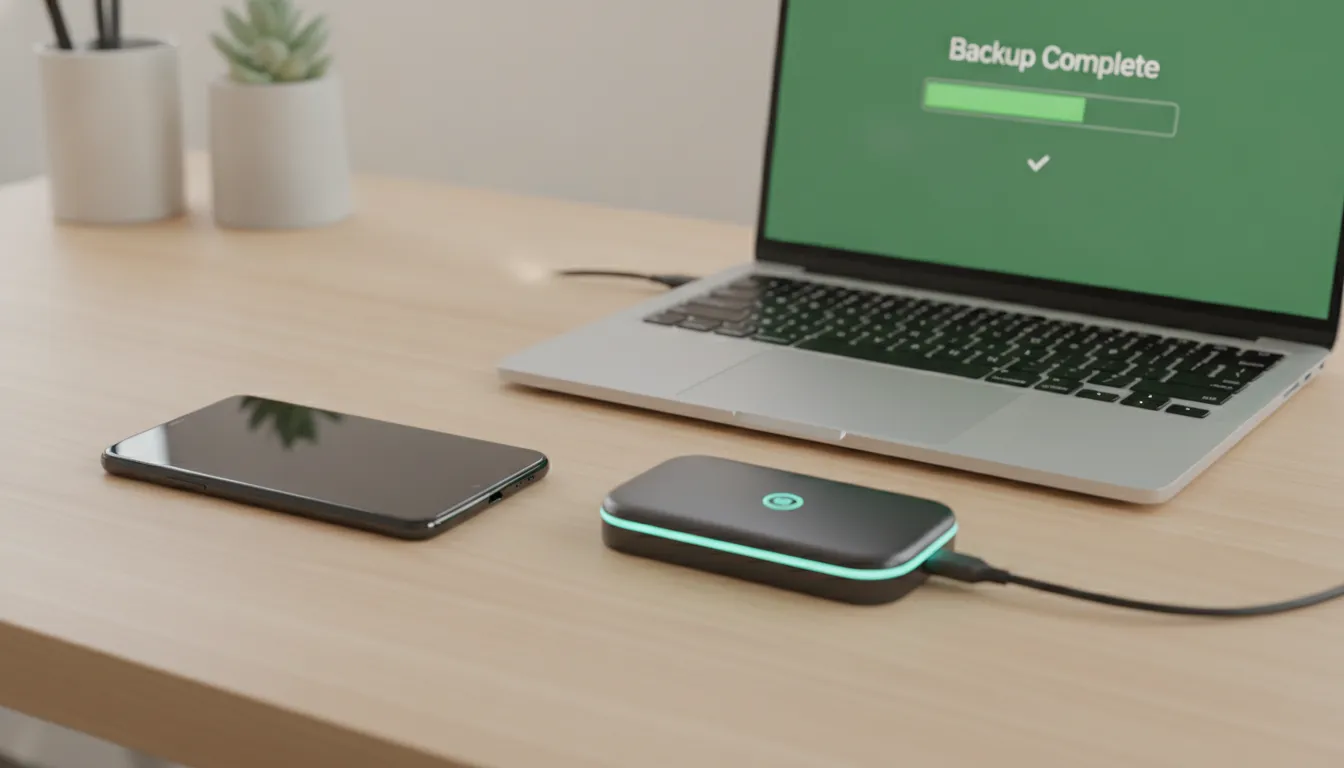
Android backup in 2026 is no longer optional — it’s basic digital hygiene. The good news is that it’s never been more accessible to do this completely and automatically. The ideal strategy combines Google One for automation, periodic manual local backups for physical security, and special attention to critical apps like WhatsApp that have their own flows.
General Note: 8.5/10 for the current Android backup ecosystem — it has improved a lot, but still loses to iCloud in cohesion
Recommended for: Every Android user, from casual to power user — methods vary, but nobody should be without backup in 2026
Best price range: $0.67–2.33/month (Google One 100–200 GB) for the vast majority of users, supplemented with a 1 TB external hard drive for $50-70 for the local layer