

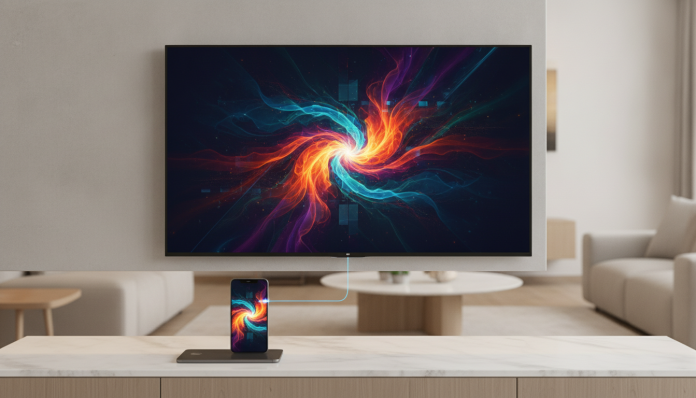

Mirror your phone screen to an LG TV: what you need to know before starting
If you have an LG TV with webOS and want to project your phone screen without relying on Chromecast, the good news is that it’s completely possible using technologies that are likely already in your device. LG adopts protocols such as Miracast, AirPlay 2, and its own LG ThinQ app to enable mirroring without external adapters, and the process varies depending on the TV model and your phone’s operating system.
What changes between one method and another is basically compatibility and image quality. Not every LG TV accepts all protocols, and not every phone communicates the same way with the television. This guide covers the main paths for Android and iPhone, explains the requirements for each one, and points out what to do when something doesn’t work as expected.
What you need before you start
Before any steps, confirm the following points:
- LG TV with webOS 4.0 or higher (models from 2019 onwards usually qualify; check your TV manual or the LG Brazil website to verify the exact system version)
- Phone and TV connected to the same Wi-Fi network (this is mandatory for most methods)
- In the case of iPhones, the model must be iPhone 7 or higher to use AirPlay 2
- For Android, any device with Android 4.2 or higher can use Miracast, although support depends on the manufacturer
If your TV is older, from the time when LG still used the Linux-based Smart TV system (before webOS), native options are more limited. In that case, an HDMI cable with a USB-C or Lightning adapter is still the most reliable solution.
Method 1: Screen Share via Miracast (Android)
Miracast is a wireless mirroring standard that works like a virtual HDMI cable. It creates a direct connection between your phone and TV without needing an intermediary router, although both need to be on the same network for initial pairing on some models.
Enabling on Android phone
- Open your phone’s Settings
- Look for “Transmission”, “Smart View” (Samsung), “Cast” (Motorola and others) or “Wireless Projection” depending on the manufacturer
- Tap the option and wait for your phone to detect available devices
- Select your LG TV name from the list
Enabling on LG TV
- Press the Home button on the remote
- Access Settings (gear icon)
- Go to Network and then Screen Share
- Leave the mode active and wait for detection by your phone
The name displayed in the phone’s list is usually the TV name configured in webOS. If more than one device appears, check the name in the TV settings at General > About This TV.
Method 2: AirPlay 2 (iPhone and iPad)
LG included native support for AirPlay 2 in webOS models from 2019 onwards. AirPlay 2 is Apple’s protocol for audio and video transmission, and works in a way very similar to what Chromecast does for the Google ecosystem, but within the Apple world.
Step by step on iPhone
- Connect your iPhone and LG TV to the same Wi-Fi network
- On the TV, go to Settings > Apple AirPlay and verify that it is enabled
- On your iPhone, open the Control Center (swipe down from the top right corner)
- Tap “Mirror Screen” (the icon looks like a rectangle with a triangle underneath)
- Select your LG TV name from the list
- If prompted, enter the code displayed on the TV screen
Screen mirroring via AirPlay 2 reproduces the entire iPhone screen content, including streaming apps, photos, games, and any other content. The latency (delay between action on the phone and display on the TV) is noticeable in games requiring quick response, but for videos and presentations it works very well.
Method 3: LG ThinQ App
LG ThinQ is LG’s official app available on the Play Store and App Store, designed for controlling brand devices. In addition to functioning as a remote control, it allows Screen Share directly within the app on some compatible models.
- Download LG ThinQ on your phone (available for free in Brazil)
- Open the app and add your LG TV following the setup wizard
- Within the app, access the “Mirror Screen” or “Screen Share” option
- Follow the on-screen instructions
Not all LG TV models display this option within ThinQ. If it doesn’t appear, try the Miracast or AirPlay methods directly, which are independent of the app.
Method 4: HDMI Cable with Adapter
For those with an older LG TV or facing Wi-Fi compatibility issues, the cable still works. You need:
- A USB-C to HDMI adapter (for most modern Androids and USB-C iPhones)
- A Lightning to HDMI adapter (for iPhones with the old connector, such as models up to iPhone 14)
- A standard HDMI cable
Connect the adapter to your phone, connect the HDMI cable between the adapter and the TV’s HDMI input, and select the correct input on the remote. The phone is recognized automatically in most cases.
Apple’s official Lightning to HDMI adapter is sold in Brazil for around R$ 400 to R$ 600, depending on the retailer. Adapters from smaller brands cost between R$ 80 and R$ 200, but quality varies considerably. USB-C to HDMI adapters from trusted brands range from R$ 60 to R$ 150 in the national market.
Common problems and how to solve them
The TV doesn’t appear in the phone’s list
Confirm that your phone and TV are on the same Wi-Fi network, not on different networks with the same name (separate 2.4 GHz and 5 GHz networks, for example). Restart the router, phone, and TV before trying again.
The image appears frozen or with excessive lag
Weak Wi-Fi signal is the most common cause. Try moving your phone closer to the router or TV. In apartments with high interference, using the 5 GHz band usually improves stability.
AirPlay doesn’t appear in iPhone options
Check that AirPlay 2 is enabled in LG TV settings (under Settings > Apple AirPlay). If the option doesn’t exist in the menu, your TV model probably doesn’t support the protocol natively.
Streaming apps won’t mirror content
Netflix, Disney+, and other services block screen mirroring in some scenarios due to DRM (digital rights management, a copy protection feature). In those cases, use the service’s native app directly on the Smart TV, which offers better quality anyway.
Screen Share appears, but quality is poor
Miracast automatically adjusts resolution based on signal strength. There is no manual resolution setting in this protocol; improvement depends on a more stable Wi-Fi signal.
Frequently asked questions about mirroring to an LG TV
Do I need internet to mirror my screen?
For most methods, you need your phone and TV to be on the same local network, but not necessarily with active internet access. Miracast theoretically creates a direct connection without a router, but behavior varies between TV and phone models.
Does it work with any Android phone?
Miracast has been supported by Android since version 4.2, but manufacturers like Samsung, Motorola, and Xiaomi implement the functionality in slightly different ways in their systems. If your phone is from 2020 onwards and runs Android 10 or higher, the chances of compatibility are high.
Does the LG TV need to be a Smart TV to work?
Yes. The wireless methods described here depend on LG’s webOS. TVs without an integrated operating system don’t natively support Miracast or AirPlay, and the only option in those cases is an HDMI cable with an adapter.
Does mirroring consume a lot of phone battery?
Yes, especially over Wi-Fi. Continuous use of Screen Share for 30 to 60 minutes consumes a considerable portion of the battery, depending on the phone model. Keeping the charger connected during long sessions is a good practice.
When to use each method
The choice depends on your equipment and what you want to do:
- Miracast is the natural path for Android users with webOS LG TV; simple and straightforward
- AirPlay 2 is the best option for iPhone users; integration with the Apple ecosystem makes the process seamless
- LG ThinQ can simplify even further for those already using the app to control the TV
- HDMI cable solves the issue when Wi-Fi is unstable or the TV is older
For those setting up a home office and will be presenting content frequently, investing in a good quality USB-C to HDMI adapter from a trusted brand usually pays off more than relying exclusively on Wi-Fi. For casual use, wireless methods work well. If you’re also building your home entertainment space and thinking about other accessories to complement it, it’s worth checking comparisons like Galaxy Fit 3 vs Xiaomi Smart Band 10 to understand how to evaluate cost-benefit in everyday gadgets.
The LG TV with webOS is, in practice, a well-equipped platform for native mirroring. Chromecast solves the problem, of course, but is rarely necessary when the device already offers the right protocols out of the box.