


Switch from iPhone to Samsung without losing your WhatsApp conversations
You’ve finally decided to trade your iPhone for the new Samsung, and now the question that’s holding everything back is: what about WhatsApp? The messages, photos, audios and videos you’ve accumulated over years are there in your iCloud backup, and Android doesn’t read that format directly. It seems complicated, but in 2026 the process has become much simpler than it was a few years ago.
What you’ll be able to achieve by following this guide: transfer your entire WhatsApp conversation history, including media, from iPhone to a Samsung Galaxy without losing anything along the way. Requirements are: iPhone with updated iOS, Samsung Galaxy with Android 10 or higher, USB-C to Lightning cable (or USB-C to Lightning adapter), and both devices with battery above 50%. Stable Wi-Fi connection helps, but isn’t mandatory for all steps.
What changed in the process in 2026
For a long time, migrating conversations between iOS and Android was a real headache. WhatsApp kept separate backups: iPhone saved to iCloud, Android to Google Drive, and the two systems didn’t communicate with each other. Meta solved this officially with the native migration tool, which became stable from 2023 onwards and is now integrated directly into Samsung Smart Switch, Samsung’s official application for data transfer.
The Samsung Smart Switch works as a bridge between the two operating systems. It transfers contacts, photos and, since integration with WhatsApp, also the complete history of messages from the app. You don’t need third-party apps, root on Android or jailbreak on iPhone. Everything happens via cable or, on some models, via direct Wi-Fi between the devices.
An important caveat: WhatsApp transfer via Smart Switch depends on specific versions of the app and operating system. Before you start, update WhatsApp on both devices and verify that Smart Switch is at the most recent version available on the Play Store and App Store.
Before you start: prepare both devices
Skipping this step is the most common mistake, and it’s what causes people to lose messages. Follow this checklist before touching any cables:
- On iPhone, open WhatsApp, go to Settings > Chats > Chat Backup and make a manual backup now. Wait for it to complete.
- Still on iPhone, write down the phone number linked to your WhatsApp account. You’ll need it on Samsung.
- On Samsung, install Smart Switch from the Play Store if not already installed (on newer Galaxy devices, it comes pre-installed).
- Keep the iPhone plugged into the charger throughout the process. The same goes for Samsung.
- Temporarily disable iCloud on iPhone: go to Settings > [your name] > iCloud and disable WhatsApp sync. This prevents conflicts during transfer.
Step by step: transferring WhatsApp via Samsung Smart Switch
Connecting the devices
- Open Smart Switch on Samsung Galaxy.
- Tap Receive data.
- Select iPhone/iPad as the source device.
- Choose the cable connection option. (Cable connection is more stable and faster than Wi-Fi for large files.)
- Connect the USB-C cable to Samsung and the Lightning adapter to iPhone.
Starting the transfer on iPhone
- On iPhone, a Smart Switch screen will appear automatically. If it doesn’t appear, open Safari and go to the address displayed on the Samsung screen.
- Tap Trust when iPhone asks if you trust the connected device.
- On the Smart Switch screen, select which data you want to transfer. Check WhatsApp specifically and, if you want, other data like contacts and photos.
Transferring WhatsApp data
- Smart Switch will ask you to open WhatsApp on iPhone and start the export process from within the app itself. Follow the on-screen instructions: go to Settings > Chats > Migrate to Android (or equivalent path in the current version of the app).
- WhatsApp will encrypt and prepare the backup locally on iPhone. This process can take from a few minutes to over an hour, depending on the size of your history.
- When iPhone completes the preparation, Smart Switch automatically starts the transfer to Samsung. Do not disconnect the cable.
Finishing on Samsung
- When the progress bar completes, tap Done on Smart Switch.
- Open WhatsApp on Samsung Galaxy. The app will detect the local backup and ask if you want to restore it. Confirm.
- Check your conversations. Messages, photos and audios should all be there.
Alternative: use direct migration via WhatsApp without Smart Switch
If you don’t want to use Smart Switch or you’re setting up Samsung from scratch (without data from another device), WhatsApp offers an independent migration route. The path is pretty much the same, but initiated from within the app:
- On iPhone, go to Settings > Chats > Migrate to Android and follow the instructions. WhatsApp will generate a QR Code.
- On Samsung, during initial WhatsApp setup (before activating the account), the app will ask you to scan that QR Code with your iPhone.
- The transfer happens via cable or direct Wi-Fi between the two devices.
This method is simpler for those setting up Samsung for the first time. If Samsung is already in use, Smart Switch tends to be more practical because it centralizes everything in a single process.
Common problems and how to solve them
The “Migrate to Android” option doesn’t appear on iPhone This happens when WhatsApp is outdated. Update the app from the App Store and restart iPhone before trying again.
The transfer gets stuck or fails halfway through Check the cable: poor quality cables or generic adapters cause data transfer failures. Use the original Samsung or Apple cable. If the problem persists, try the direct Wi-Fi connection in Smart Switch.
Photos arrived, but some messages disappeared This can happen if the backup on iPhone was outdated. That’s why the first step of the checklist asks for a manual backup. If you skipped that step, unfortunately there’s no way to recover the messages that were left out.
WhatsApp on Samsung asks to activate with the number, but doesn’t restore history You probably activated the account before restoring the backup. Reinstall WhatsApp on Samsung, don’t activate the account yet, and follow the migration process from the beginning before confirming the number.
Smart Switch doesn’t recognize iPhone Try another cable, restart both devices and verify that iTunes (or Apple Mobile Device Support drivers on Windows) is installed on your computer if you’re using the desktop version of Smart Switch.
Frequently asked questions about transferring WhatsApp from iPhone to Samsung
Will I lose my messages if I migrate wrong?
If you make the manual backup on iPhone before you start, your messages stay safe in iCloud even if something goes wrong. The risk of loss happens when the user skips the backup and the transfer process fails halfway through. With the backup done, you can try again without losing anything.
Does the transfer work with any Samsung Galaxy model?
WhatsApp’s migration feature via Smart Switch works with Samsung Galaxy devices running Android 10 or higher, according to public information from Samsung and Meta. This covers practically every model sold in Brazil since 2020. For very old versions of One UI, it’s worth checking compatibility on Samsung’s website before you start.
Are WhatsApp calls and status also transferred?
No. Call history and status (Stories) are not part of the migration. Only text messages, photos, videos and audios sent in conversations are transferred. This applies to both the Smart Switch method and direct app migration.
Can I transfer back to iPhone later if I change my mind?
Yes, the reverse process exists. WhatsApp also has the option to migrate from Android to iPhone, and Smart Switch supports that direction. The procedure is similar, but the source and destination are reversed. If you’re unsure about staying in the Samsung ecosystem, it’s worth testing the device within the store’s exchange period before deciding definitively.
A detail that many people ignore: the phone number
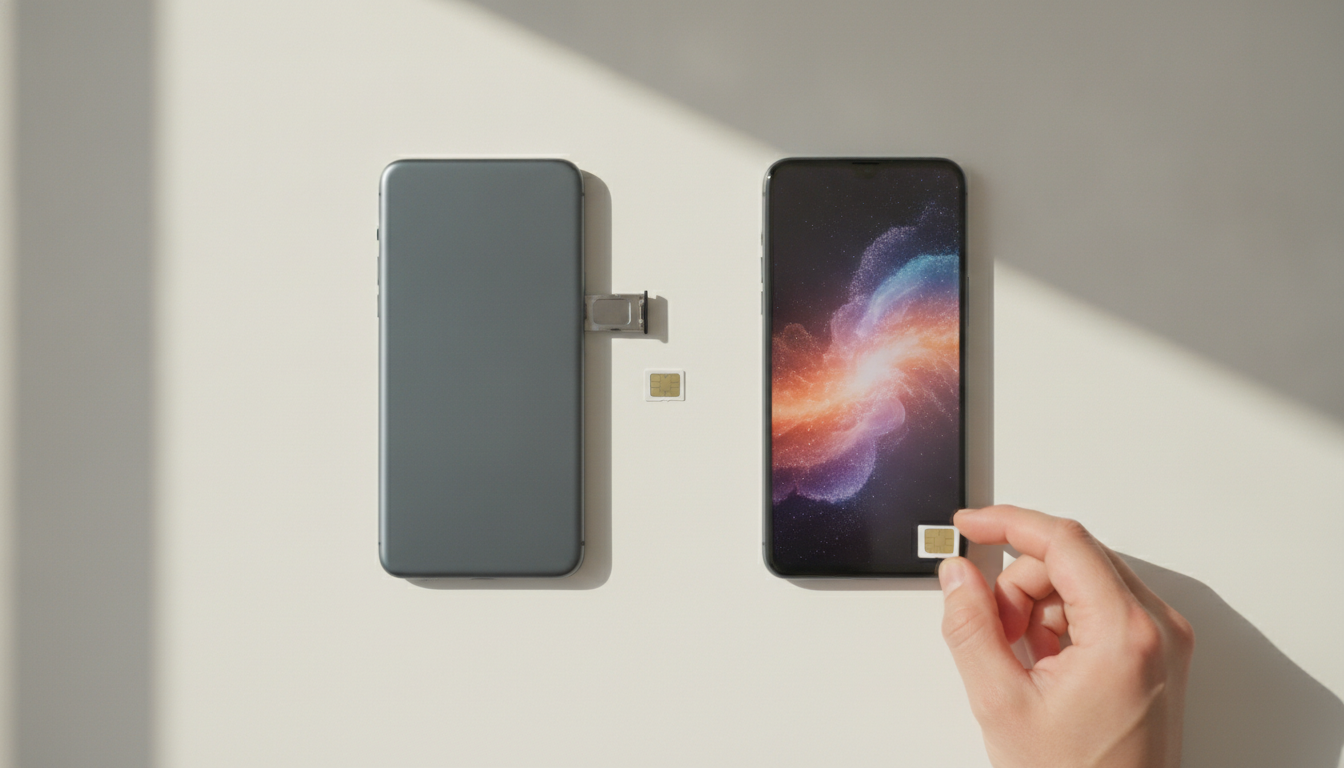
Your WhatsApp account is tied to your number, not the device. This means that if you change your number when switching carriers along with the device, you’ll need to update the number within WhatsApp before migrating. Doing the transfer with the old number and then trying to change to the new number on Samsung can cause conflict and require a new activation, which erases the local history.
If you’re going to change your SIM card at the same time you change your phone, do the WhatsApp migration first with the old SIM card on iPhone, complete everything on Samsung, and only then install the new SIM card and update the number in WhatsApp settings. This order prevents headaches.
The entire process, when devices are prepared and backup is done, takes between 20 minutes and two hours, depending on the amount of media. A light history with only text will take minutes. A history with years of photos and videos in groups may take longer. Plan to do this when you have the time and both devices are charged.