

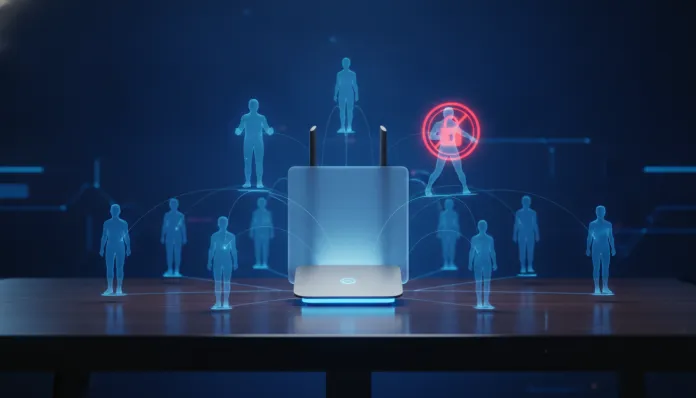

In 2026, more than 4.7 billion devices are connected to home Wi-Fi networks around the world — and an alarming portion of those connections includes devices that network owners simply never authorized. Whether it’s a neighbor who discovered your password, a zombie device infected with malware that reconnects on its own, or that family member who shared access with half a dozen friends, the reality is that most people have no idea how many devices are siphoning their bandwidth right now.
The problem goes beyond just “my internet got slow.” Unauthorized devices on your network represent a real attack vector: they can intercept unencrypted traffic, access your shared storage devices, or serve as an entry point for more sophisticated attacks. With the absurd growth of remote work and the number of gadgets per household — today the Brazilian average is 8.3 connected devices per residence, according to Anatel data from 2025 — knowing who’s on your network has gone from paranoia to basic digital hygiene.
In this guide, I’ll show you exactly how to map all devices on your network, identify intruders, block them permanently, and configure your network so it doesn’t happen again. I’ve tested free and paid tools, worked with entry-level routers like the TP-Link Archer AX23 and all the way up to enterprise-grade solutions like the Ubiquiti UniFi Dream Machine Pro, and compiled everything that actually works in everyday use.
Technical Specifications
Before diving into tools, it’s important to understand what we’re dealing with. Here are the protocols and technologies involved in this monitoring process:
| Component | Details | Importance |
|---|---|---|
| ARP Protocol | Address Resolution Protocol — maps IPs to MACs on the local network | Fundamental for device discovery |
| MAC Address | Unique 48-bit identifier burned into network card hardware | Device “fingerprint” on the local network |
| DHCP Lease Table | Router table with assigned IPs and their corresponding MACs | Simplest method to see who’s connected |
| Wi-Fi Standards | Wi-Fi 6 (802.11ax), Wi-Fi 6E, Wi-Fi 7 (802.11be) | Newer versions have more access controls |
| WPA3 | Current security protocol — replaces vulnerable WPA2 | Essential for modern networks |
| MAC Filtering | Whitelist/Blacklist by MAC address | Access control layer on the router |
| VLAN | Virtual LAN — segments your network into isolated sub-networks | Advanced solution for isolating devices |
| mDNS / Bonjour | Device discovery protocol on the local network | Used by Apple, printers, and smart TVs |
Pros and Cons
Pros:
- Monitoring your network is free with the right tools and doesn’t require advanced knowledge
- Identifying intruders can explain speed drops and solves the problem at the root
- The process teaches you about your own network infrastructure, making you more autonomous
- Modern 2025/2026 routers already come with native apps for real-time monitoring
- MAC blocking is immediate and works without restarting the router in most models
- Tools like Fing and Advanced IP Scanner are free and extremely efficient
Cons:
- MAC Address can be spoofed (technique called MAC Spoofing), so it’s not a standalone definitive solution
- Entry-level routers (under $150) often have limited or buggy blocking interfaces
- Identifying the owner of an unknown device requires investigation — the displayed name isn’t always obvious
- VLANs and network segmentation require more in-depth technical knowledge
- Some ISPs block access to the router panel on their own models
Cost-Benefit Analysis
The good news is that for 90% of home users, the cost to monitor and protect your network is zero. The most efficient tools are free, and the entire process takes less than 20 minutes the first time.
Costs start appearing if you want to level up. A router with advanced controls like the TP-Link Archer AXE75 (around $130 USD in 2026) or the ASUS RT-AX88U Pro (about $240) already come with native network management systems, visual device panels, schedule-based blocking, and even bandwidth usage reports per device. For those with serious home office setups or large families with many devices, this investment pays for itself quickly.
On the most expensive end, solutions like the Ubiquiti UniFi Dream Router 7 (~$560) offer enterprise-grade granular control: automatic IoT VLANs, honeypots, intrusion detection (IDS/IPS), and real-time dashboards. It’s like having a NOC (Network Operations Center) at home — overkill for most, but perfect for those who take security seriously or have many IoT devices, which are notoriously insecure.
Comparison with Competitors
Here are the main tools for monitoring your network, compared side by side:
| Tool | Platform | Price | Ease of Use | Depth | Best For |
|---|---|---|---|---|---|
| Fing | iOS, Android, Desktop | Free / Pro $8/month | ★★★★★ | ★★★★☆ | Home user |
| Advanced IP Scanner | Windows | Free | ★★★★☆ | ★★★★☆ | Windows users |
| nmap | Windows, Mac, Linux | Free | ★★☆☆☆ | ★★★★★ | Technical users |
| GlassWire | Windows | Free / Pro $16 | ★★★★☆ | ★★★★☆ | Continuous monitoring |
| Router Panel | Browser | Free (native) | ★★★☆☆ | ★★★☆☆ | Any user |
| Ubiquiti UniFi | Web / App | Hardware required | ★★★☆☆ | ★★★★★ | Power users |
| Angry IP Scanner | Windows, Mac, Linux | Free | ★★★★☆ | ★★★☆☆ | Cross-platform |
Fing is by far the easiest to use: open the app, it scans your network, and in 30 seconds you see all devices with name, manufacturer, IP and MAC. For someone who’s never done this before, it’s the ideal entry point. Meanwhile, nmap is the tool of professionals — with a command like nmap -sn 192.168.1.0/24 you scan your entire subnet and get detailed results, but the learning curve is real.
Usage and Configuration Tips
Step 1 — Map your network now
Download Fing on your phone or Advanced IP Scanner on your PC. Connect to your Wi-Fi and run a scan. Note all devices that appear. For each one, ask yourself: do I recognize this device? Does the manufacturer name match something I own? Devices with generic names like “Android” or “Unknown” deserve special attention.
Step 2 — Access your router panel
Type 192.168.1.1 or 192.168.0.1 in your browser (the exact address is on your router’s label). Look for “Connected Devices”, “DHCP Clients” or “Wireless Clients”. Here you’ll see the router’s official list — compare it with what Fing found. Discrepancies may indicate devices using static IPs to escape DHCP.
Step 3 — Block by MAC Address
To block a specific device: in the router panel, look for “MAC Filtering”, “Access Control” or “Parental Controls”. Add the unwanted device’s MAC to the blacklist. On TP-Link routers, this is in Advanced > Security > Access Control. On ASUS, it’s in AiProtection > Network Protection. On Intelbras routers (very common in Brazil), look in Advanced Settings > Access Control.
Step 4 — Change your password and use WPA3
If you found an intruder, changing your password is mandatory. Use a password with at least 16 characters, mixing letters, numbers and symbols. Enable WPA3 if your router supports it — released in 2018 but only now mainstream in 2024/2025 devices, it uses the SAE protocol that resists offline dictionary attacks, unlike WPA2.
Step 5 — Create a separate network for IoT and guests
This is the tip that separates the paranoid from the smart: put your smart TVs, voice assistants, cameras and other IoT devices on a separate guest network. That way, even if one of these devices is compromised, it won’t have access to your main network where your laptop and files are. Almost every 2024+ router has this function natively as “Guest Network” or similar.
Common Troubleshooting
- Device returns after MAC block: Could be MAC Randomization — feature of Android 10+ and iOS 14+ that generates random MACs per network. Disable in your device’s Wi-Fi settings (“Use device address” instead of “Random”)
- Can’t access router panel: Your ISP may have locked access. Call support and ask for panel access or the correct gateway IP
- Device appears but I don’t recognize the manufacturer: Use MAC Lookup to identify the manufacturer by the OUI (first 6 digits of the MAC)
Future of Technology
Home network monitoring is undergoing a silent but powerful transformation. In 2026, we’re already seeing the first routers with embedded AI for anomaly detection — the ASUS ZenWiFi Pro ET12 and Eero Max 7, for example, can identify suspicious device behavior on the network without the user doing anything.
The trend for 2027-2028 is that systems like Wi-Fi Alliance Enhanced Open and WPA3 Enterprise will become standard even on entry-level routers, eliminating open unencrypted networks. Moreover, Wi-Fi 7 (802.11be), which is accelerating rollout in 2026, brings Multi-Link Operation (MLO) — and with it, new access control layers that make device blocking more granular and reliable.
In the IoT field, the Matter protocol — already supported by Apple, Google, Amazon and Samsung — promises to standardize smart home device security, something that today is complete chaos. If you want to dive deeper into how home technology is evolving, it’s worth checking our Notebook Home Office up to 3500 Reais: Definitive Review 2026 to understand how home hardware is evolving in this connected ecosystem.
Long term, home network security should move toward simplified Zero Trust models — where each device must continuously authenticate, not just on first connection. This already exists in UniFi and Cisco Meraki Go, but in 2026 it’s still power user territory. In 3-4 years, it should reach mass-market routers.
Final Verdict
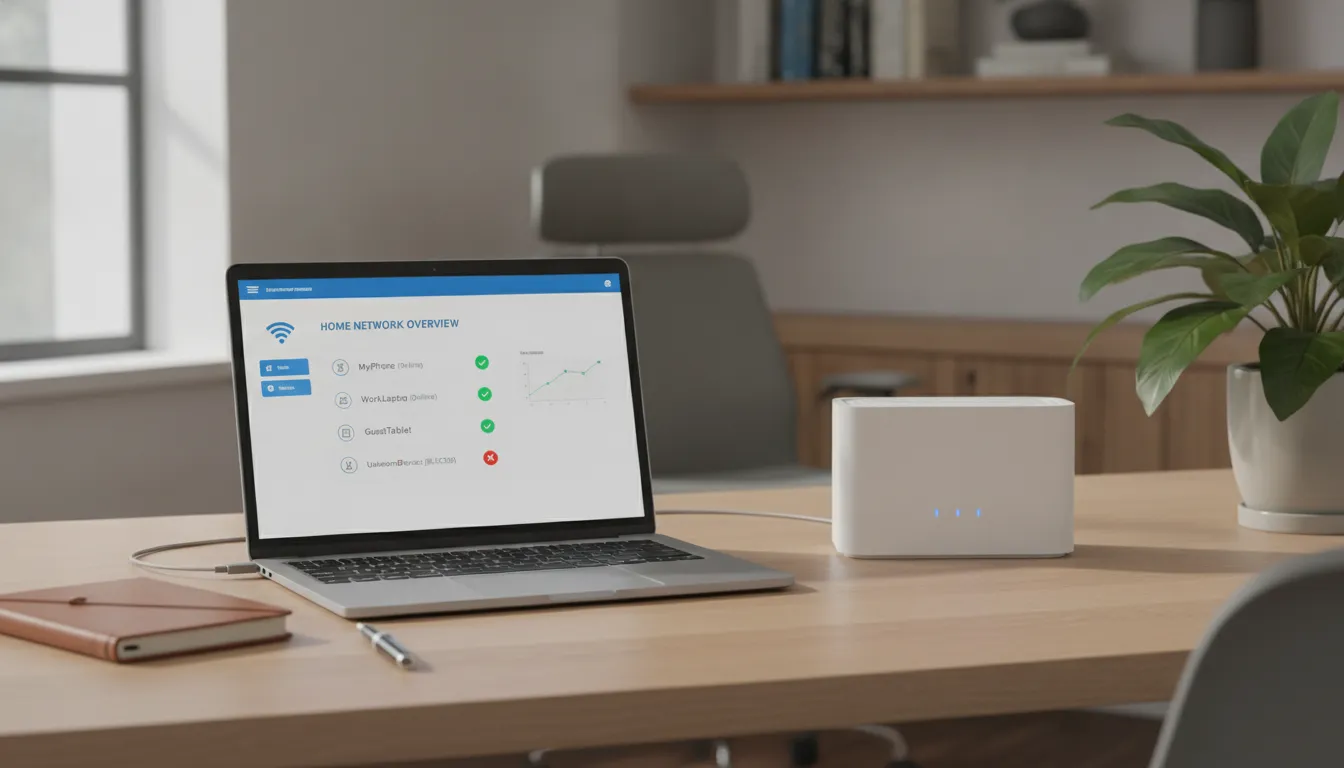
Monitoring who uses your Wi-Fi has gone from a geek task to part of the digital routine for anyone who takes their privacy and internet speed seriously. The tools are mature, free, and accessible. The process is simpler than it seems. And the benefits — in security, performance, and control — are immediate and tangible.
If you still don’t know exactly how many devices are on your network right now, this is the time to open Fing, run a scan, and face reality. What you find may surprise you — and with this guide, you have everything you need to act. To complement your digital security on a daily basis, also check our Apple Watch SE 2 in 2026: Honest Review Worth Buying? and understand how your wearables are also part of this connected ecosystem that needs protection.
Overall Rating: 9/10
Recommended for: Anyone with a home Wi-Fi network — from casual users to power users with structured home offices
Best price range: $0 to get started (free tools) up to $130-240 for those wanting advanced control with a dedicated router