

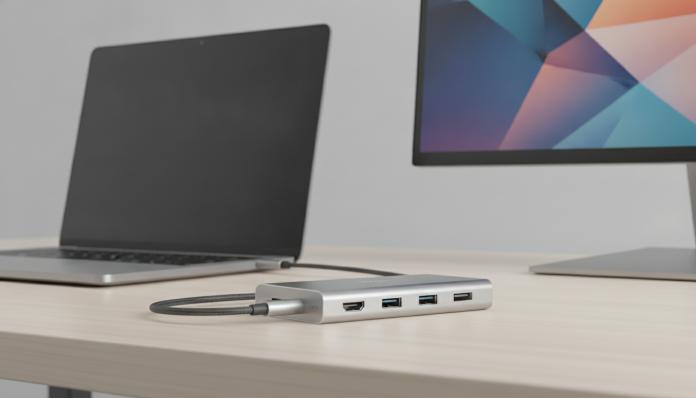

Why the USB-C hub with HDMI became an essential accessory
Slim notebook, few ports, meeting in five minutes, and the projector cable in front of you. Anyone working with modern hardware has been through this. The USB-C hub with HDMI output exists precisely to solve this: it transforms that single USB-C input on your notebook into multiple connections at the same time, including the video output that allows you to connect to a monitor or TV.
The problem is that the Brazilian market is full of options ranging from R$ 80 to over R$ 800, and the difference between them is not just price. A wrong choice can result in image freezing on the monitor, slow notebook charging, or devices that simply stop working when you need them most. This guide helps you understand what to look for before buying.
This article is a buying guide based on public specifications and technical datasheets. There are no proprietary laboratory tests here: the information comes from official manufacturer specifications and publicly available documentation.
What’s inside a USB-C hub: understanding the technical foundation
USB-C is a connector standard, not a speed standard. This confuses many people. The same plug format can carry completely different protocols: USB 2.0, USB 3.2, Thunderbolt 3, Thunderbolt 4, or USB4. Think of the USB-C connector as a universal outlet, but with different extensions running underneath.
What really matters for a hub with HDMI is which protocol your notebook supports on that port. If your notebook’s USB-C port does not support DisplayPort Alt Mode (a protocol that allows video transmission over USB-C cable), the hub won’t be able to send an image to the monitor, no matter how much you paid for it. Before buying any hub, check your notebook’s technical sheet and confirm if the USB-C port supports DisplayPort Alt Mode or Thunderbolt.
Most notebooks launched from 2022 onwards with Intel 12th generation processors or newer, or with AMD Ryzen 6000 Series chips or newer, already have at least one port with this support. But there are exceptions, especially in entry-level models. It’s worth checking.
The specifications that decide the purchase
HDMI version and supported resolution
The HDMI output of a hub can be version 1.4 or 2.0, and this changes quite a bit what you can do. HDMI 1.4 supports up to 4K at 30 fps (frames per second) or Full HD at 120 fps. HDMI 2.0 goes up to 4K at 60 fps. If you use a 4K monitor and want real fluidity, HDMI 1.4 will disappoint.
Some entry-level hubs don’t list the HDMI version on the packaging, which is already a warning sign. Check the complete technical sheet, usually available on the manufacturer’s website or in the detailed specifications of marketplaces. If it only says “supports 4K” without mentioning the frame rate, assume it’s 30 fps until proven otherwise.
Speed of additional USB-A and USB-C ports
Entry-level hubs usually have USB-A ports with USB 2.0 speed (480 Mbps), which are sufficient for mouse and keyboard, but too slow for external hard drive or fast flash drive. Mid-range hubs bring USB 3.2 Gen 1 ports (up to 5 Gbps) or USB 3.2 Gen 2 (up to 10 Gbps), which make a real difference when transferring large files.
If you use an external hard drive or portable SSD connected to the hub, prioritize USB 3.2 Gen 1 ports at minimum. The difference in copy time for a 50 GB file between USB 2.0 and USB 3.2 Gen 1 is minutes versus hours.
Power Delivery: will the notebook charge properly?
Power Delivery (PD) is the protocol that allows you to charge the notebook through the same USB-C port. Most hubs with PD pass the charge from the original adapter through the hub to the notebook, but there’s a critical detail: many hubs consume some of that power to power the connected devices themselves.
A hub that advertises “PD 100W” may deliver only 85W or 87W effectively to the notebook, depending on connected devices. For notebooks with 65W chargers, this is usually not a problem. For more powerful notebooks, like those with Apple M-series chips or dedicated GPUs, verify that the hub supports at least 20W more than your notebook’s original charger. The hub technical sheet should state the maximum charge pass-through power.
Number of ports and useful combinations
A basic hub for meetings can have just HDMI + 2x USB-A + USB-C PD. For those who work with more peripherals, the ideal is something with:
- HDMI output (2.0 preferably)
- At least 2 USB-A 3.2 ports
- SD and microSD card reader
- Ethernet network port (RJ-45)
- USB-C with Power Delivery
The SD card reader is underestimated by those who work with cameras or drones. The Ethernet port is essential for those who need stability in corporate connections or long video conferences, as Wi-Fi on slim notebooks sometimes leaves something to be desired.
Models available in Brazil and price ranges
The national market has good supply of hubs from brands like Anker, Baseus, Belkin, HyperDrive, Ugreen, and Lenovo, as well as white-label brands from China. Prices vary greatly depending on the sales channel, exchange rate, and stock availability.
| Usage Profile | Minimum Recommended Ports | Approximate Price Range (BR) | USD Equivalent (Launch) |
|---|---|---|---|
| Basic use (meetings, mouse, flash drive) | HDMI 1.4 + 2x USB-A + PD | R$ 100 to R$ 200 | US$ 20 to US$ 40 |
| Moderate home office | HDMI 2.0 + 3x USB-A 3.2 + SD + PD | R$ 250 to R$ 450 | US$ 50 to US$ 90 |
| Professional / Creative use | HDMI 2.0 + Ethernet + multiple USB 3.2 + PD 100W | R$ 500 to R$ 900 | US$ 100 to US$ 180 |
| Thunderbolt 4 or USB4 with dual monitor | Certified Thunderbolt dock or hub | R$ 900 to R$ 2.000+ | US$ 180 to US$ 400 |
The above prices are approximate and may vary according to exchange rate, promotions, and store. Hubs imported directly from the US or China may cost less, but involve warranty and homologation risks.
Brazilian context: Anatel, warranty, and imports
This is a point that makes practical difference. USB-C hubs sold in Brazil by official distributors need Anatel homologation (National Telecommunications Agency) when they include radiofrequency components, such as Bluetooth or Wi-Fi. Hubs that are purely wired, without wireless transmission, usually don’t need this homologation, but it’s good to verify the seal on the package or on the Anatel website.
As for warranty, products purchased from Brazilian distributors have coverage under the Consumer Protection Code, which guarantees 90 days for durable goods. Brands like Anker and Belkin offer their own extended warranty of 12 to 18 months, depending on the model. Products imported directly by you, without a national invoice, are left without this legal protection.
If you’re thinking about buying a hub along with a new notebook, you can take the opportunity to read the guide on the best notebook up to R$ 4,000 to buy in 2026, which already addresses the issue of ports available in popular models in that range.
Common pitfalls when buying a USB-C hub
- “Supports 8K” on entry-level hubs: resolution supported in the specification, but without frame rate listed. In practice, it may be 8K at 30 fps in static mode, useless for real use.
- Hubs without quality control chip: unknown brands sometimes sell hubs that overheat and shut down spontaneously. Look for hubs with an identified chip in the technical sheet (such as VL817, GL3523, or similar).
- Compatibility with iPad and iPhone: not every hub that works with a notebook works with tablets. If you need to use the hub with an Apple mobile device, check explicit compatibility.
- Fake “Thunderbolt” hubs: the Thunderbolt seal is licensed by Intel. Hubs that use the name without Intel’s official logo are not certified. Check for the golden lightning logo on the packaging.
- Conflict with Dell and Lenovo notebook BIOS: some corporate lines from these brands have restrictions on third-party hubs for security reasons. Check with the manufacturer’s support before buying if you have a managed corporate notebook.
Frequently asked questions about USB-C hub with HDMI
Does the USB-C hub work on any notebook with a USB-C port?
Not necessarily. Your notebook’s USB-C port needs to support DisplayPort Alt Mode or Thunderbolt for the hub’s HDMI output to work. Notebooks with USB-C port only for charging (without video data transmission) won’t display an image on the monitor. Check your notebook’s technical sheet before buying.
Can I use two monitors at the same time with a regular USB-C hub?
Conventional USB-C hubs generally support only one external monitor. To use two monitors simultaneously, you need a Thunderbolt 4 dock or a hub with MST (Multi-Stream Transport, technology that splits the video signal into multiple displays) support, and the notebook must also support MST. This information should be explicit in the hub’s technical sheet.
Does a USB-C hub with HDMI charge the notebook at the same time?
Yes, as long as the hub has a Power Delivery port and you connect your notebook’s original charger to the hub’s PD input. The hub passes the charge to the notebook while other devices operate. Remember that there may be a loss of a few watts in the process, so check the maximum pass-through power before buying.
What’s the difference between a USB-C hub and a USB-C dock?
Hub is a compact device, usually powered by the notebook’s own USB-C cable, without an external power source. Dock is a larger docking station with its own power supply, offering more ports, greater charging power, and better thermal stability. For fixed office use, the dock is usually better. For carrying in a backpack, the hub is more practical.
What to do before hitting “buy”
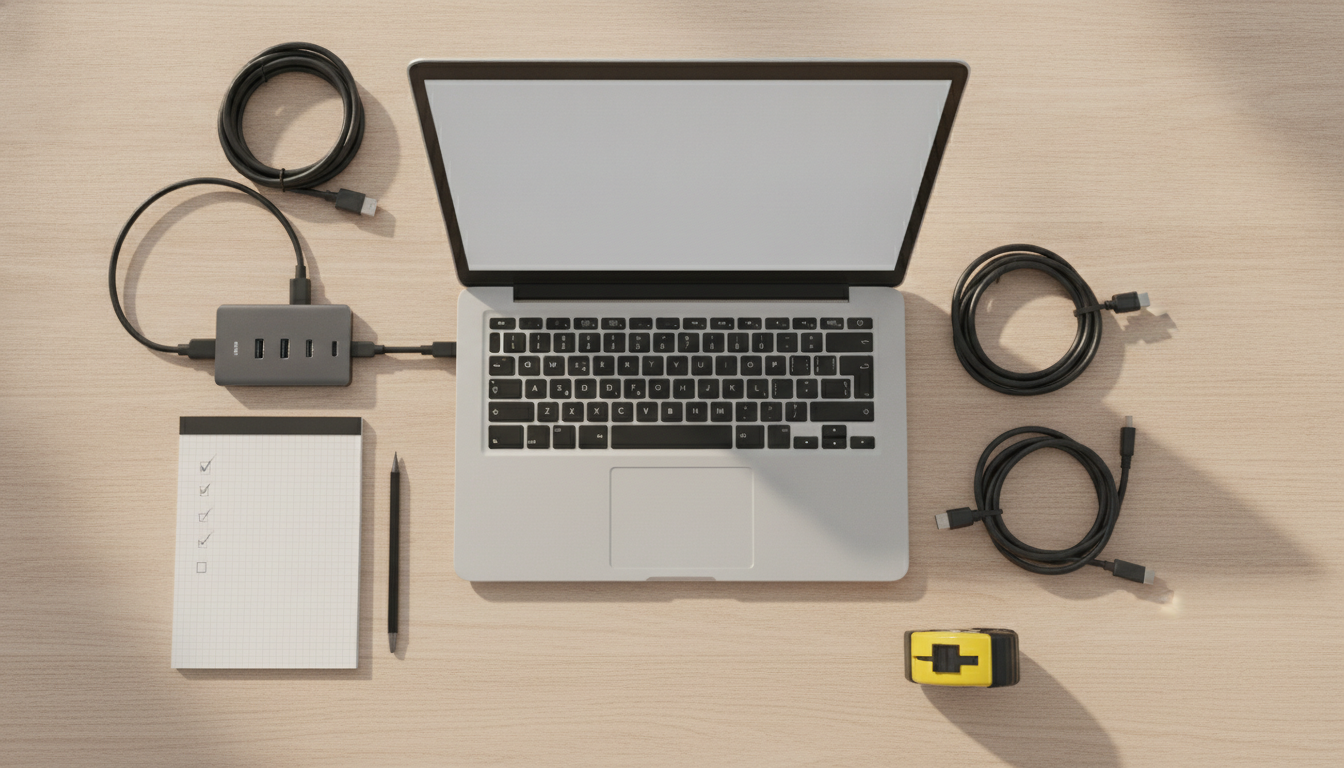
Buying a USB-C hub with HDMI correctly depends on three quick checks on your notebook: confirm if the USB-C port supports DisplayPort Alt Mode or Thunderbolt, check the power of your original charger, and identify which peripherals you’ll connect most frequently.
With these three pieces of information in hand, the buying filter becomes simple. Basic user, with meetings and mouse: any hub from a known brand in the R$ 150 range does the job. Professional working with editing, multiple peripherals, and 4K monitor: invest in something with HDMI 2.0, USB 3.2, and PD of at least 87W. Thunderbolt 4 with dual monitor: we’re already talking about a dock, not a hub.
The 2026 market has good supply in Brazil for all these profiles. The biggest risk is buying based on price without checking specifications, something this guide already puts you ahead of most buyers.