

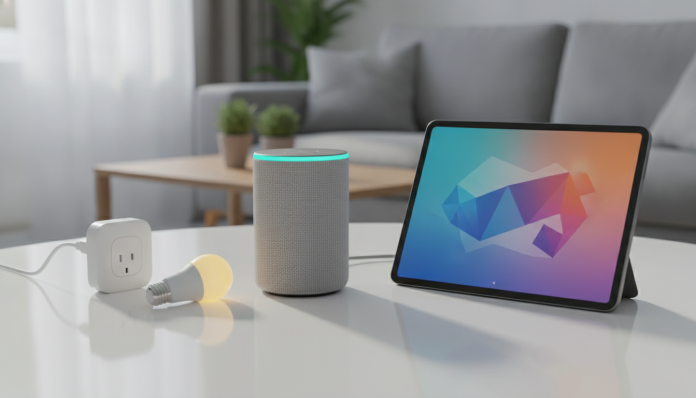

What you’ll achieve by the end of this guide
Connecting Tuya devices to Alexa seems simple, but anyone who’s tried it knows the process has several pitfalls. The binding between the Smart Life application (from the Tuya platform) and Amazon Alexa involves accounts in different ecosystems, and any step out of order results in devices that don’t respond, automations that freeze, or commands ignored by the voice assistant.
This tutorial covers the complete path: from initial setup in Smart Life to the first voice command working on Alexa. You’ll need a smartphone with Android or iOS, an active Amazon account, the Smart Life app installed, and at least one Tuya-compatible device already added to your Wi-Fi network.
What is the Tuya platform and why does it appear in so many products
Before diving into the step-by-step guide, it’s worth understanding what you’re connecting. Tuya Smart is a Chinese company that provides cloud infrastructure and firmware for smart device manufacturers. In practice, this means that a plug from brand X and a bulb from brand Y can be controlled by the same app, as long as both use Tuya technology underneath.
The Smart Life app is the official application for this platform. It appears as an alternative to the Tuya Smart app (the two are virtually identical and share the same infrastructure). Brands like Neo Smart, Kasa in some lines, and dozens of nameless manufacturers sold in Brazil use this ecosystem. If your device requires Smart Life or Tuya Smart during setup, this guide applies to you.
Alexa, in turn, is Amazon’s voice assistant that runs on Echo Dot, Echo Pop, Echo Show, and other devices in the line. Integration happens via a Skill (a type of functionality extension for Alexa, similar to a browser plug-in), which connects your Tuya/Smart Life account to your Amazon account.
Requirements before you start
- Smartphone with Android 8 or higher, or iOS 14 or higher
- Smart Life app installed and updated (version available on Google Play Store and App Store)
- Account created on Smart Life with verified email
- At least one Tuya device already added and working in the app
- An Amazon Echo device or the Amazon Alexa app installed on your phone
- Amazon account with region set to Brazil
- 2.4 GHz Wi-Fi network available (most Tuya devices don’t support 5 GHz)
Step 1: Set up the device in Smart Life
Before any integration, the device needs to be working normally within Smart Life. Many people try to connect to Alexa before this and waste time.
- Open the Smart Life app on your smartphone.
- Tap the “+” button in the upper right corner of the home screen.
- Select the device category (plug, bulb, sensor, camera, etc.).
- Put the device into pairing mode. This is usually done by holding the physical button for 5 to 10 seconds until the LED blinks rapidly.
- Follow the on-screen instructions to connect the device to your 2.4 GHz Wi-Fi network.
- Wait for the connection confirmation and give the device a clear name, such as “Living room lamp” or “Desk plug”. This name is what you’ll use in voice commands later.
After adding, test manually through the app before proceeding. If the device doesn’t respond within Smart Life, integration with Alexa won’t work.
Step 2: Activate the Smart Life Skill in Alexa
With the device working in Smart Life, the next step is to create a bridge between the two ecosystems through the official Skill.
- Open the Amazon Alexa app on your phone.
- In the bottom menu, tap “More” and then “Skills & Games”.
- In the search bar, type “Smart Life”.
- Select the official Skill called Smart Life (developed by Tuya Inc.).
- Tap “Enable to Use”.
- A Smart Life login window will appear. Enter your Smart Life account email and password.
- Authorize access when prompted. The screen will confirm that the binding was successful.
An important detail: the email and password used here must be exactly the same as your Smart Life account where your devices are registered. If you have more than one account (for example, one personal and one for testing), confirm which one has the devices before logging in.
Step 3: Discover devices in Alexa
After activating the Skill, Alexa still doesn’t automatically see what’s in your account. You need to run the discovery process.
- Still in the Alexa app, go to “Devices” (home icon in the bottom menu).
- Tap the “+” and select “Add Device”.
- Scroll to the bottom of the list and choose “Other”.
- Tap “Discover Devices”. The process takes about 45 seconds.
- At the end, Smart Life devices will appear listed in the Alexa Devices tab.
You can also say “Alexa, discover devices” directly to an Echo. The result is the same.
Step 4: Organize devices into groups and test commands
With devices visible in Alexa, organize them into groups (rooms or environments) to make voice control easier.
- In the Devices tab, tap “Groups” and then “Add Group”.
- Choose a room (living room, bedroom, kitchen) or create a custom one.
- Add the devices corresponding to that group.
- Save and test with commands like: “Alexa, turn everything off in the living room” or “Alexa, turn on the bedroom light”.
The names you gave devices in Smart Life are the same ones Alexa will use. If the device is called “Desk plug”, the command will be “Alexa, turn on the desk plug”. Short names without ambiguity work best.
Common problems and how to solve them
The Skill appears, but devices don’t appear after discovery
Confirm that the login made during Skill activation corresponds to the account where the devices are. If in doubt, disable the Skill in Alexa, log out of Smart Life on your phone, log back in, and repeat the binding process.
The device appears in Alexa, but doesn’t respond to the command
Check if the device is online in Smart Life. If it appears offline in the app, the problem is Wi-Fi connection or server, not Alexa integration. Try removing and re-adding the device in Smart Life.
Alexa says “I couldn’t find a device with that name”
The device name in Alexa may be different from what you think. Go to Devices in Alexa, find the item manually and see exactly how it’s named. Rename if necessary directly in the Alexa app.
The device disappears from Alexa after a few days
This usually happens when the Skill session expires or the Smart Life account has authentication issues. Disable and re-enable the Skill to force a new login.
“Region not compatible” error during Skill activation
Confirm that your Smart Life account was created with the correct region (South America or Brazil). Accounts created in the wrong region may have integration issues. In this case, the best option is to create a new account by selecting the correct region from the start and reconfigure the devices.
Frequently asked questions about Tuya Smart Life with Alexa
Do I need an Echo to use Alexa with Smart Life?
Not necessarily. The Amazon Alexa app for Android and iOS allows you to create routines and control devices by text or voice using your phone’s microphone. But for voice control in the environment (without having to pick up your phone), an Echo Dot or Echo Pop is the most practical way. You can compare the level of smart home device integration in guides like this one about robot vacuums with multiple compatibility to understand how different ecosystems behave.
Can I use Google Assistant instead of Alexa with the same Tuya devices?
Yes. The Tuya platform offers integration with both Alexa and Google Home. The process is similar: you activate the Smart Life action in Google Home and log in the same way. The two can coexist on the same Smart Life account without conflict.
Do Tuya devices sold in Brazil have Anatel certification?
It depends on the manufacturer and specific product. Individually imported devices or those sold by unofficial resellers often do not have the Anatel seal, which is mandatory for radio frequency equipment in Brazil. When buying, check the packaging or product specifications. Without certification, use is technically irregular and the device may be seized by Federal Revenue in international purchases.
Do devices continue working if the internet goes down?
Generally, no. The Tuya platform depends on the cloud to process commands, even when your phone and device are on the same local network. Without internet, devices go offline in the app and won’t respond to Alexa. Some newer versions of Tuya firmware offer limited local control, but this isn’t available for all devices. Check the product datasheet to see if it supports “Local Control” before buying, if this is a requirement for you.
Next steps after integration
With everything connected, you can go beyond simple on and off. Alexa allows you to create routines (automatic action sequences triggered by time, voice, or another device) that combine Tuya devices with other Amazon ecosystem devices. For example: when you say “Alexa, goodnight”, it turns off Smart Life lights, locks the lock, and starts a playlist.
If you’re setting up a more complete smart home environment and thinking about including cameras in the system, it’s worth researching compatibility before buying. This comparison between security cameras for home use helps you understand what to look for when choosing.
Tuya integration with Alexa works well for those who have basic devices like bulbs, plugs, and switches. For more complex automations or for those who need robust local control without depending on cloud, it’s worth considering platforms like Home Assistant, which allows you to integrate Tuya devices without going through the company’s servers. But that’s a topic for another guide.