

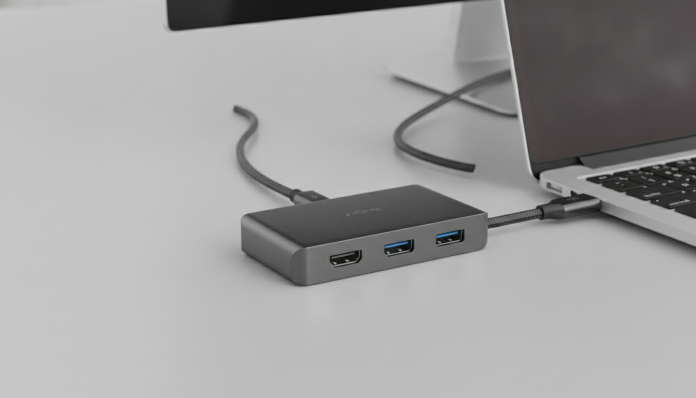

USB-C Hub with HDMI for Laptop: How to Choose the Right One
If you use a modern laptop, you’ve probably encountered the classic situation: too many ports on the external monitor and not enough on your computer. Most ultrabooks launched in recent years have ditched traditional ports in favor of thinness, and the USB-C hub has become an essential piece for anyone who needs to connect an HDMI monitor, a USB drive, an external hard drive, and a charger all at once. The problem is that the market is full of options that look the same in photos but behave very differently in practice.
This guide starts from official specifications and manufacturer technical sheets to help you understand what actually matters when buying a USB-C hub with HDMI output. There is no “best” absolute: there’s what solves your problem with your laptop, at a price that fits your budget.
What is a USB-C hub with HDMI and why does the acronym matter
A USB-C hub works as an extension of your laptop’s single port. You connect a cable to your computer, and the hub expands that connection into multiple inputs: USB-A for common peripherals, HDMI for monitor or TV, SD card slot for cameras and, depending on the model, even an Ethernet port for wired internet.
The detail that most buyers ignore is in the protocols running through that cable. Your laptop’s USB-C port may support USB 3.2, Thunderbolt 4, or simply USB 2.0 depending on the manufacturer and model. A good quality hub connected to a USB 2.0 port will work, but it will deliver 2003-style file transfer speeds. That’s why, before any purchase, you need to open your laptop’s technical sheet and confirm which standard your USB-C port supports.
The DisplayPort Alt Mode is the protocol that allows the hub to transmit video through the USB-C cable. Without this support on your laptop, the hub’s HDMI output simply won’t work. This isn’t written on the hub box; you need to check in the manual or on your computer manufacturer’s website.
HDMI standards that change everything in resolution and refresh rate
The HDMI connector you see on the hub can be very different inside. The standard version determines what you can display on the external monitor.
- HDMI 1.4: supports up to 4K at 30 Hz or 1080p at 120 Hz
- HDMI 2.0: supports up to 4K at 60 Hz, which is the minimum acceptable for serious work
- HDMI 2.1: supports 4K at 120 Hz and up to 8K at 60 Hz; still rare in hubs, but starting to appear in 2025 and 2026 releases
For those using Full HD monitors daily, HDMI 1.4 works without issues. Now, if you have a 4K monitor or use the setup for video editing, requiring at least HDMI 2.0 stops being a whim and becomes a necessity. Cheap hubs from generic brands often omit the HDMI version on the packaging; this omission alone is already a red flag.
Another point that appears in the latest technical sheets is support for MST (Multi-Stream Transport), which allows you to connect two different monitors from a single hub. This feature requires that your laptop have Thunderbolt 3 or later port, and not all hubs with multiple HDMI outputs actually operate in MST; some mirror the same image on both outputs. Check this information explicitly before buying.
Power Delivery: don’t let your laptop die in the middle of work
The acronym PD (Power Delivery) indicates that the hub can pass electrical charge to your laptop while you use the peripherals. Without this feature, you occupy your computer’s only USB-C port with the hub and lose the ability to charge at the same time.
Hubs with PD usually report the maximum pass-through power in watts. The most common standard today is PD 100W, but newer models already reach PD 140W, necessary for high-performance laptops like the MacBook Pro 16″ or gaming laptops that consume more power. The practical rule: take your laptop’s original charger’s maximum consumption and look for a hub with PD at least in that range. According to manufacturer technical sheets, most hubs retain between 10W and 15W for their own operation before passing the rest along.
Transfer speed and impact on daily use
If you transfer large files frequently, mirrorless camera photos, video projects, or external drive backups, the speed of the hub’s USB-A and USB-C ports makes a real difference.
| Standard | Maximum theoretical speed | Typical use case |
|---|---|---|
| USB 2.0 | 480 Mb/s | Keyboard, mouse, simple USB drive |
| USB 3.2 Gen 1 | 5 Gb/s | External hard drive, cameras, slow SSDs |
| USB 3.2 Gen 2 | 10 Gb/s | Fast external SSD, 4K cameras |
| Thunderbolt 4 | 40 Gb/s | External NVMe SSDs, professional docks |
Popular hubs in the R$ 150 to R$ 300 range in Brazil typically have USB 3.2 Gen 1 on data ports, which is sufficient for most users. If you edit video with an external SSD, you’ll want USB 3.2 Gen 2 or even a Thunderbolt dock, which is a different product, more expensive and more complete.
What to consider in the Brazilian context: homologation, warranty and importing
In Brazil, equipment with wireless transmission (Wi-Fi, Bluetooth) need Anatel homologation to be legally commercialized. Hubs that are purely wired, with no internal radio, don’t fall under this requirement, but many more complete docks already include Wi-Fi 6 or Bluetooth and require the seal. Before importing a hub from American or Asian sites, confirm whether the product has an Anatel homologation number or if it even needs one.
The legal warranty in Brazil is 90 days for durable products purchased from national retailers, but brands like Anker, Baseus, Belkin and Kingston usually offer extended warranties of 12 to 18 months on their products with technical support in the country. When importing on your own via international sites, you bear the risk of having no local support and may still pay import tax depending on the declared value.
Brands with good presence and support in Brazil in 2026 include Anker, Baseus, Belkin, j5create and Kingston. Models from no-name brands sell cheap, but the technical sheet is usually vague or nonexistent, making it impossible to know what you’re actually buying.
If you’re building a more complete work setup and thinking of comparing other accessories, like smartwatches to track productivity, it can be useful to check a comparison like Amazfit Bip 6 or Active 2: which smartwatch to buy? to understand how to evaluate cost-benefit in technology accessories in general.
Price range and what to expect from each category
Hubs in Brazil vary widely in 2026. The table below is a general reference; prices fluctuate with exchange rates and promotions.
| Range (BRL approximate) | What to expect to find |
|---|---|
| R$ 80 to R$ 150 | 4 to 5 ports, HDMI 1.4, USB 3.2 Gen 1, no PD or PD 60W |
| R$ 150 to R$ 300 | 7 to 9 ports, HDMI 2.0, USB 3.2 Gen 1, PD 100W, SD reader |
| R$ 300 to R$ 600 | 10+ ports, dual HDMI 2.0, USB 3.2 Gen 2, PD 100W, Gigabit Ethernet |
| Above R$ 600 | Thunderbolt 4 docks, multiple monitors, PD 140W |
In the US, hubs in the mid-range are typically launched between US$ 40 and US$ 80. The price difference in Brazil reflects taxes and importer margin.
Frequently asked questions about USB-C hub with HDMI
Does the hub work on any laptop with a USB-C port?
Not necessarily. The hub requires that your laptop’s USB-C port support DisplayPort Alt Mode for the HDMI output to work. Laptops with a USB-C port that only charges and transfers data won’t be able to transmit video through the hub. Check your computer’s technical sheet before buying.
Can I use a USB-C hub on an iPad or Android tablet?
Yes, with limitations. Tablets with USB-C and DisplayPort Alt Mode support, like the iPad with M-series chip or the Galaxy Tab S10 FE, can use the HDMI output from many hubs. Support for PD and USB-A ports varies by operating system; check specific compatibility with the hub manufacturer. For comparisons between tablets, an article like iPad 11 vs Galaxy Tab S10 FE: Which Tablet Should You Buy? can help you understand the differences in connectivity between devices.
Are hub and dock the same thing?
Not exactly. A hub is powered by the laptop itself and tends to be compact and portable. A dock (docking station) usually has its own power supply, more ports and support for advanced features like Thunderbolt. For fixed use on the desk, the dock is more robust; for those who travel, the hub is more practical.
Does the hub get hot and can it damage the laptop?
Quality hubs have overcurrent and overheating protection circuits. Generic models without certifications can be a risk. According to technical sheets from known brands, internal components operate within safe temperature ranges. A hub that gets too hot to touch is already a sign of undersized components.
The final decision depends on your laptop and your use
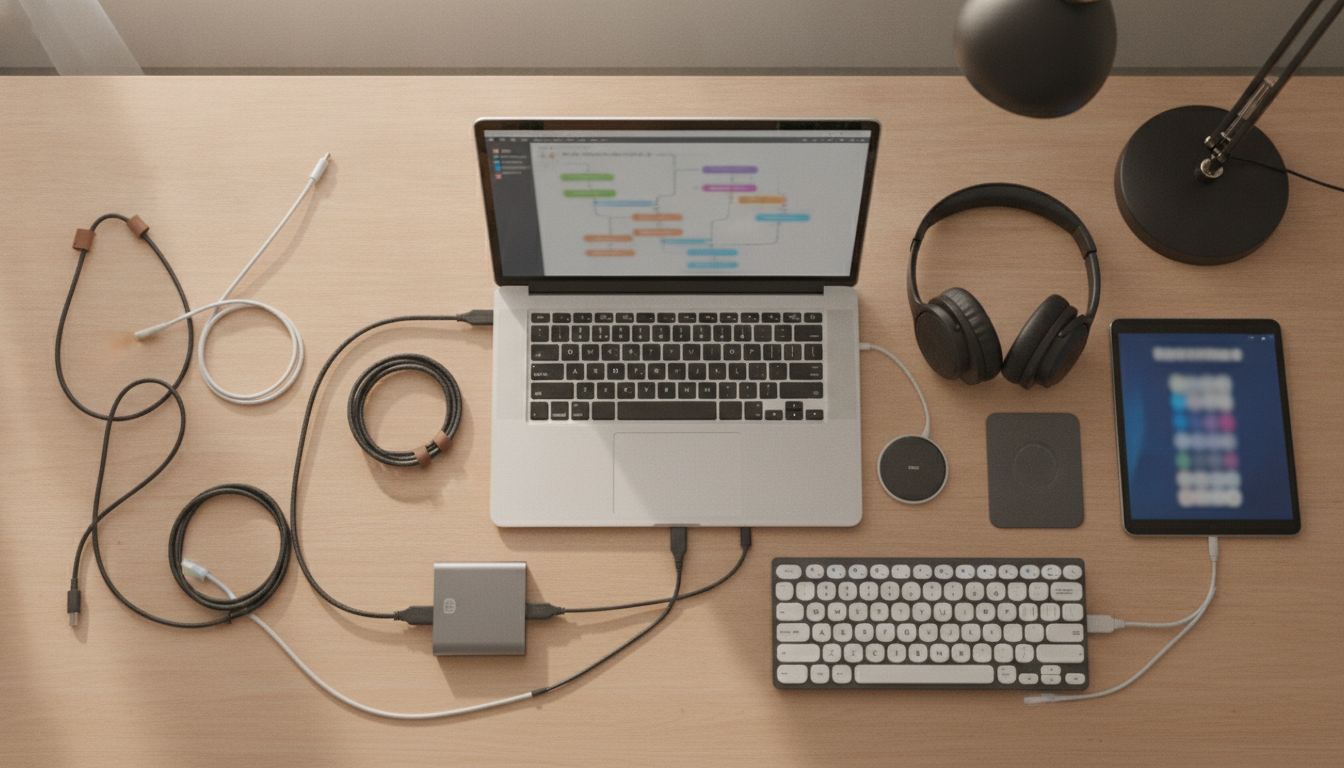
Before buying any hub, do two simple checks: confirm that your laptop’s USB-C port supports DisplayPort Alt Mode, and decide what resolution and refresh rate you need on the external monitor. With those answers in hand, you’ve already automatically eliminated half of the bad options.
For simple home and home office use, a hub with HDMI 2.0, USB 3.2 Gen 1, PD 100W and SD reader in the R$ 150 to R$ 300 range from a known brand works well. For professional setup with 4K monitor, intensive file transfer or multiple screens, it’s worth considering a Thunderbolt dock and a budget above R$ 600. The cheap hub without a clear technical sheet isn’t savings; it’s buying the problem along with the product.