

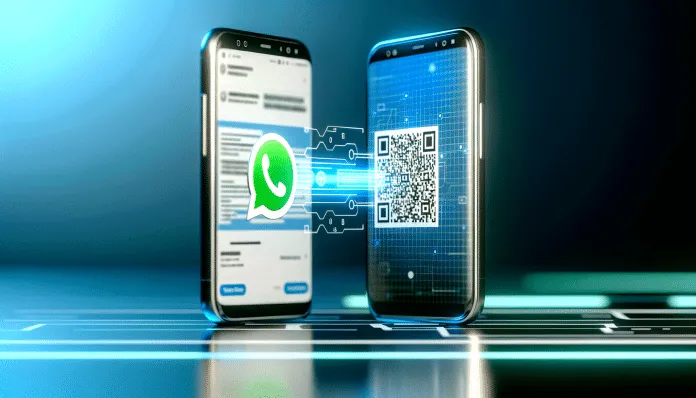

Switching phones can be stressful, especially when it comes to preserving all your important WhatsApp conversations. Knowing how to transfer WhatsApp to another phone correctly ensures that no messages, photos, or videos are lost during the process. Firstly, the method varies drastically depending on the operating systems involved: Android to Android, iPhone to Android, or Android to iPhone.
Moreover, each scenario has specific technical requirements that need to be met to ensure a successful transfer. On the other hand, ignoring these specifications can result in the complete loss of conversation history, an irreversible situation in most cases.
Before Transferring: What You Need to Know
However, before starting any transfer process, some preparations are essential to avoid future problems. Similarly, understanding the basic requirements can save hours of frustration.
Essential Requirements for Any Transfer
Consequently, all transfer methods require minimum conditions that must be checked beforehand:
- Both devices must be connected to the same Wi-Fi network
- Battery above 70% on both devices
- Sufficient space on the destination phone (at least 2GB free)
- WhatsApp updated to the latest version on both devices
- Active and accessible phone number for verification
Thus, checking these items beforehand prevents interruptions in the middle of the process. In this context, freeing up space on the phone may be necessary before proceeding.
How to Backup WhatsApp Before Switching
Indeed, creating a backup is the most important safety measure before any transfer. Therefore, the process varies according to the operating system:
For Android, go to Settings > Chats > Chat backup > Back up. Conversely, on iPhone, go to Settings > Chats > Chat backup > Back up now.
Still, cloud backup (Google Drive for Android, iCloud for iPhone) only works between devices of the same operating system. Thus, cloud backups are not suitable for transfers between different systems.
Android to Android: The Simplest Method

Firstly, transferring between Android devices is the most straightforward and reliable process currently available. On the other hand, there are multiple options depending on the brand of the devices involved.
Using QR Code Transfer (Recommended)
Consequently, the official QR Code method has become standard since 2023. However, both devices need to be close throughout the process:
- On the old device, open WhatsApp and go to Settings > Chats > Transfer chats
- Select “To Android” and choose the QR Code option
- On the new device, install WhatsApp but do not configure it yet
- During initial setup, select “Import chats”
- Use the camera to scan the QR Code displayed on the old device
- Wait for the transfer to complete (it may take up to 30 minutes)
Additionally, Samsung devices offer an alternative through Smart Switch, which transfers not only messages but also custom stickers and specific WhatsApp settings.
Method Average Time Data Transferred Requirements QR Code 5-30 minutes Messages, media, settings Same Wi-Fi Samsung Smart Switch 10-45 minutes Everything + custom stickers Samsung devices Google Drive Backup Variable Messages, some media Same Google account iPhone to Android: USB-C Cable Required
However, transferring from iPhone to Android presents more specific requirements and important technical limitations. Therefore, the process requires careful preparation and appropriate equipment.
Mandatory Technical Specifications
Firstly, the destination Android must run version 12 or later to support data coming from iOS. Consequently, older devices cannot receive these transfers:
- USB-C to Lightning cable (iPhone 14 and earlier)
- USB-C to USB-C cable (iPhone 15 and later)
- Android 12+ on the destination device
- iOS 15.5+ on the source iPhone
- WhatsApp for Android version 2.22.7.74 or higher
Similarly, the process needs to be initiated during the initial setup of the Android. Thus, if the Android device is already set up, a factory reset will be necessary:
- Connect the devices with the appropriate cable
- During Android setup, select “Copy data from iPhone”
- On the iPhone, confirm the transfer when prompted
- Keep the devices connected until completion (30-90 minutes)
However, this method does not work with all Android models. In this context, devices from brands like Xiaomi, Realme, and some versions of Samsung may present incompatibilities.
Android to iPhone: Factory Reset Required
On the other hand, transferring from Android to iPhone is even more restrictive. Consequently, the iPhone needs to be completely reset to receive WhatsApp data.
Additionally, the process only works through Apple’s “Move to iOS” app, available on the Google Play Store. Thus, the complete procedure includes:
- Make a full backup of the current iPhone (if applicable)
- Perform a factory reset on the iPhone
- Install “Move to iOS” on the Android
- During initial iPhone setup, select “Move data from Android”
- Follow the on-screen instructions keeping devices close
- Wait for the transfer to complete (45-120 minutes)
Still, success is not guaranteed in 100% of cases. In fact, connectivity issues or version incompatibilities can interrupt the process, forcing a complete restart.
In this context, many users opt to accept the loss of history and start “from scratch” on the iPhone, considering only the backup of contacts and other non-WhatsApp-related information.
Troubleshooting Transfer Issues
However, the process does not always occur without incidents. Therefore, knowing the solutions to common problems can save time and avoid unnecessary frustrations.
Backup Not Found or Data Lost
Firstly, when the backup does not appear on the new device, some checks can resolve the situation:
- Confirm if the same account (Google or Apple ID) is being used
- Check if the backup was completed fully on the old device
- Wait up to 24 hours for cloud synchronization
- Try restoring an older backup if available
Similarly, unstable internet connections can corrupt backups during upload. Consequently, using a stable Wi-Fi and waiting for completion confirmation is essential.
Additionally, insufficient space in the cloud (Google Drive/iCloud) can prevent complete backups. Thus, checking available space and freeing unnecessary files can solve the problem.
Changing Numbers: How to Proceed

On the other hand, switching devices and numbers simultaneously requires a specific sequence of actions. Consequently, the incorrect order can result in total data loss.
Firstly, the number change must be done before the device transfer. Thus, the correct process includes:
- With the new SIM already active, open WhatsApp on the current device
- Go to Settings > Account > Change number
- Enter the old and new numbers as requested
- Wait for confirmation via SMS on the new number
- Only then perform the transfer to the new device
However, skipping this step and trying to set up WhatsApp directly on the new device with a different number will result in a completely new account, losing all previous history.
In this context, connectivity between devices can be useful to verify if the transfer was successful before discarding the old device.
Frequently Asked Questions
How long does it take to transfer WhatsApp from one phone to another?
The time varies depending on the method used and the volume of data. Android-Android transfers via QR Code take between 5 to 30 minutes. Transfers between different systems (iPhone-Android or vice versa) can take from 45 minutes to 2 hours, depending on the amount of messages and media.
Can I transfer WhatsApp if I change my phone number?
It is not possible to transfer WhatsApp directly to a different number. First, you must change the number on the current account through Settings > Account > Change number. Only after confirming the number change can you transfer to the new device.
What to do if the WhatsApp backup does not appear on the new phone?
Check if you are using the same account (Google or Apple ID) on both devices. Confirm if the backup was completed fully on the old device and wait up to 24 hours for synchronization. If the problem persists, try restoring an older backup available in the cloud.
Do I need to uninstall WhatsApp on the old phone before transferring?
It is not necessary to uninstall before the transfer, but it is recommended after confirming that all data has been transferred correctly. Keeping WhatsApp active on two devices simultaneously can cause synchronization conflicts and message receipt issues.
Can I transfer only some WhatsApp chats to the new phone?
There is no official option for selective chat transfer. WhatsApp transfers the entire history or nothing. The only alternative is to export specific chats as a text file through the “Export chat” option, but this does not maintain the full functionality of messages on the new device.
Thus, understanding how to transfer WhatsApp to another phone correctly avoids losing important data and ensures continuity in communications. Therefore, following the specific methods for each type of transfer and checking all requirements beforehand are fundamental steps for the success of the process.
Artigos Mais Recentes
Você pode gostar
Sua fonte confiável de notícias no Brasil. Estamos comprometidos em trazer para você reportagens atualizadas, análises aprofundadas e coberturas exclusivas dos principais acontecimentos do Brasil e do mundo. Siga-nos para estar sempre informado.
© 2024 Tecnologia e Gadget - Todos os direitos reservados.