

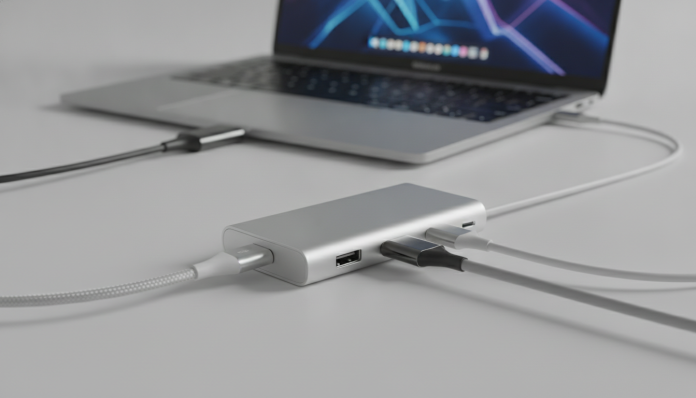

When your laptop has only two ports and life demands ten
You buy an ultra-thin notebook, open it in the first week and already face the problem: two USB-C ports, no USB-A, no SD card slot, HDMI gone from the equation. It’s the standard scenario for much of the laptops launched in recent years, from MacBooks to Windows models like the Dell XPS and Samsung Galaxy Book. The promise of lightness comes at a price, and that price is usually paid in ports.
The USB-C hub exists precisely to solve this. In simple terms, it’s a kind of extension that takes a single USB-C port from your notebook and transforms it into several different outlets: USB-A, HDMI, card reader, ethernet and even passthrough charging (when the hub relays the charge to the notebook while you use the other connectors). The short answer to “is it worth it?” is yes, for most users with few-port notebooks, but with important caveats that depend on the type of hub and what you need to do.
This article is not a review of a specific model, but a complete buying guide for the category, based on public technical specifications and what manufacturers like Anker, Baseus, Ugreen and Belkin officially disclose. If you’re unsure whether to buy a simple hub or a complete dock station, or if you need to understand what the numbers on the box really mean, keep reading.
Fact sheet: what USB-C hubs deliver in practice
The table below shows what you’ll find in the specifications of the main categories of hubs available in Brazil in 2026. Prices are approximate and vary by store, exchange rate and promotions.
| Feature | Basic Hub (5-in-1) | Intermediate Hub (7-in-1) | Dock Station (12+ ports) |
|---|---|---|---|
| USB-A Ports | 2 to 3 (USB 3.0) | 3 to 4 (USB 3.0) | 4+ (USB 3.0/3.2) |
| Video Output | HDMI 4K/30Hz | HDMI 4K/60Hz | HDMI + DisplayPort 4K/60Hz |
| SD/microSD Reader | No or 1 slot | SD + microSD | SD + microSD + CF |
| Ethernet | Rarely | Gigabit (1 Gbps) | 2.5 Gbps |
| Passthrough Charging | Up to 60W | Up to 87W to 100W | Up to 140W |
| Own Power Supply | No (bus-powered) | Optional | Yes (external power supply) |
| Price in Brazil | R$ 80 to R$ 180 | R$ 200 to R$ 450 | R$ 600 to R$ 1,800 |
| Launch Price in the US | US$ 20 to US$ 40 | US$ 45 to US$ 90 | US$ 120 to US$ 300 |
What the USB-C standard and Thunderbolt change in the equation
Here’s the point that confuses the most when buying. USB-C is the format of the connector (that oval and reversible plug), but it says nothing about speed or supported features. A USB-C cable can transmit data at 480 Mbps (USB 2.0) or 40 Gbps (Thunderbolt 4), depending on what the notebook and cable support. It’s like an outlet: the format is the same, but the wire gauge inside changes everything.
If your notebook has a Thunderbolt 4 or USB4 port, you can use more advanced hubs and enjoy 4K video at 60 frames per second, data speeds up to 40 Gbps, and simultaneous charging without throttling (forced performance reduction). If the port is USB-C with USB 3.2 Gen 1 (5 Gbps), most hubs will work, but you may find limitations on 4K monitors above 30Hz or when transferring large files in parallel.
The practical tip is simple: before buying the hub, open your notebook’s technical sheet and look for exactly what each USB-C port supports. Manufacturers like Apple, Dell and Lenovo usually list whether the port is Thunderbolt 3, Thunderbolt 4 or USB4. This information determines the ceiling of what any hub will be able to do, regardless of how much you spend on it.
Real performance: transfer speed, video and charging
In terms of data transfer, a hub connected to a USB 3.2 Gen 1 port (5 Gbps) will split that bandwidth between all active ports. If you’re copying a file from an external SSD on one port and running a mouse on another, the impact is minimal. But if you connect two fast SSDs and transfer from both at the same time, you’ll notice the speed drops, because the notebook’s port is the bottleneck, not the hub.
For video, the most critical point is the HDMI output. Cheaper hubs generally deliver HDMI 4K at 30Hz (hertz is the image refresh rate per second; 30Hz is noticeably slower for moving windows and is bad for video or game work). For comfortable 4K productive use, look for hubs with HDMI that supports 60Hz or higher, which usually requires Thunderbolt on the notebook. Checking this specification on the product box is essential, because lesser-known brands sometimes advertise “4K support” without specifying the refresh rate.
The passthrough charging deserves special attention. Almost all modern hubs offer it, but the supported wattage varies. A 16-inch MacBook Pro, for example, requires up to 140W to charge at full speed. If the hub supports only 60W of passthrough, the notebook may charge more slowly than it discharges during intensive use. Check the maximum wattage supported by the hub and compare it with your notebook’s original adapter.
Hubs with and without their own power supply: when each makes sense
A bus-powered hub (powered by the notebook itself) is practical and doesn’t need an extra outlet. It works well for light use: mouse, keyboard, flash drive, card reader. The problem appears when you connect devices that consume more power, such as an external SSD with a mechanical hard drive, a camera, or two monitors. In that case, the hub can become unstable, with devices randomly disconnecting.
Hubs and docks with their own power supply via external power solve this problem by bringing independent power to the ports. They’re more robust for desktop use, in fixed setups. The obvious disadvantage is that you lose portability: you now have to carry a power supply. For those who work from home or have a fixed office, this is the best choice if the budget allows.
If you’re the type to take your notebook to cafes, coworking spaces and travels, a quality 7-in-1 intermediate hub, like those from the Anker 552 line or Ugreen Revodok (check current availability before buying), tends to be the balance point between portability and functionality. For a more complete setup, those who use the notebook for video editing without stuttering will benefit much more from a dock station with its own power supply and stable Thunderbolt connection.
Situation in Brazil: import, Anatel and warranty
In Brazil, most USB-C hubs sold do not go through the Anatel homologation process (the telecommunications regulatory agency), because technically most are classified as computer accessories without a radiofrequency module. But hubs with integrated Wi-Fi or Bluetooth need homologation, and you should check the Anatel number on the packaging or on the agency’s website before buying.
Importing via international sites like AliExpress and Amazon US can reduce the price by 30% to 50%, but involves risk of taxation at customs (import taxes for products over US$ 50 sent by a legal entity) and complicated warranty. In case of defect, returning it abroad is troublesome and expensive. Buying from national stores like Kabum, Amazon Brazil, Pichau and Americanas guarantees an invoice, minimum 1-year warranty under the Consumer Protection Code and Portuguese-language support.
Brands like Anker, Ugreen, Baseus and Belkin have representation and support in Brazil in 2026, with products available in physical and online stores. Always check if the seller is official or an authorized reseller, especially on marketplaces, so you don’t buy a product without national warranty.
Pros and cons of the category
Pros:
- Significantly expands connectivity options without modifying the notebook
- Intermediate models are portable and fit in any bag
- Passthrough charging eliminates the need to disconnect the charger when using the hub
- Relatively low cost compared to the benefit for daily use
- Wide compatibility with virtually any USB-C notebook
Cons:
- The notebook’s USB-C port is the bottleneck: an expensive hub doesn’t overcome hardware limitations
- Low-quality hubs cause overheating, instability and port damage
- Passthrough charging at insufficient wattage may charge the notebook slower than normal
- Bus-powered hubs can be unstable with multiple high-demand devices connected
- Some manufacturers inflate specifications (like “4K” without indicating Hz); requires attention when purchasing
Competitors and alternatives in Brazil
| Product | Ports | Highlight | Price Range (Brazil) |
|---|---|---|---|
| Anker 552 USB-C Hub (7-in-1) | USB-A x3, HDMI, SD, microSD, USB-C | Good reputation for quality and stability | R$ 250 to R$ 350 |
| Ugreen Revodok 105 | USB-A x3, HDMI 4K/60Hz, SD, microSD, Ethernet | HDMI 60Hz at affordable price | R$ 220 to R$ 320 |
| Baseus Multifunctional Hub | USB-A x3, HDMI, SD, USB-C PD | Good cost-benefit ratio, available in Brazil | R$ 180 to R$ 280 |
| Belkin Connect USB-C 7-in-1 | USB-A x2, USB-C, HDMI, SD, microSD, Ethernet | Brand with consolidated support in Brazil | R$ 380 to R$ 500 |
| CalDigit TS4 (Thunderbolt 4 dock) | 18 ports, 2.5GbE, DP, USB4 | Best dock for professionals with Thunderbolt | R$ 1,400 to R$ 1,800 |
Before finalizing the purchase, confirm current availability and prices in stores, as the exchange rate directly affects the prices of imported products.
Frequently asked questions about USB-C hubs
Does a USB-C hub work with any notebook?
Yes, as long as the notebook has at least one USB-C port. Compatibility in terms of physical connection is universal. What varies is performance: notebooks with Thunderbolt 4 or USB4 benefit more from advanced hub features than models with simpler USB-C.
Does a USB-C hub damage the notebook’s port?
In normal use, no. The risk exists with very low-quality hubs that don’t respect voltage and current limits, especially on passthrough charging. Opting for well-known brands and checking if the product has USB-IF certification (the international body that validates USB products) significantly reduces this risk.
Can I use two monitors with a USB-C hub?
It depends on the notebook and the hub. For two simultaneous external monitors, the notebook needs to support MST (Multi-Stream Transport, which is the ability to split the video signal to multiple monitors) via Thunderbolt or DisplayPort. MacBooks with Apple Silicon, for example, have native limitations in this feature that even the best hub in the world can’t overcome. Read your notebook’s technical sheet before buying.
Is it more worth it to buy a hub or a dock station?
It depends on your usage style. If you take your notebook to various places, a compact 7-in-1 hub solves most situations. If you have a fixed setup and need two monitors, gigabit ethernet and simultaneous high-power charging, a dock station with its own power supply is worth the larger investment.
For whom the USB-C hub is worth it (and for whom it’s not)

If you have a notebook with two USB-C ports and use an external monitor, external hard drive, or SD card regularly, a quality intermediate hub is one of the best accessory investments you can make. The cost is low, the difference in your daily life is immediate, and the product doesn’t become obsolete quickly.
Now, if you only use the notebook for browsing and streaming, without connecting anything besides the charger, you probably don’t need a hub at all. And if your workflow involves two 4K monitors, video editing, and large data transfers, skip the basic hubs and go straight for a Thunderbolt dock station with its own power supply. Midway between the simple hub and the complete dock, there’s a universe of options that covers most Brazilian professionals and enthusiasts well.
Recommended for: users of ultra-thin notebooks with few ports who connect external monitors, USB-A peripherals and SD cards frequently; those who work from home and want to centralize connections without cluttering the desk with several adapters.
Price range: R$ 180 to R$ 450 for quality portable hubs; R$ 600 to R$ 1,800 for docks with their own power supply. Prices vary according to exchange rate and promotions.