

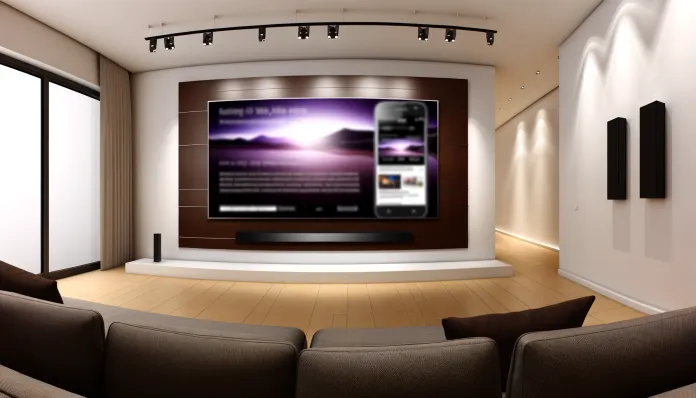

Knowing how to connect your phone to your TV has become a basic necessity for enjoying content on a big screen. In 2026, there are four main methods that work universally, ranging from wireless connections to traditional cables. This way, anyone can mirror their smartphone screen on the television, regardless of the brand or model of the device.
Moreover, technological advancements have brought faster and more stable solutions for this connection. On the other hand, each method has specific advantages depending on the available equipment and the desired quality of transmission.
The 4 Main Methods to Connect Your Phone to Your TV
There are four proven ways to establish this connection, each with its own implementation and compatibility characteristics.
1. Via Wi-Fi (Miracast/Screen Mirroring)
Miracast is the most common native solution in Android devices 4.3 or higher. Firstly, both the phone and the TV must be connected to the same Wi-Fi network. However, the activation process varies according to the television manufacturer.
To activate on Android:
- Go to Settings > Display > Cast Screen
- Select the available TV from the list
- Wait for automatic pairing
On iPhone, AirPlay works similarly, but requires TVs compatible with Apple’s protocol. Consequently, many Smart TVs from 2020 onwards already offer native support.
2. Using Chromecast or Similar Devices
Google Chromecast remains one of the most versatile options for mirroring. Additionally, the Google TV app allows you to stream videos directly after entering the pairing code displayed on the television.
Setup process:
- Connect the Chromecast to the TV’s HDMI input
- Download the Google Home app on your phone
- Follow the pairing instructions
- Select “Cast Screen” for full mirroring
Similarly, devices like Amazon Fire TV Stick and Roku also offer equivalent functionalities with their respective apps.
3. Via HDMI Cable/Adapter
Wired connection ensures the best image quality and lowest latency. On the other hand, it requires specific adapters depending on the smartphone’s input.
Types of necessary adapters:
- USB-C to HDMI (modern smartphones)
- MHL to HDMI (older Android devices)
- Lightning to HDMI (iPhone)
However, not all devices support video output via cable. Therefore, check the technical specifications before purchasing.
4. Mirroring Apps
Specialized applications offer additional functionalities for wireless connection. However, they only work on Smart TVs with internet access.
Most efficient apps:
- SmartThings (Samsung)
- LetsView (universal)
- TV Cast for LG webOS
- Screen Mirroring (multiplatform)
Similarly, these apps often offer virtual remote controls and direct file transfer.
Quick Guide by TV Brand
Each manufacturer implements specific features that facilitate connection with smartphones.
Samsung, LG, Sony, and Philips
Samsung TVs use the “Smart View” feature accessible through the Android notification panel. Additionally, the SmartThings app offers complete control of the television via smartphone.
In contrast, LG offers “Screen Share” integrated into the main menu for Android and native AirPlay support for iPhone. Thus, the process becomes more straightforward without the need for additional apps.
On the other hand, Sony TVs activate Miracast through the “Input” button on the remote control, followed by the “Screen Mirroring” option in the menu. Consequently, the connection is automatically established after selection.
Philips televisions support “Wireless Screen/Monitor” via the Source button on the remote control for Android. However, they also include native AirPlay for Apple devices.
Brand Native Feature Recommended App iPhone Compatibility Samsung Smart View SmartThings AirPlay LG Screen Share LG ThinQ Native AirPlay Sony Miracast Google Home AirPlay (2019+ models) Philips Wireless Monitor Philips TV Remote Native AirPlay In this context, brands like AOC and TCL also use the Google Home app for transmission via integrated Chromecast.
Common Problems and Solutions
Even with current technology, some obstacles can prevent proper connection between devices.
The most common issue involves devices connected to different Wi-Fi networks. In fact, many homes have separate 2.4GHz and 5GHz networks, causing connection incompatibility.
Solutions for network issues:
- Ensure both devices are on the same network
- Restart the router and wait 30 seconds
- Temporarily disable the 5GHz network if there is a conflict
- Bring the phone closer to the TV during initial pairing
Still, interference from other devices can affect transmission quality. Therefore, turn off nearby Bluetooth devices during use.
Additionally, older TVs may have protocol limitations. In contrast, HDMI adapters offer a universal solution for these cases. To optimize your phone’s performance during mirroring, check our guide on how to free up space on your phone.
Which Method to Choose for Your Situation
The ideal method choice mainly depends on the available equipment and the desired transmission quality.
For maximum quality and no latency, HDMI cable connection remains superior. However, it limits mobility and requires specific adapters for each type of smartphone.
Firstly, users prioritizing convenience should opt for native Miracast or AirPlay. Similarly, these solutions work without additional equipment on modern Smart TVs.
On the other hand, Chromecast offers greater versatility for streaming specific content. Consequently, it allows using the phone for other tasks while playing videos on the television.
In this context, mirroring apps serve as an alternative when native methods fail. Still, they may present higher latency compared to integrated solutions.
For a complete connectivity experience, also consider setting up regular backups of your phone before making network configuration changes.
Thus, any user can enjoy smartphone content on the big screen, choosing the method best suited to their specific needs.
Frequently Asked Questions
Why won’t my phone connect to the TV even on the same Wi-Fi network?
The problem is usually related to network isolation activated on the router or incompatibility between 2.4GHz and 5GHz bands. Additionally, check if the TV’s firewall is blocking mobile device connections. Restart both devices and try again.
What is the easiest way to connect an iPhone to a Samsung TV?
Samsung included native AirPlay support in TVs from 2018 onwards. Thus, simply access the iPhone’s Control Center, tap “Screen Mirroring,” and select your Samsung TV. However, both devices must be on the same Wi-Fi network.
Do I need a special app to mirror my Android to the TV?
Not necessarily. Android has native Miracast since version 4.3, accessible in Settings > Display > Cast. On the other hand, apps like SmartThings or LetsView may offer additional functionalities depending on the TV brand.
Does Miracast mirroring work on TVs from 10 years ago?
TVs from 2014 or earlier rarely have integrated Miracast. Consequently, you will need to use HDMI adapters or devices like Chromecast connected to the TV’s HDMI input to establish the connection.
Can I connect my phone to the TV using mobile data, or does it require Wi-Fi?
Wireless methods like Miracast and AirPlay require a local Wi-Fi network, they do not work with mobile data. However, HDMI cable connection is independent of the internet, transmitting directly from the smartphone to the TV.
Artigos Mais Recentes
Você pode gostar
Sua fonte confiável de notícias no Brasil. Estamos comprometidos em trazer para você reportagens atualizadas, análises aprofundadas e coberturas exclusivas dos principais acontecimentos do Brasil e do mundo. Siga-nos para estar sempre informado.
© 2024 Tecnologia e Gadget - Todos os direitos reservados.